

LIBRARY 2.36Microsoft 365 Security Library
How to Control Who Can Run Content Searches in Microsoft 365
eDiscovery and content search can search every mailbox and site in the company and export the results. That’s essential for legal holds and investigations, and dangerous in the wrong hands. Here is how to see who has it and keep it tight.
Reviewed by Ali Hassani, C|CISO, CISSP · Last verified November 20, 2026
Microsoft lists Microsoft 365 E3 or E5 licensing for working with eDiscovery cases; reviewing who holds the roles works on any plan (Microsoft Learn).
In one minute
- List members of the eDiscovery Manager role group and eDiscovery Administrators.
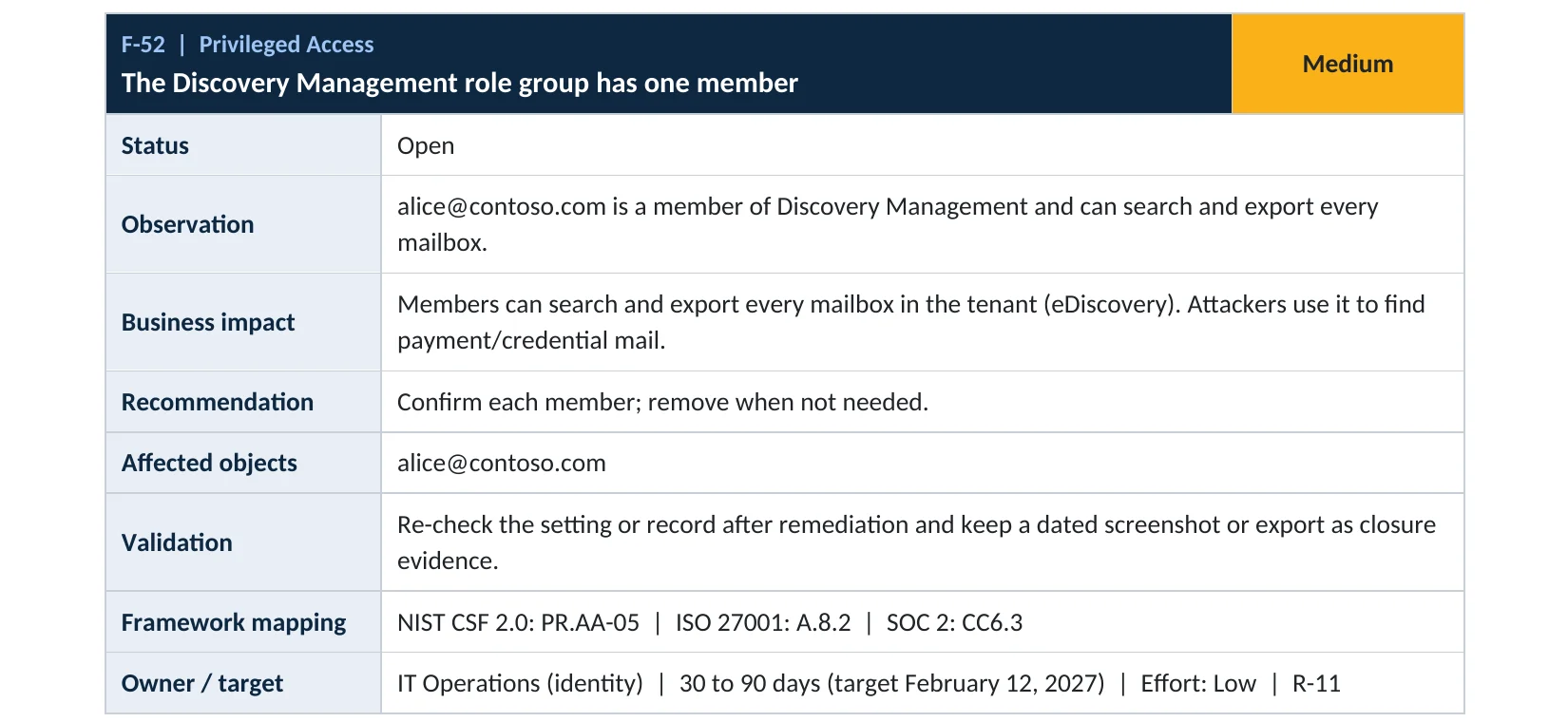
- List members of the Exchange Discovery Management role group.
- Remove anyone without a current legal or compliance need.
- Review searches created and exported in the audit log.
Search and export rights are part of the privileged access checks in our Microsoft 365 Security Audit.
What it is
What eDiscovery and content search can do
Microsoft describes the eDiscovery Manager role group as able to search content locations across the organization, preview results and export them; an eDiscovery Administrator can also see and manage every case (Microsoft Learn).
The roles that can search everything
| Role or group | Where | What it allows |
|---|---|---|
| eDiscovery Manager | Microsoft Purview | Search, preview and export; manage own cases |
| eDiscovery Administrator | Microsoft Purview | Everything above, plus every case in the organization |
| Discovery Management | Exchange Online | Mailbox search across the organization |
| Organization Management and global admins | Purview and Exchange | Can add people, including themselves, to these groups |
Microsoft notes that in the current Purview portal, all content search features sit in a system case available to every member of the eDiscovery Manager and Administrator role groups (Microsoft Learn).
Why it matters
The fastest way to read a whole company’s mail
- Admin or compliance account taken overPassword and MFA phished.
- Content search: invoice OR wireEvery mailbox, one query.
- Only legal holds the roleSearch denied.
- Results exportedWithout it: payment details collected.
- Targeted invoice fraudBusiness email compromise.
Drawing: where tight search rights break the path.
lost to business email compromise in 2024, the FBI reports.
Source: CyberScoop on FBI IC3business email compromise complaints to the FBI in 2024.
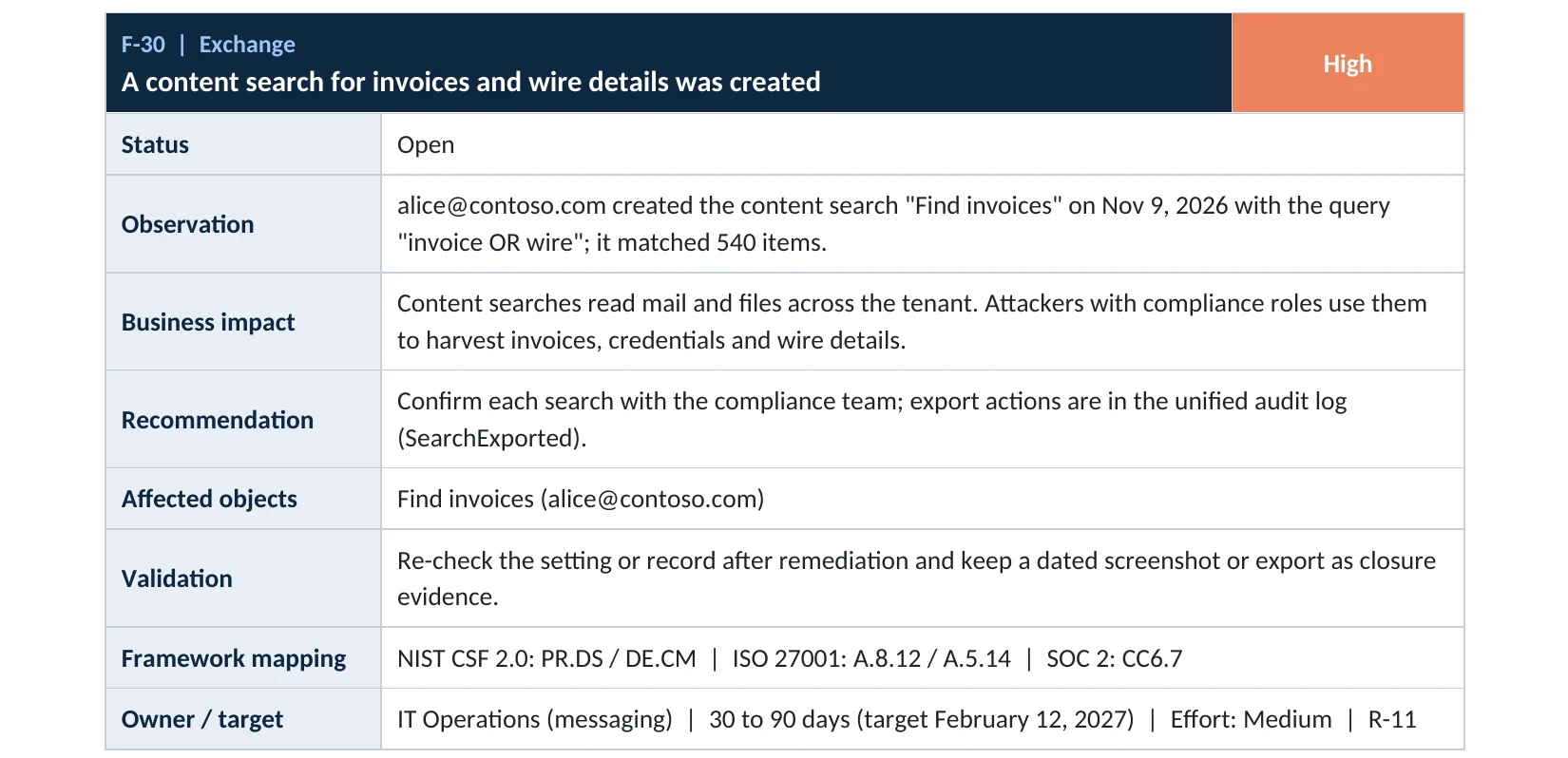
Source: Nacha on FBI IC3items matched one “invoice OR wire” search in our compromise assessment sample (fictional company).
Source: Compromise assessment sampleplaces to check: the Purview eDiscovery roles and Exchange Discovery Management.
Source: Microsoft LearnWho should have search rights
| Person | Search rights? | Why |
|---|---|---|
| Legal or compliance lead | Yes, if needed | Legal holds and requests |
| Outside counsel or investigator | Temporary, for one case | Limited to their case |
| IT administrators | Not by default | Admin rights aren’t search rights |
| Former staff or old service accounts | Never | Nobody is watching them |
What we find in audits
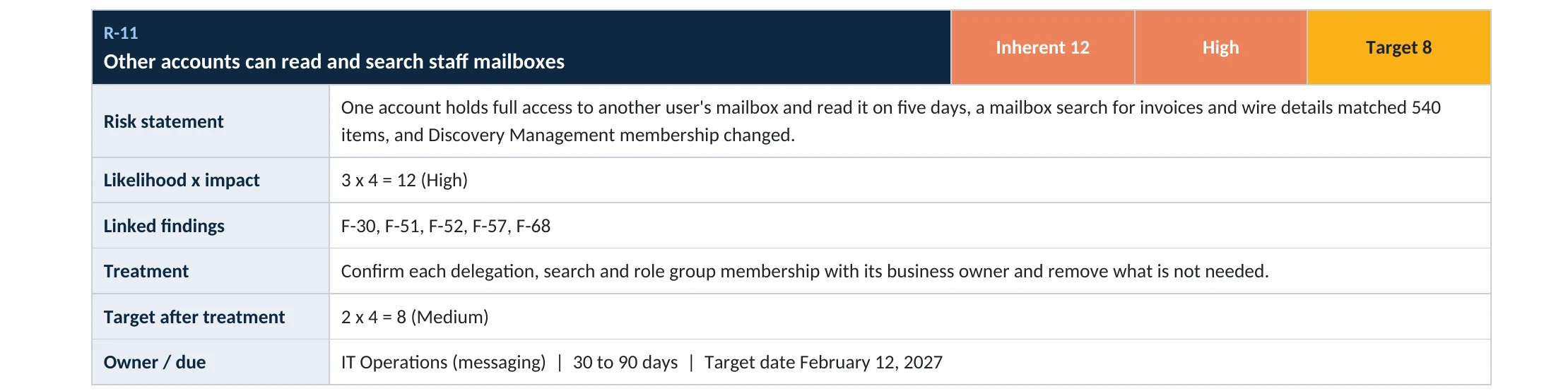
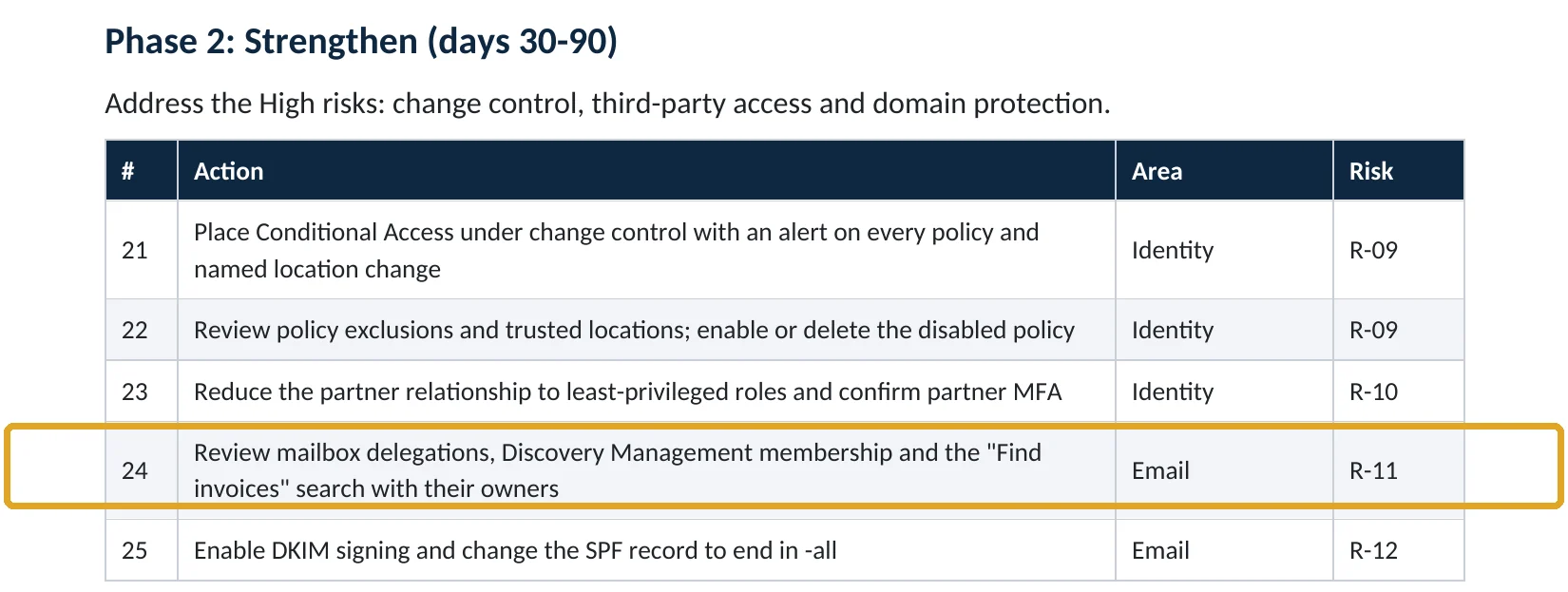
What this finding looks like in our audit reports
These are real pages from our published compromise assessment sample, written for a fictional company. Click any page to open it full size.
Your options
What each plan gives you
| Capability | Any plan | Where eDiscovery is licensed |
|---|---|---|
| Review role group members | Yes | Yes |
| Audit log of eDiscovery activity | Yes (retention depends on plan) | Yes |
| Search permissions filters (limit what a manager can search) | No | Yes |
| eDiscovery Premium review sets and analytics | No | E5 or add-on |
Search permissions filters can limit an eDiscovery manager to certain mailboxes, sites or dates (Microsoft Learn). See our audit log retention guide for how long search activity is kept.
How to check it yourself
See who can search and what was searched, without changing anything
Check both eDiscovery Manager and eDiscovery Administrator members. In the Exchange admin center, check Roles › Admin roles › Discovery Management.
Read-only PowerShell: who can search, and recent searches
Connect-IPPSSession
Get-RoleGroupMember -Identity "eDiscoveryManager" | Select-Object Name
Get-eDiscoveryCaseAdmin | Select-Object Name
Get-ComplianceSearch | Select-Object Name, CreatedBy, CreatedTime, ContentMatchQuery
Connect-ExchangeOnline
Get-RoleGroupMember -Identity "Discovery Management" | Select-Object Name
The commands only read data. Anyone listed who isn’t in legal or compliance, and any search nobody can explain, needs follow-up.
How to configure
How to tighten search rights, step by step
All plans
Review and remove
- Export the member lists above.
- Confirm each person with the business owner of legal or compliance.
- Remove members with no current need from eDiscovery Manager, eDiscovery Administrator and Discovery Management.
- Use a dedicated, MFA-protected account for search work rather than an everyday account.
- Write down who approved each remaining member.
Keep watching
Audit the searches
- Search the audit log for eDiscovery activities: searches created, run and exported.
- Ask the person behind any search you don’t recognize.
- Turn on an alert for eDiscovery searches if your plan supports it.
- Repeat the membership review every quarter.
What your users will notice
Nothing. Only the people removed lose the ability to search other mailboxes.
How to undo it
Add the person back to the role group in Purview or Exchange.
Proof and questions
How to prove it is fixed, and what to ask your IT provider
Evidence it is fixed
- eDiscovery and Discovery Management members are named and approved.
- No everyday or former-staff accounts hold search rights.
- Every recent search and export has a known purpose.
- A quarterly review on the calendar.
Questions for your IT provider
- Who can search all mailboxes in our tenant?
- Who approved them, and when were they last reviewed?
- Which content searches were run or exported in the last 90 days?
- Do admins add themselves to eDiscovery groups, and is that logged?
- Would we be alerted to an unexpected search?
Signs it was already abused
If search rights may already have been misused, look for these signs
Red flags
- Searches for terms like invoice, wire, payment, password or bank.
- Search exports nobody in legal asked for.
- New members added to eDiscovery or Discovery Management.
- Searches created by an admin account outside working hours.
- Searches soon after a risky or foreign sign-in.
If you see these, keep the audit records and the search definitions before deleting anything. Our business email compromise investigation establishes what was searched and taken, and the Microsoft 365 Evidence Clock shows how long the records are kept.
Framework mapping
Where search and export rights fit
| Framework | Where it fits |
|---|---|
| NIST CSF 2.0 | PR.AA-05: access permissions managed with least privilege |
| ISO/IEC 27001:2022 | Annex A 8.2 Privileged access rights; 5.15 Access control |
| SOC 2 | CC6.3 role-based access and least privilege |
Reviewed by
Written and reviewed by a practicing CISO

Ali Hassani, C|CISO, CISSP
Ali has more than 25 years of IT and cybersecurity experience and holds the Certified CISO and CISSP certifications along with Microsoft and Cisco credentials. He leads every OC Security Audit engagement from Irvine, on-site across Southern California and remotely nationwide. Every Microsoft 365 audit is read-only.
FAQ
Frequently asked questions about content search access
Who can search all mailboxes in Microsoft 365?
Members of the eDiscovery Manager role group (and eDiscovery Administrators) in Microsoft Purview, and members of Discovery Management in Exchange Online.
Can a Global Administrator search mailboxes?
Global Administrators can manage role groups, so they can add themselves to an eDiscovery group. That change is logged, so review it.
Are content searches logged?
Yes. Creating, running and exporting searches are recorded as eDiscovery activities in the audit log.
Can we limit what an eDiscovery manager can search?
Yes, with search permissions filters, which can limit them to certain mailboxes, sites or dates.
How often should we review search rights?
Every quarter, and whenever someone in legal, compliance or IT leaves.
Which plans include eDiscovery?
Microsoft lists E3 or E5 licensing for eDiscovery cases. Reviewing who holds the roles works on every plan.
Next step
Keep company-wide search in very few hands
Prevent
Microsoft 365 Security Audit
$3,500 fixed
About 200 read-only checks across sign-in protection, email, sharing and devices, for any tenant size, with four reports and a remediation roadmap.
Respond
Microsoft 365 & Azure Compromise Investigation
From $3,500
For when a search or export nobody asked for turns up: we establish what was taken.
Want to see the deliverables first? Open the Microsoft 365 audit sample report or browse all our sample reports.

Service
Microsoft 365 Security Audit
The fixed-price audit that checks this item and about 200 more.
See the audit ›
Service
Microsoft Entra ID Security Audit
A deeper look at identities, Conditional Access, roles and apps.
See the Entra ID audit ›
Service
Compromise Investigation
When an account or mailbox may already be in an attacker’s hands.
See the investigation ›Related reading: How to review mailbox permissions · How to remove unused admin roles · How long Microsoft 365 keeps audit logs
Sources
Sources used on this page
- Microsoft Learn, Assign permissions in eDiscovery
- Microsoft Learn, Roles and role groups in Defender for Office 365 and Purview
- Microsoft Learn, Learn about eDiscovery
- Microsoft Learn, Search for eDiscovery activities in the audit log
- Microsoft Learn, Configure search permissions filtering in eDiscovery
- Microsoft Learn, eDiscovery features and components: permissions and licensing
- CyberScoop, FBI IC3 cybercrime report 2024 key statistics
- Nacha, FBI IC3 finds almost $8.5 billion lost to business email compromise in last three years
This guide is general information, not a guarantee of protection or legal advice. Microsoft changes its admin centers often: menu names and steps were checked against Microsoft Learn on November 20, 2026. Drawings are simplified and are not screenshots of Microsoft products. Sample findings come from fictional companies. Incidents are described as reported by the cited sources; OC Security Audit was not involved in them. Questions? Call 949-777-5567 or email support@ocsecurityaudit.com.