

LIBRARY 2.33Microsoft 365 Security Library
How to Find and Remove Unused Admin Roles in Microsoft 365
Every admin role that nobody uses is a spare key an attacker can steal. Here is how to list who holds which role, spot the ones not used in 90 days, and remove them without locking anyone out.
Reviewed by Ali Hassani, C|CISO, CISSP · Last verified November 20, 2026
Green: every plan can list role holders and remove assignments by hand. Blue: Privileged Identity Management (just-in-time roles, discovery and insights, and recurring access reviews of roles) needs Microsoft Entra ID P2, included in Microsoft 365 E5 (Microsoft Learn).
In one minute
- List every account that holds an admin role, including service accounts and partners.
- Mark every assignment not used in the last 90 days.
- Remove it, or move the person to a smaller role that fits the task.
- Repeat every quarter, and check partner (GDAP) relationships at the same time.
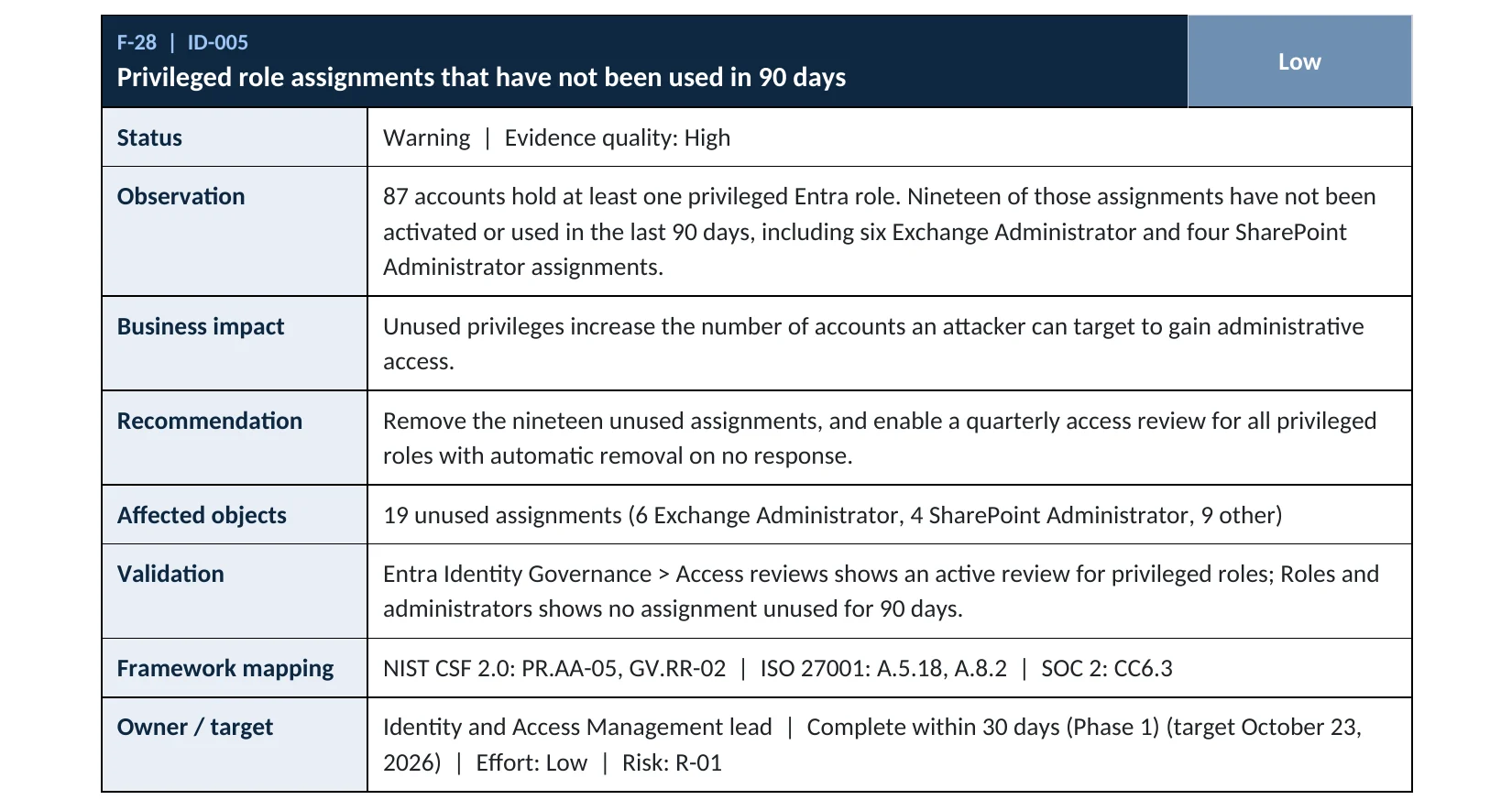
Privileged role hygiene is item ID-005 in our Microsoft 365 Security Audit.
What it is
What an unused admin role is
Microsoft 365 has dozens of admin roles: Global Administrator, Exchange Administrator, SharePoint Administrator, User Administrator and many more. People get them for a project, a migration or a one-time fix, and keep them long after. Microsoft calls this out directly: people move teams and, without auditing, amass access they no longer need (Microsoft Learn).
An unused role does nothing for your business, but it still works the moment someone signs in as that person. If the account is phished, its old Exchange or SharePoint admin role comes along with it.
Three kinds of unused access to look for
| Kind | Example | Why it stays |
|---|---|---|
| Old project roles | Exchange Administrator given for a mailbox migration two years ago | Nobody owns the cleanup |
| Too-big roles | Global Administrator used only to reset passwords | It was quicker than finding the right role |
| Partner roles | An IT provider’s delegated admin (GDAP) relationship that still includes Global Administrator | The relationship outlives the project, or the provider |
Why it matters
Every unused role is one more way to take over the tenant
- Phished accountOr a breached IT provider.
- Old admin roleStill assigned, never used.
- Quarterly reviewThe unused role was removed in time.
- Admin rightsWithout it: mailboxes, sites, users.
- Tenant takeoverNew admins, rules, apps.
Drawing: where a role review breaks the path.
of permissions granted to identities are actually used, according to Microsoft’s 2023 cloud permissions research.
Source: Microsoft Security Blogresellers and technology service providers notified by Microsoft in 2021 after NOBELIUM targeted their delegated admin access to customers.
Source: Microsoft On the Issuesattacks against 609 customers between July 1 and October 19, 2021, in the same campaign, as reported from Microsoft’s data.
Source: The Hacker NewsGlobal Administrators: Microsoft’s best-practice limit, with everyone else on smaller roles.
Source: Microsoft LearnWays to keep admin roles small
| Control | What it does | Effect |
|---|---|---|
| Quarterly role review | Assignments not used in 90 days are removed. | Removes spare keys |
| Least-privileged roles | People get the smallest role for the task, not Global Administrator. | Smaller blast radius |
| Just-in-time roles (PIM) | Roles are activated for a few hours when needed, with MFA and a reason. | No standing access P2 |
| Partner (GDAP) review | Each IT provider relationship is limited to the roles it needs and ended when work ends. | Closes supply-chain risk |
| Leaving roles in place | Rights accumulate with every project. | Grows the target |
Documented cases
Nation-state · Microsoft, 2021
NOBELIUM goes after IT providers’ admin access
Microsoft reported that NOBELIUM targeted cloud service providers, MSPs and resellers to reach their customers through delegated administrative privileges, and recommended removing those connections when not in use.
Source: Microsoft Security Blog
Cloud ransomware · Microsoft, 2025
A forgotten admin path into the cloud
Microsoft Threat Intelligence described Storm-0501 finding a synchronized, non-human identity that held Global Administrator with no MFA method registered, and using it to take control of the Azure environment and delete data and backups.
Source: Microsoft Security Blog
We were not involved in either case. Both turned on privileged access that nobody was watching.
What we find in audits
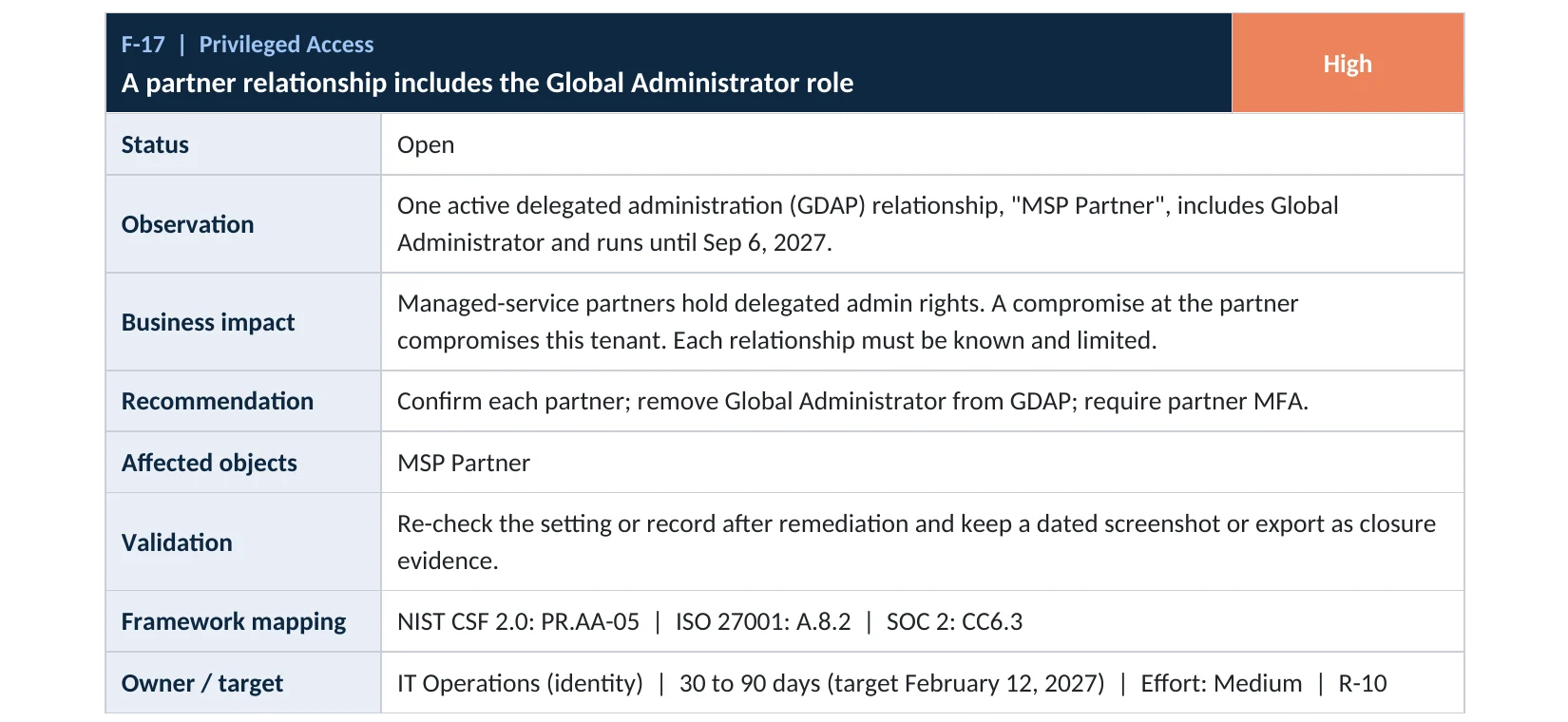
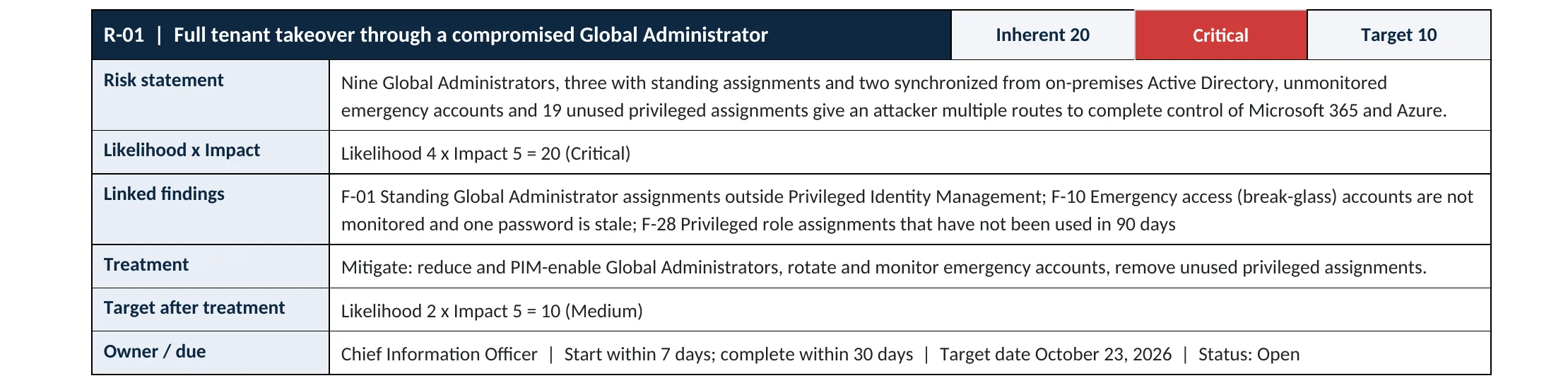
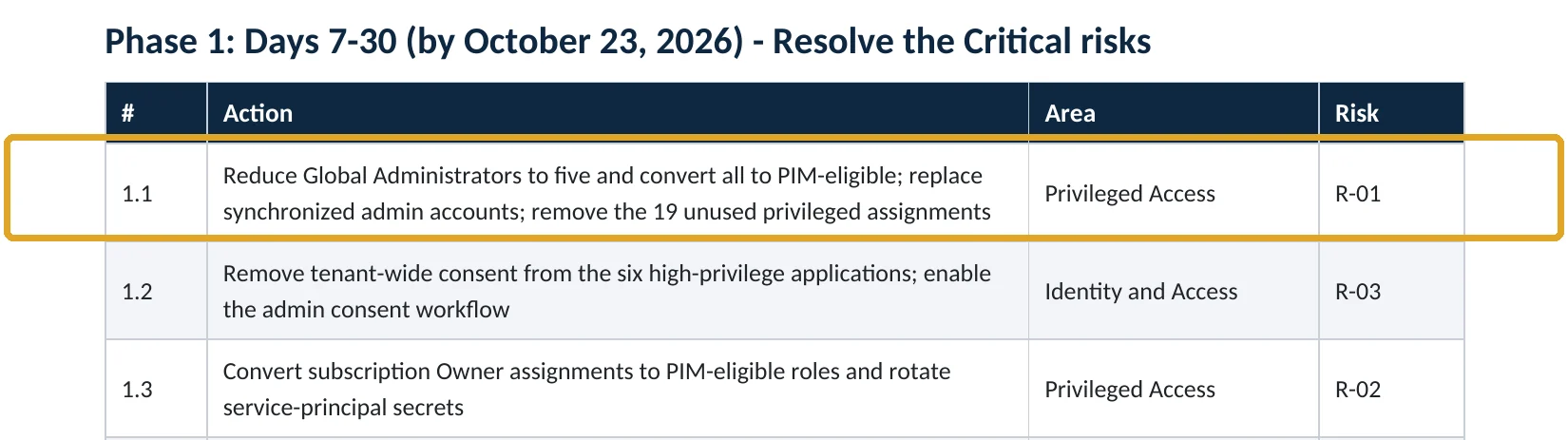
What this finding looks like in our audit reports
These are real pages from our published sample reports, written for fictional companies. Click any page to open it full size. The viewer follows the finding from the technical report to the risk register and the roadmap.
Your options
What each plan gives you
| Capability | Business Basic, Standard, Premium, E3 | E5 (Entra ID P2) |
|---|---|---|
| List role holders and remove assignments | Yes | Yes |
| Use smaller, task-specific roles | Yes | Yes |
| Just-in-time activation with MFA and approval (PIM) | No | Yes |
| PIM discovery and insights, stale-role alerts | No | Yes |
| Recurring access reviews of admin roles | No | Yes |
Without P2, a quarterly manual review with a dated record does the job for most small and mid-size companies. With P2, Microsoft recommends using access reviews to find and remove role assignments that are no longer needed (Microsoft Learn).
How to check it yourself
List every admin role holder, without changing anything
1. Who holds which role?
Open each role that shows assignments, starting with Global Administrator, Privileged Role Administrator, Exchange Administrator, SharePoint Administrator and User Administrator. Note people, service accounts and groups.
2. Which partners have admin access?
Check every relationship, the roles it includes and its end date. Ask each provider to confirm they still need it.
Read-only PowerShell: active admin role assignments with last sign-in
Connect-MgGraph -Scopes "RoleManagement.Read.Directory","User.Read.All","AuditLog.Read.All"
$roles = Get-MgRoleManagementDirectoryRoleDefinition -All
Get-MgRoleManagementDirectoryRoleAssignment -All | ForEach-Object {
  $r = $roles | Where-Object Id -eq $_.RoleDefinitionId
  $u = Get-MgUser -UserId $_.PrincipalId -Property DisplayName,SignInActivity -ErrorAction SilentlyContinue
  [pscustomobject]@{ Role = $r.DisplayName; Who = $u.DisplayName; LastSignIn = $u.SignInActivity.LastSignInDateTime }
} | Sort-Object Role | Format-Table -AutoSize
The command only reads; it changes nothing. A blank name usually means a service principal or a group. Last sign-in is a starting point, not proof the role was used: check with the person before you remove it. Reading sign-in activity requires Microsoft Entra ID P1 or higher.
How to configure
How to remove unused roles and keep it that way, step by step
All plans
Clean up by hand
- Keep two emergency access accounts as permanent Global Administrators and don’t touch them (break-glass guide).
- For each other assignment, ask the person: what do you use this role for, and when did you last need it?
- Remove roles nobody needs. Replace big roles with smaller ones, using Microsoft’s least-privileged roles by task (Microsoft Learn).
- Remove Global Administrator from partner relationships unless there’s a written reason, and end relationships with former providers.
- Save the list with the date and the decisions, and repeat it every quarter.
E5 (Entra ID P2)
Make roles just-in-time and review them automatically
- Open ID Governance › Privileged Identity Management › Microsoft Entra roles › Discovery and insights.
- Use Reduce Global Administrators and Eliminate standing access to make assignments eligible instead of permanent.
- In each role’s settings, require MFA and a justification on activation, and keep activation short.
- Create an access review of Microsoft Entra roles, quarterly, with Auto apply results and If reviewers don’t respond: Remove access.
- Turn on the PIM alerts for stale and excessive role assignments.
What your users will notice
People who lose a role they weren’t using notice nothing. With PIM, admins activate their role when they need it, which takes a minute and an MFA prompt.
How to undo it
Any Privileged Role Administrator can reassign a role in a minute. Microsoft also blocks removing the last active Global Administrator, so you can’t lock yourself out by accident (Microsoft Learn).
Proof and questions
How to prove it is fixed, and what to ask your IT provider
Evidence it is fixed
- A dated list of every admin role holder, with an owner’s decision for each.
- No assignment unused for more than 90 days without a written reason.
- Fewer than five Global Administrators, including the two emergency accounts.
- Partner relationships limited to the roles they need, with end dates.
Questions for your IT provider
- How many people and accounts hold an admin role in our tenant?
- Which of those roles were used in the last 90 days?
- What roles does your company hold in our tenant through GDAP, and until when?
- Who reviews admin roles, and how often?
- Who is told when someone is given Global Administrator?
Signs it was already abused
If an admin role may have been misused, look for these signs
Red flags
- A role that sat unused for months is suddenly used, especially outside working hours.
- New Global Administrators, or roles added to accounts or groups you don’t recognize.
- Admin actions from a partner relationship you thought had ended.
- New mail flow rules, app consents or Conditional Access changes made by a rarely used admin account.
- Audit logging or alert policies switched off.
To see role changes, open Entra ID › Monitoring & health › Audit logs and filter on Category: RoleManagement. If you find these signs, keep the logs before they expire. Our compromise investigation establishes what the account changed, and the Microsoft 365 Evidence Clock shows how long audit logs are kept.
Framework mapping
Where admin role reviews fit
| Framework | Where it fits |
|---|---|
| NIST CSF 2.0 | PR.AA-05: access permissions managed and reviewed with least privilege; GV.RR-02: roles and responsibilities |
| ISO/IEC 27001:2022 | Annex A 5.18 Access rights; 8.2 Privileged access rights |
| SOC 2 | CC6.3 role-based access, reviewed and removed when not needed |
| MITRE ATT&CK | T1078.004 Valid Accounts: Cloud Accounts; T1098 Account Manipulation |
Reviewed by
Written and reviewed by a practicing CISO

Ali Hassani, C|CISO, CISSP
Ali has more than 25 years of IT and cybersecurity experience and holds the Certified CISO and CISSP certifications along with Microsoft and Cisco credentials. He leads every OC Security Audit engagement from Irvine, on-site across Southern California and remotely nationwide. Every Microsoft 365 audit is read-only.
FAQ
Frequently asked questions about admin roles
How do I know if a role was used?
Last sign-in shows the account was used, not the role. With Entra ID P2, Privileged Identity Management shows activations and can alert on stale roles. Without it, ask the person and check the audit log for admin actions they made.
Is it safe to remove roles?
Yes, if you keep your two emergency access accounts as Global Administrators. Microsoft also prevents removing the last active Global Administrator.
How often should we review admin roles?
Quarterly is a good default, and whenever someone changes jobs or a project or IT provider relationship ends.
What is GDAP?
Granular delegated admin privileges: how Microsoft partners such as MSPs get admin rights in a customer's tenant. Each relationship lists specific roles and has an end date. Review them like any other admin role.
Do we need Entra ID P2?
Only for just-in-time roles, PIM alerts and automatic access reviews of roles. Every plan can list and remove role assignments by hand.
What should replace Global Administrator for day-to-day work?
The smallest role that covers the task: for example Helpdesk Administrator for password resets, Exchange Administrator for mail, or User Administrator for account changes.
Next step
Know exactly who can change your tenant
Prevent
Microsoft 365 Security Audit
$3,500 fixed
About 200 read-only checks across sign-in protection, admin roles, partners, email, sharing, data protection, logging and devices, for any tenant size, with four reports and a remediation roadmap.
Respond
Microsoft 365 & Azure Compromise Investigation
From $3,500
For when an admin role was used in ways you can’t explain: we establish what was changed and by whom.
Want to see the deliverables first? Open the Microsoft 365 audit sample report or browse all our sample reports.

Service
Microsoft 365 Security Audit
The fixed-price audit that checks this item and about 200 more.
See the audit ›
Service
Microsoft Entra ID Security Audit
A deeper look at identities, Conditional Access, roles and apps.
See the Entra ID audit ›
Service
Compromise Investigation
When an account or mailbox may already be in an attacker’s hands.
See the investigation ›Related reading: How many Global Administrators you should have · How to set up break-glass accounts · How to review and remove guest accounts · Microsoft 365 identity, MFA and Conditional Access guide
Sources
Sources used on this page
- Microsoft Learn, Best practices for Microsoft Entra roles
- Microsoft Learn, Create an access review of Azure resource and Microsoft Entra roles in PIM
- Microsoft Learn, Plan a Privileged Identity Management deployment
- Microsoft Learn, Discovery and insights for Microsoft Entra roles
- Microsoft Learn, Least privileged roles by task in Microsoft Entra ID
- Microsoft Learn, Remove Microsoft Entra role assignments
- Microsoft Learn, Assign Microsoft Entra roles in Privileged Identity Management
- Microsoft Security Blog, Latest Microsoft Entra advancements strengthen identity security (March 2023)
- Microsoft Security Blog, NOBELIUM targeting delegated administrative privileges to facilitate broader attacks (October 2021)
- Microsoft On the Issues, New activity from Russian actor Nobelium (October 2021)
- The Hacker News, Microsoft warns of continued supply chain attacks by Nobelium (October 2021)
- Microsoft Security Blog, Storm-0501’s evolving techniques lead to cloud-based ransomware (August 2025)
This guide is general information, not a guarantee of protection or legal advice. Microsoft changes its admin centers often: menu names and steps were checked against Microsoft Learn on November 20, 2026. Drawings are simplified and are not screenshots of Microsoft products. Sample findings come from fictional companies. Incidents are described as reported by the cited sources; OC Security Audit was not involved in them. Questions? Call 949-777-5567 or email support@ocsecurityaudit.com.