

LIBRARY 2.31Microsoft 365 Security Library
How to Set Up Emergency Access (Break-Glass) Accounts in Microsoft 365
If MFA fails, an admin leaves or a policy locks everyone out, two well-kept emergency accounts are how you get back in. Here is how to set them up, store them and watch them.
Reviewed by Ali Hassani, C|CISO, CISSP · Last verified November 20, 2026

Creating and protecting emergency access accounts works on every plan. Automatic sign-in alerts use Azure Monitor or Microsoft Sentinel, which are billed separately in Azure (Microsoft Learn).
In one minute
- Create two cloud-only accounts on your onmicrosoft.com domain, not tied to any person.
- Give them permanent Global Administrator and protect them with passkeys (FIDO2) security keys.
- Exclude them from Conditional Access policies that block or restrict sign-in, and store the keys in separate safes.
- Alert on every sign-in, and test both accounts at least every 90 days.
Emergency access accounts are item ID-031 in our Microsoft 365 Security Audit.
What it is
What an emergency access account is
An emergency access account, often called a break-glass account, is a Global Administrator account kept aside for the day nobody else can sign in. Microsoft recommends two or more, used only in true emergencies, and kept separate from any one person (Microsoft Learn).
Microsoft lists the situations it is for: federation or the identity provider is down, MFA devices or the MFA service are unavailable, the last person with Global Administrator leaves, a natural disaster takes out phone networks, or Privileged Identity Management is set up so that nobody is left to approve a role activation (Microsoft Learn).
Why it matters
Locked out of your own tenant, or an attacker’s quiet way in
Emergency accounts cut both ways. Without them, one outage or one wrong policy can lock the whole company out of its own Microsoft 365. Kept badly, with an old password, no alert and credentials in a shared file, they become the quietest path to Global Administrator.
- Lockout or emergencyOutage, departed admin or a bad policy.
- Regular admins stuckMFA cannot be completed.
- Break-glass worksTested, monitored, stored in a safe.
- No way back inWithout it: support tickets and days of waiting.
- Or misusedBadly kept accounts become an attacker’s backdoor.
Drawing: the emergency account turns a lockout into an inconvenience.
of disrupted MFA sign-ins on November 19, 2018, keeping many Office 365, Azure and Dynamics users from signing in when MFA was required.
Source: SecurityWeekemergency access accounts at minimum, cloud-only, using the onmicrosoft.com domain, as Microsoft recommends.
Source: Microsoft Learndays at most between tests: Microsoft asks for sign-in and admin-task validation at least every 90 days.
Source: Microsoft Learnpasskey security keys are Microsoft’s recommended sign-in method for these accounts; they also satisfy mandatory MFA.
Source: Microsoft LearnWhat well-kept emergency accounts protect against
| Situation | What happens | Do emergency accounts help? |
|---|---|---|
| MFA service outage | Admins cannot complete MFA. | Yes A FIDO2 key does not depend on phones or text messages. |
| Conditional Access mistake | A new policy blocks every admin. | Yes The excluded account can undo it. |
| Last Global Admin leaves | Nobody can manage the tenant. | Yes |
| Federation or on-premises outage | Synced accounts cannot sign in. | Yes The accounts are cloud-only. |
| Misuse of the account itself | Someone signs in with the break-glass credentials. | Only if monitored Every sign-in must raise an alert. |
A documented outage
Service outage · Microsoft, 2018
Two MFA outages in November 2018
Microsoft’s root cause analysis described three combined issues in its MFA service on November 19, 2018 that left many Azure and Office 365 users unable to sign in with MFA for much of the day. A second, shorter MFA outage followed on November 27, 2018.
We were not involved in this event. It is the scenario emergency accounts exist for: the tenant is fine, but nobody can prove who they are.
What we find in audits
What this finding looks like in our audit reports
These are real pages from our published Microsoft 365 sample audit, written for a fictional company. Click any page to open it full size. Leadership sees this item first: it is action number 1 in the executive report.
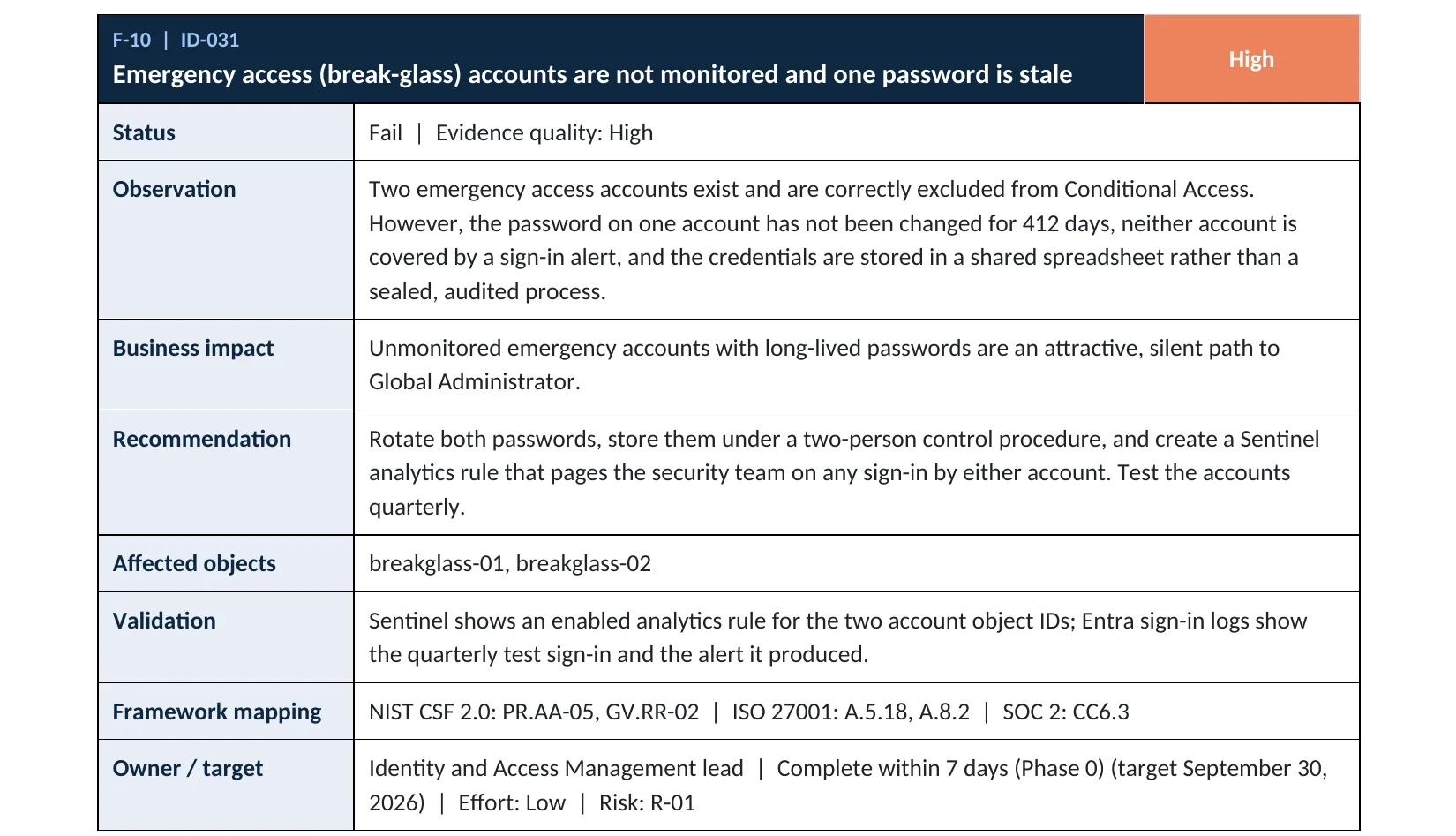
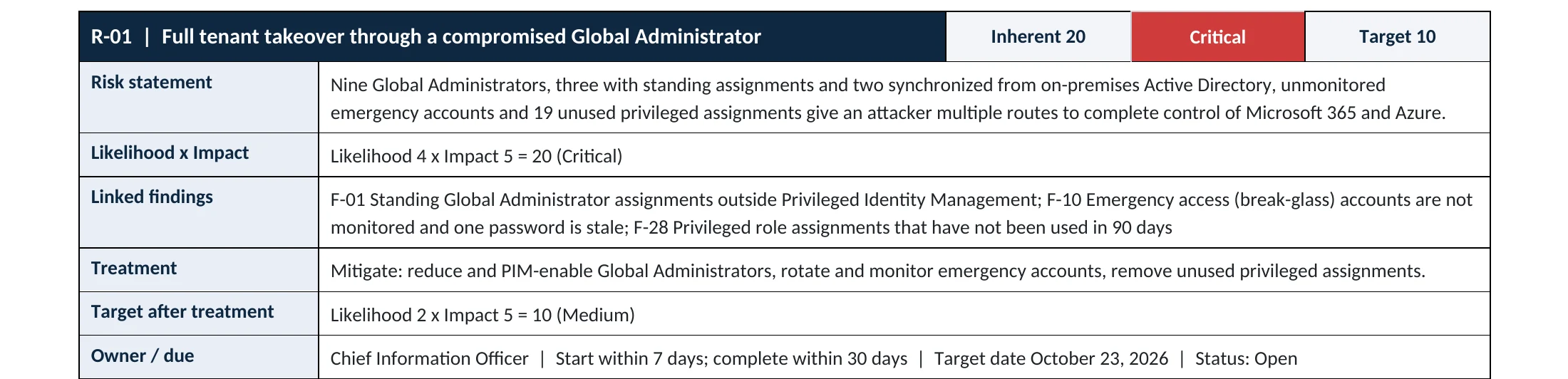
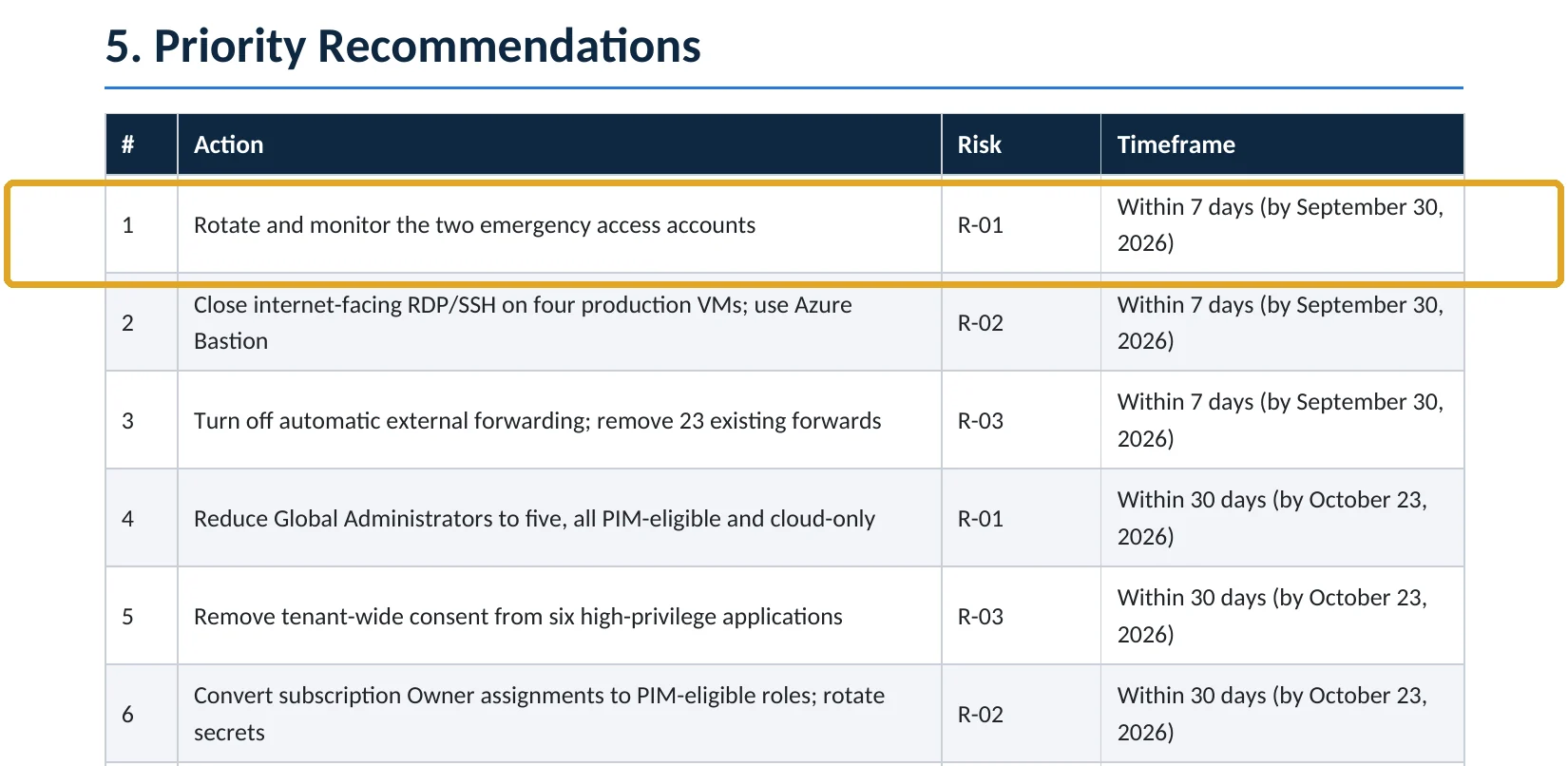
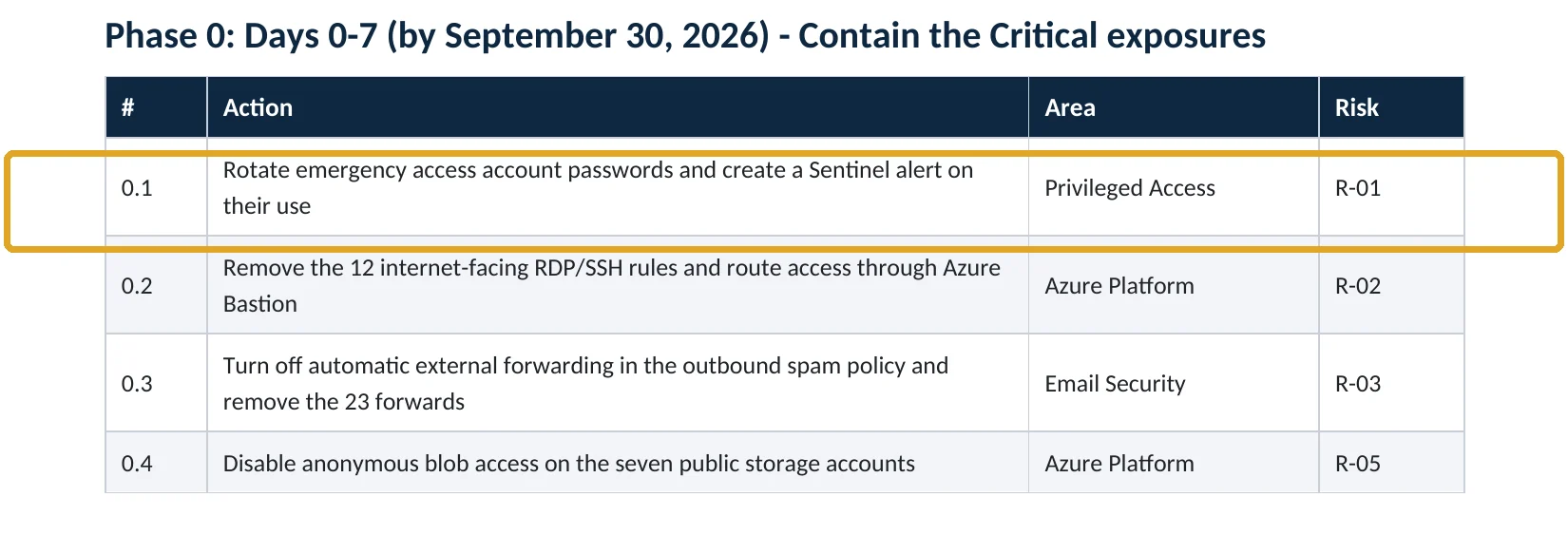
The sample report asks for password rotation and monitoring. Because Microsoft’s mandatory MFA now covers its admin portals, Microsoft recommends passkeys (FIDO2) or certificate-based authentication for emergency accounts, so we also recommend moving both accounts to passkeys stored under two-person control, as described below.
Your options
How to protect the emergency accounts
| Method | Microsoft’s view | Our take |
|---|---|---|
| Passkey (FIDO2) security key | Recommended | Use this Two keys per account, in separate safes. |
| Certificate-based authentication | If you already run a PKI | Fine Mostly for larger organizations. |
| Long password only | No longer enough: mandatory MFA applies to admin portals | Avoid Common in older setups we review. |
| Authenticator on someone’s phone | Should not be tied to an individual’s device | Avoid Defeats the purpose if that person is unavailable. |
Microsoft also asks that the emergency method be different from what your daily admin accounts use, so one failure cannot take out both (Microsoft Learn).
How to check it yourself
Check your emergency accounts, without changing anything
Find the accounts meant for emergencies. Each should be on your onmicrosoft.com domain, have no mailbox licence in daily use, and belong to no single employee.
Look for a passkey (FIDO2) method, and make sure no personal phone number or Authenticator app of one employee is registered.
Read-only PowerShell: when did each Global Administrator last sign in?
Connect-MgGraph -Scopes "RoleManagement.Read.Directory","User.Read.All","AuditLog.Read.All"
$role = Get-MgDirectoryRole -Filter "displayName eq 'Global Administrator'"
Get-MgDirectoryRoleMember -DirectoryRoleId $role.Id | ForEach-Object {
  Get-MgUser -UserId $_.Id -Property DisplayName,UserPrincipalName,OnPremisesSyncEnabled,SignInActivity |
    Select-Object DisplayName, UserPrincipalName, OnPremisesSyncEnabled, @{n="LastSignIn";e={$_.SignInActivity.LastSignInDateTime}}
}
An emergency account with a recent sign-in that nobody can explain needs attention today. One that has never signed in has never been tested.
How to configure
How to set up emergency access accounts, step by step
All plans
Create and protect
- In the Microsoft 365 admin center, create two users on the yourtenant.onmicrosoft.com domain with neutral names.
- Assign Global Administrator as a permanent, active role (not eligible in PIM).
- Enable passkeys (FIDO2) in Entra ID › Authentication methods and register two security keys for each account.
- Put both accounts in a group such as EmergencyAccess and exclude it from Conditional Access policies that block or restrict sign-in.
- Store the keys in separate, secure, fireproof places, with a written procedure and named people allowed to use them.
Monitor and test
Keep them trustworthy
- Send Entra sign-in logs to Azure Monitor or Microsoft Sentinel.
- Create an alert that fires on any sign-in by either emergency account and notifies several people.
- After any alert, review whether it was a drill, a real emergency or misuse.
- Every 90 days: sign in with each account, perform an admin task and confirm the alert fired.
- Update the authorized-user list and safe combinations when IT staff change.
Microsoft’s full guidance, including sample alert queries, is in Manage emergency access accounts in Microsoft Entra ID. Keep the total number of Global Administrators small: see how many Global Administrators to have.
Proof and questions
How to prove it is in place, and what to ask your IT provider
Evidence it is in place
- Two cloud-only emergency accounts with permanent Global Administrator.
- Both use passkey (FIDO2) keys stored in separate secure locations.
- Both are excluded from blocking Conditional Access policies.
- A sign-in alert exists, and a dated test record from the last 90 days.
Questions for your IT provider
- If MFA stopped working tomorrow, how would we get into our tenant?
- Where are our emergency account credentials, and who can reach them?
- Who is told when an emergency account signs in?
- When were the emergency accounts last tested?
- Are they tied to anyone’s phone or personal email?
Signs it was already abused
Signs an emergency account was misused
Red flags
- Sign-ins by an emergency account that nobody scheduled or can explain.
- New authentication methods, such as a phone number, added to an emergency account.
- Changes to Conditional Access, admin roles or federation made by an emergency account.
- Emergency credentials found in email, chat, a shared spreadsheet or a password manager many people use.
- The account removed from the exclusion group, or its role changed without a ticket.
If you see any of these, preserve the sign-in and audit logs before changing anything. Our compromise investigation reconstructs what an admin account did, and the Microsoft 365 Evidence Clock shows how long those logs are kept.
Framework mapping
Where emergency access accounts fit
| Framework | Where it fits |
|---|---|
| NIST CSF 2.0 | PR.AA-05: access permissions managed; RC.RP: recovery plan executed |
| ISO/IEC 27001:2022 | Annex A 8.2 Privileged access rights; 5.29 Information security during disruption |
| SOC 2 | CC6.3 privileged access; A1.2 recovery infrastructure |
| HIPAA Security Rule | 45 CFR 164.312(a)(2)(ii) emergency access procedure |
Reviewed by
Written and reviewed by a practicing CISO

Ali Hassani, C|CISO, CISSP
Ali has more than 25 years of IT and cybersecurity experience and holds the Certified CISO and CISSP certifications along with Microsoft and Cisco credentials. He leads every OC Security Audit engagement from Irvine, on-site across Southern California and remotely nationwide. Every Microsoft 365 audit is read-only.
FAQ
Frequently asked questions about break-glass accounts
What is a break-glass account?
It is a Global Administrator account kept only for emergencies, when normal admins cannot sign in because of an MFA outage, a federation problem, a policy mistake or a departed administrator.
How many emergency access accounts should we have?
Microsoft recommends at least two, so one failure or lost key does not leave you locked out.
Should emergency accounts have MFA?
Yes. Microsoft now recommends a passkey (FIDO2) security key or certificate-based authentication, which also satisfies mandatory MFA for admin portals. The method should differ from your daily admin accounts.
Should they be excluded from Conditional Access?
From policies that block or restrict sign-in, yes, so a policy mistake cannot lock them out. Report-only policies do not need an exclusion. The passkey protects the account instead.
Can our IT provider hold the emergency accounts?
The business should control them. Keep the keys in your own secure locations with a written procedure, and make sure every use triggers an alert you see.
How do we get alerted when one is used?
Send Entra sign-in logs to Azure Monitor or Microsoft Sentinel and create an alert on any sign-in by those accounts. Microsoft's guidance includes sample queries. Azure monitoring is billed separately.
Next step
Know exactly where your tenant stands
Prevent
Microsoft 365 Security Audit
$3,500 fixed
About 200 read-only checks across admin roles, emergency access, identity, email, sharing, data protection, logging and devices, for any tenant size, with four reports and a remediation roadmap.
Respond
Microsoft 365 & Azure Compromise Investigation
From $3,500
For when an admin or emergency account was used and nobody can explain it: we establish what it did and from where.
Want to see the deliverables first? Open the Microsoft 365 audit sample report or browse all our sample reports.

Service
Microsoft 365 Security Audit
The fixed-price audit that checks this item and about 200 more.
See the audit ›
Service
Microsoft Entra ID Security Audit
A deeper look at identities, Conditional Access, roles and apps.
See the Entra ID audit ›
Service
Compromise Investigation
When an account or mailbox may already be in an attacker’s hands.
See the investigation ›Related reading: How many Global Administrators to have · How to set up MFA in Microsoft 365 · Microsoft Entra ID security guide
Sources
Sources used on this page
- Microsoft Learn, Manage emergency access accounts in Microsoft Entra ID
- Microsoft Learn, Create a resilient access control management strategy
- Microsoft Learn, Planning for mandatory multifactor authentication
- Microsoft Learn, Enable passkeys (FIDO2) for your organization
- Microsoft Learn, Admin account security in Microsoft 365 for business
- SecurityWeek, Microsoft details cause of recent multi-factor authentication outage (November 2018)
- The Register, Microsoft Azure MFA outage postmortem (November 27, 2018)
This guide is general information, not a guarantee of protection or legal advice. Microsoft changes its admin centers often: menu names and steps were checked against Microsoft Learn on November 20, 2026. Drawings are simplified and are not screenshots of Microsoft products. Sample findings come from fictional companies. Incidents are described as reported by the cited sources; OC Security Audit was not involved in them. Questions? Call 949-777-5567 or email support@ocsecurityaudit.com.