

LIBRARY 1.17Microsoft 365 Security Library
How to Find and Disable Inactive Accounts in Microsoft 365
Accounts nobody uses still have passwords, mailboxes and sometimes admin rights, and nobody notices when someone else signs in to them. Here is how to find accounts that haven’t signed in for months and retire them safely.
Reviewed by Ali Hassani, C|CISO, CISSP · Last verified November 20, 2026
Microsoft notes that reading the last successful sign-in date through Microsoft Graph needs a Microsoft Entra ID P1 or P2 license, included in Business Premium, E3 and E5 (Microsoft Learn).
In one minute
- List every enabled account with its last successful sign-in.
- Flag anything over 90 days, starting with admin roles.
- Confirm with the manager, then block sign-in.
- Remove licenses and roles, and delete after a waiting period.
Dormant accounts are part of the identity checks in our Microsoft 365 Security Audit.
What it is
What counts as an inactive account
Microsoft defines inactive accounts as accounts no longer needed to reach your resources, and suggests a window of 90 to 180 days without a sign-in for most organizations, allowing for leave and holidays (Microsoft Learn).
The sign-in dates Microsoft keeps
| Property | What it records | Use it for |
|---|---|---|
| lastSuccessfulSignInDateTime | Last successful interactive sign-in | Main inactivity test |
| lastSignInDateTime | Last interactive attempt, including failures | Spotting password guessing on old accounts |
| lastNonInteractiveSignInDateTime | Last sign-in by an app or token | Service accounts and synced apps |
Microsoft notes the last sign-in date can take up to 24 hours to update (Microsoft Learn). Guests are handled in our separate guest account guide.
Why it matters
Old accounts are easy to use and hard to notice
- Former employee account still onPassword from a past breach.
- Password spray or reuseOne guess works.
- Account blocked after 90 daysSign-in fails.
- Signs in quietlyWithout it: nobody is watching.
- Mail and files reachedAdmin rights make it worse.
Drawing: where disabling dormant accounts breaks the path.
of organizations have stale but still-enabled “ghost” accounts, according to Varonis.
Source: Varonisof identity attacks were password attacks in the first half of 2025.
Source: Microsoft Digital Defense Report 2025days without a sign-in is a reasonable inactivity window for most organizations, Microsoft says.
Source: Microsoft Learndays is the limit PCI DSS sets for removing or disabling inactive accounts.
Source: Microsoft Learn on PCI DSS 8.2.6What to do with each kind of account
| Account | Inactive for | What to do |
|---|---|---|
| Former employee | Any time after leaving | Block now, then remove |
| Admin account | 90 days | Remove the role first |
| Shared or service mailbox signing in as a user | 90 days | Convert or document its use |
| Employee on leave | Planned | Block during leave, restore on return |
What we find in audits
What this finding looks like in our audit reports
These are real pages from our published sample reports, written for fictional companies. Click any page to open it full size.
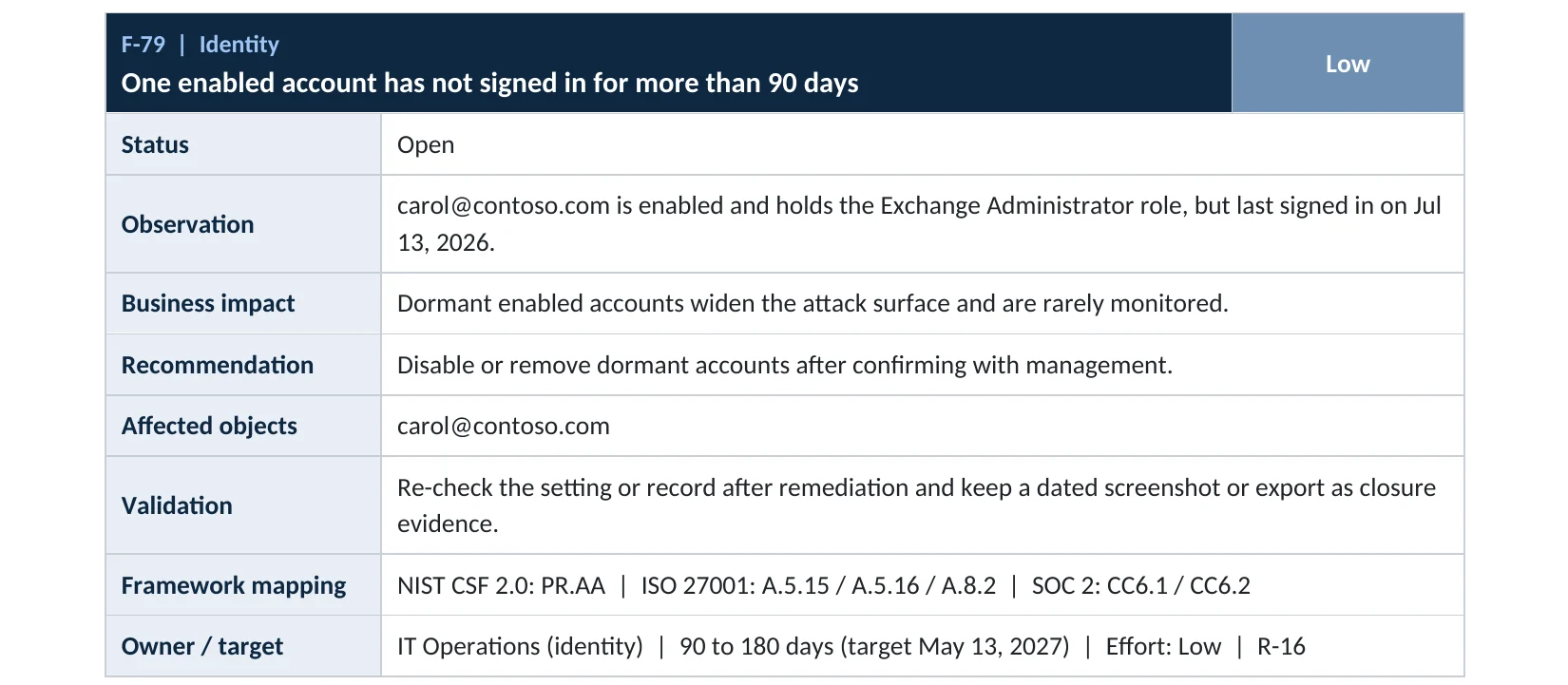
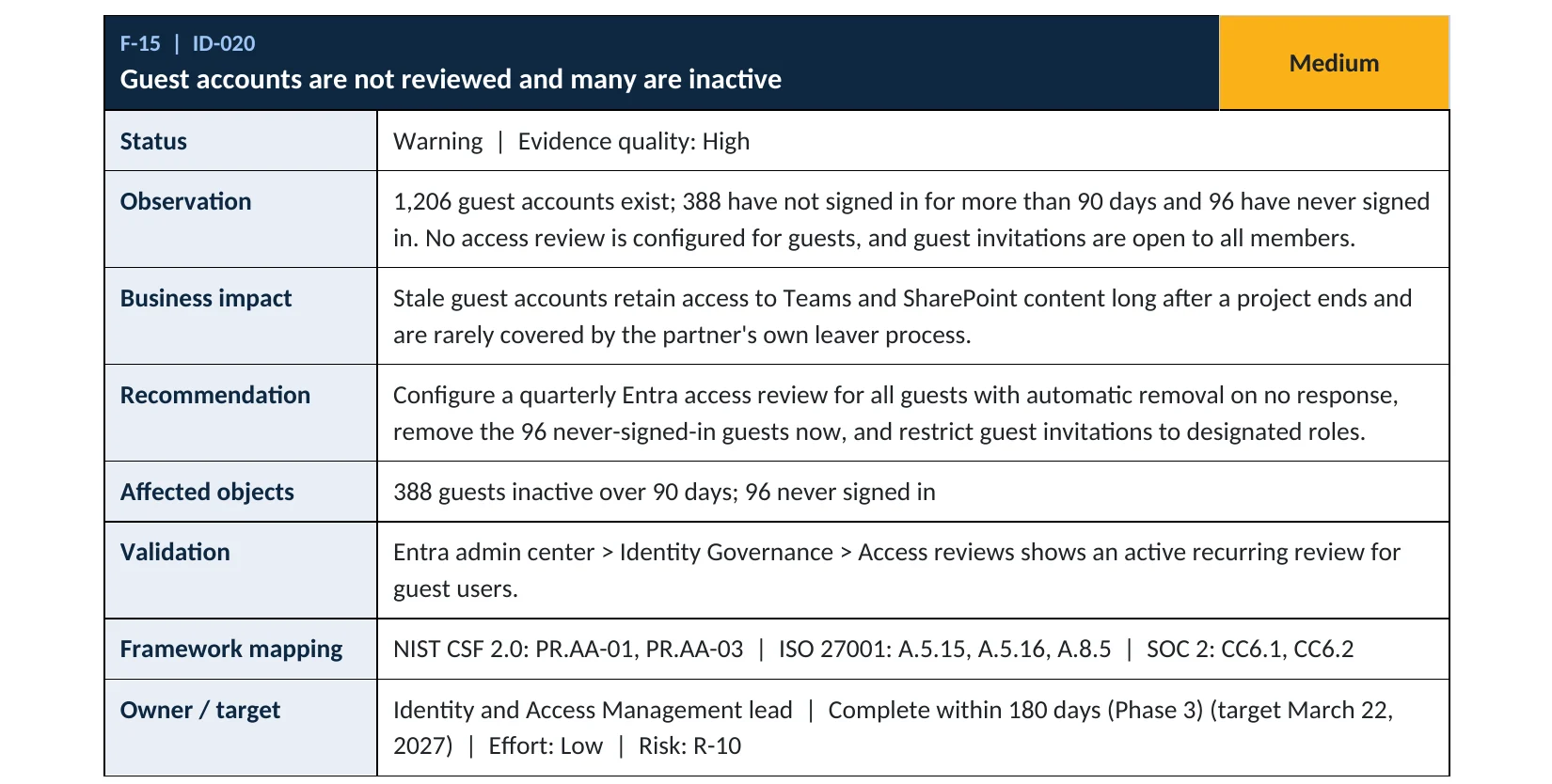
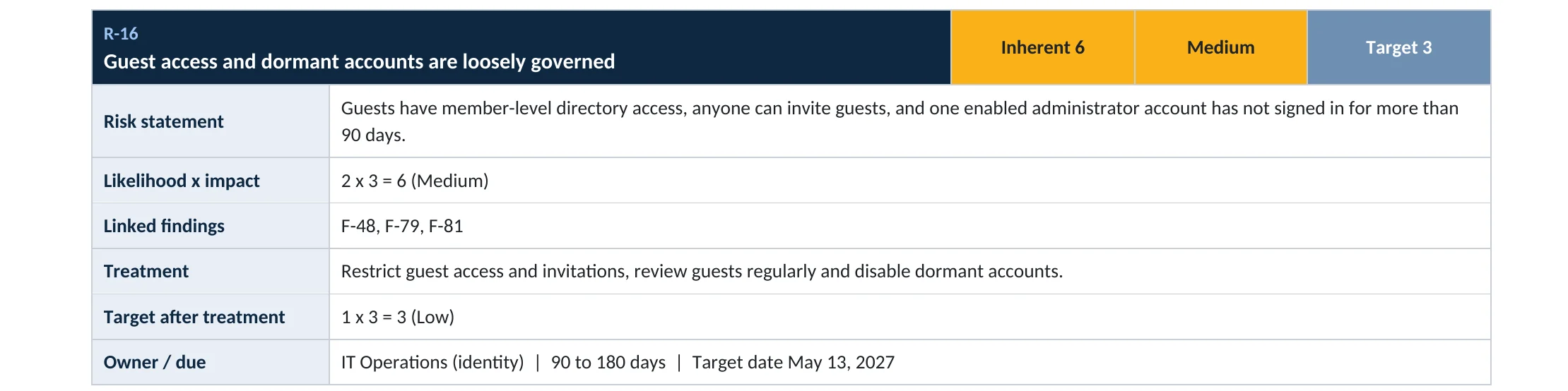
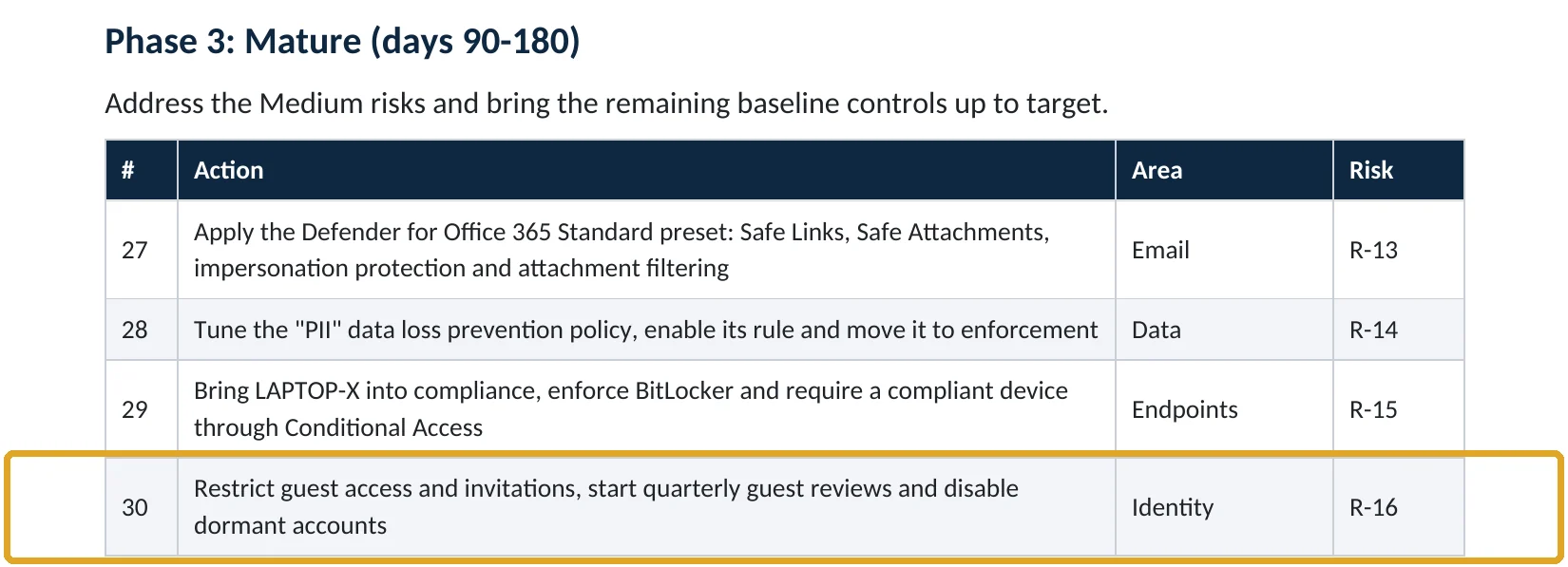
Your options
What each plan gives you
| Capability | All plans | Entra ID P1 or P2 | Entra ID Governance |
|---|---|---|---|
| Usage reports with last activity per app | Yes | Yes | Yes |
| Last sign-in date per user (admin center and Graph) | No | Yes | Yes |
| Block sign-in, remove licenses and roles | Yes | Yes | Yes |
| Automatic workflow on sign-in inactivity | No | No | Yes |
On Business Basic and Standard, the Microsoft 365 usage reports show the last active date for Exchange, OneDrive, SharePoint and Teams per user (Microsoft Learn). Lifecycle Workflows can act on inactivity automatically with Entra ID Governance (Microsoft Learn).
How to check it yourself
Find accounts with no recent sign-in, without changing anything
Add the column, then filter for dates more than 90 days ago.
Read-only PowerShell: enabled users and their last successful sign-in
Connect-MgGraph -Scopes "User.Read.All","AuditLog.Read.All"
Get-MgUser -All -Property DisplayName,UserPrincipalName,AccountEnabled,SignInActivity |
  Where-Object AccountEnabled |
  Select-Object DisplayName, UserPrincipalName,
    @{n="LastSuccess";e={$_.SignInActivity.LastSuccessfulSignInDateTime}} |
  Sort-Object LastSuccess
The commands only read data. Accounts at the top of the list, or with no date at all, are the ones to review. Check their admin roles too.
How to configure
How to retire inactive accounts safely, step by step
All plans
Confirm, block, remove
- Send each manager the list of their team’s accounts with no sign-in for 90 days.
- For confirmed accounts, select Block sign-in and revoke sessions.
- Remove admin roles and group memberships.
- If the mail is still needed, convert the mailbox to a shared mailbox or give a manager access.
- After 30 days with no complaints, remove licenses and delete the account.
Keep it clean
Make it routine
- Add account removal to your leaver checklist, on the last day.
- Run the report every quarter.
- With Entra ID Governance, create a Lifecycle Workflow on sign-in inactivity.
- Watch failed sign-ins on blocked accounts: they show someone tried.
What your users will notice
Nothing, unless an account was still in use. That’s why the manager confirms first.
How to undo it
Unblock sign-in and restore the license. A deleted account can be restored for 30 days from Deleted users.
Proof and questions
How to prove it is fixed, and what to ask your IT provider
Evidence it is fixed
- No enabled account without a successful sign-in in 90 days, except documented ones.
- No admin role on a dormant account.
- A dated export of the review, signed off by managers.
- Account removal on the leaver checklist.
Questions for your IT provider
- How many enabled accounts haven’t signed in for 90 days?
- Do any of them hold admin roles?
- How quickly are leavers’ accounts blocked?
- Do we review this every quarter?
- Have any blocked accounts seen sign-in attempts?
Signs it was already abused
If a dormant account may already have been used, look for these signs
Red flags
- A successful sign-in on an account whose owner has left.
- Failed sign-ins on old accounts from unfamiliar countries.
- New MFA methods registered on an account nobody uses.
- Inbox rules or forwarding on a former employee’s mailbox.
- Admin actions logged by a dormant admin account.
If you see these, block the account, revoke sessions and keep the logs. Our account takeover investigation establishes what was reached, and the Microsoft 365 Evidence Clock shows how long the records are kept.
Framework mapping
Where account reviews fit
| Framework | Where it fits |
|---|---|
| NIST CSF 2.0 | PR.AA-01: identities and credentials managed; PR.AA-05: access permissions reviewed |
| ISO/IEC 27001:2022 | Annex A 5.15 Access control; 5.16 Identity management; 5.18 Access rights |
| SOC 2 | CC6.1 logical access; CC6.2 user registration and removal |
| PCI DSS 4.0 | 8.2.6 inactive accounts removed or disabled within 90 days |
Reviewed by
Written and reviewed by a practicing CISO

Ali Hassani, C|CISO, CISSP
Ali has more than 25 years of IT and cybersecurity experience and holds the Certified CISO and CISSP certifications along with Microsoft and Cisco credentials. He leads every OC Security Audit engagement from Irvine, on-site across Southern California and remotely nationwide. Every Microsoft 365 audit is read-only.
FAQ
Frequently asked questions about inactive accounts
How do I find inactive users in Microsoft 365?
Add the Last interactive sign-in time column in the Entra admin center user list, or read lastSuccessfulSignInDateTime with Microsoft Graph. Both need Entra ID P1 or P2.
How long before an account counts as inactive?
Microsoft suggests 90 to 180 days for most organizations. PCI DSS requires 90 days for in-scope accounts.
Should I delete or block inactive accounts?
Block first, confirm nothing breaks, then remove licenses and delete. Deleted accounts can be restored for 30 days.
What about shared mailboxes and service accounts?
Check non-interactive sign-ins too. Document any account that legitimately never signs in interactively.
Can this be automated?
Yes, with Lifecycle Workflows in Microsoft Entra ID Governance, using the sign-in inactivity trigger.
Which plans support this?
All plans can block accounts and see usage reports. Last sign-in dates need Entra ID P1 or P2 (Business Premium, E3, E5).
Next step
Close the accounts nobody is watching
Prevent
Microsoft 365 Security Audit
$3,500 fixed
About 200 read-only checks across sign-in protection, email, sharing and devices, for any tenant size, with four reports and a remediation roadmap.
Respond
Microsoft 365 & Azure Compromise Investigation
From $3,500
For when an old account signed in unexpectedly: we establish what it reached.
Want to see the deliverables first? Open the Microsoft 365 audit sample report or browse all our sample reports.

Service
Microsoft 365 Security Audit
The fixed-price audit that checks this item and about 200 more.
See the audit ›
Service
Microsoft Entra ID Security Audit
A deeper look at identities, Conditional Access, roles and apps.
See the Entra ID audit ›
Service
Compromise Investigation
When an account or mailbox may already be in an attacker’s hands.
See the investigation ›Related reading: How to review and remove guest accounts · How to remove unused admin roles · How to find hidden mailboxes
Sources
Sources used on this page
- Microsoft Learn, How to detect and investigate inactive user accounts
- Microsoft Learn, Microsoft Entra ID and PCI-DSS Requirement 8
- Microsoft Learn, Manage inactive users using Lifecycle Workflows
- Microsoft Learn, Microsoft 365 apps Active users report
- Varonis, 2025 State of Data Security Report
- Microsoft Source, Microsoft releases 2025 Digital Defense Report
This guide is general information, not a guarantee of protection or legal advice. Microsoft changes its admin centers often: menu names and steps were checked against Microsoft Learn on November 20, 2026. Drawings are simplified and are not screenshots of Microsoft products. Sample findings come from fictional companies. Incidents are described as reported by the cited sources; OC Security Audit was not involved in them. Questions? Call 949-777-5567 or email support@ocsecurityaudit.com.