

LIBRARY 3.28Microsoft 365 Security Library
How to Block Dangerous Attachment Types in Microsoft 365
Programs, scripts and disk images have no business arriving by email. The common attachments filter blocks them by file type before anyone can open one. Here is how to check it’s on and what to add.
Reviewed by Ali Hassani, C|CISO, CISSP · Last verified November 20, 2026
The common attachments filter is part of anti-malware policies in Exchange Online Protection, included with every plan that has Exchange Online (Microsoft Learn).
In one minute
- Open the default anti-malware policy.
- Turn on Enable the common attachments filter.
- Keep Microsoft’s default file types and consider adding scripts such as .js and .ps1.
- Leave the action as Reject the message.
Attachment filtering is part of the email security checks in our Microsoft 365 Security Audit.
What it is
What the common attachments filter does
Microsoft describes the filter simply: some file types, such as executables, aren’t suited to email, so rather than scanning them for malware, block them all. When the filter finds a listed type, the message is rejected with a non-delivery report (the default) or quarantined (Microsoft Learn).
The filter uses true type matching where it can, reading the file itself rather than trusting the name, so an .exe renamed to .txt is still detected as an .exe (Microsoft Learn).
What Microsoft’s default list covers
| Group | Examples from the default list | Why block them |
|---|---|---|
| Programs and installers | .exe, .msi, .msix, .com, .scr, .dll | Run code directly |
| Scripts | .bat, .cmd, .vbs, .vbe, .wsf, .hta, .jar | Run code through Windows |
| Disk images and archives | .iso, .img, .cab, .arj, .xz | Used to smuggle programs past filters |
| Shortcuts and settings | .lnk, .reg, .scf, .pif | Launch or change things silently |
| Macro add-ins | .docm, .ppam, .xll | Office files built to run code |
Why it matters
Most infections still start with a file someone opened
- Email with an attachmentInvoice, voicemail, shipping notice.
- New malware, not yet knownScanner finds nothing.
- File type blockedRejected before delivery.
- User opens itWithout it: code runs on the PC.
- Ransomware or account theftSpreads from there.
Drawing: where the attachment filter breaks the path.
average cost of a U.S. data breach in 2025, according to IBM.
Source: IBMfile types on Microsoft’s default block list.
Source: Microsoft Learnsince when the filter is on by default in new tenants; older tenants may still have it off.
Source: Microsoft Learnminutes is a realistic time to switch it on.
Source: Our estimateHow the protections fit together
| Protection | What it does | Effect |
|---|---|---|
| Common attachments filter | Blocks by file type, even unknown malware. | Stops the obvious |
| Malware scanning | Catches known malware in any attachment. | Always on |
| Safe Attachments (Defender for Office 365) | Opens files in a sandbox before delivery. | Catches new threats |
| Filter off, no Safe Attachments | Only known malware is stopped. | Gap |
Microsoft notes the filter is on by default in new policies and in the default policy of organizations created after December 1, 2023 (Microsoft Learn). Older tenants should check.
What we find in audits
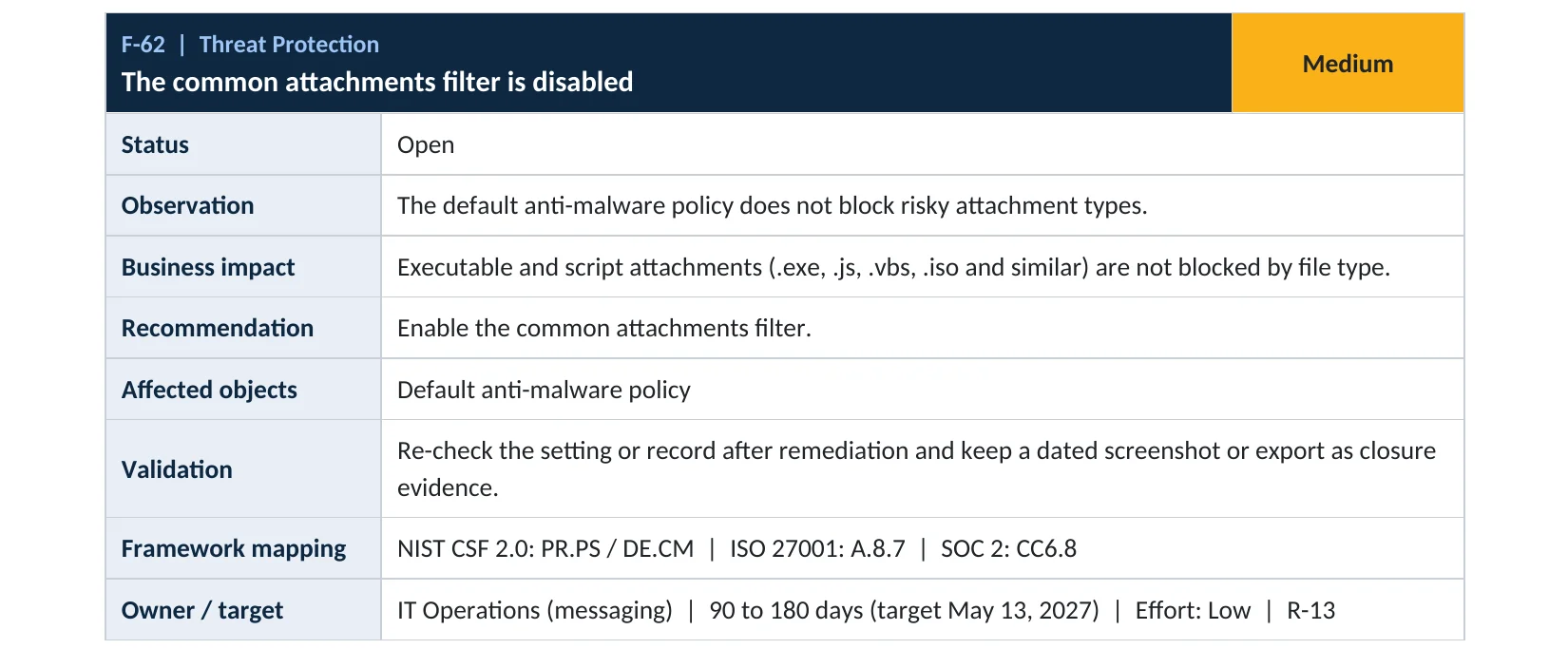
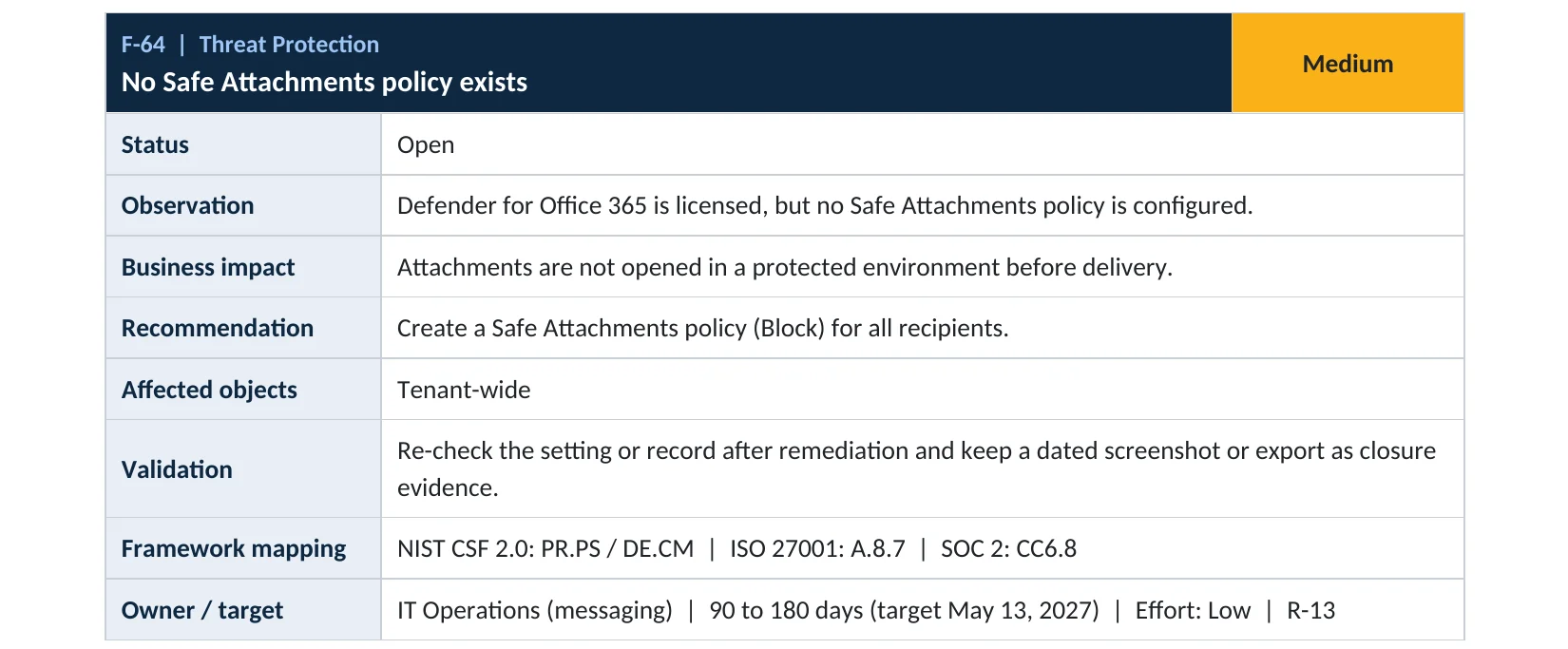
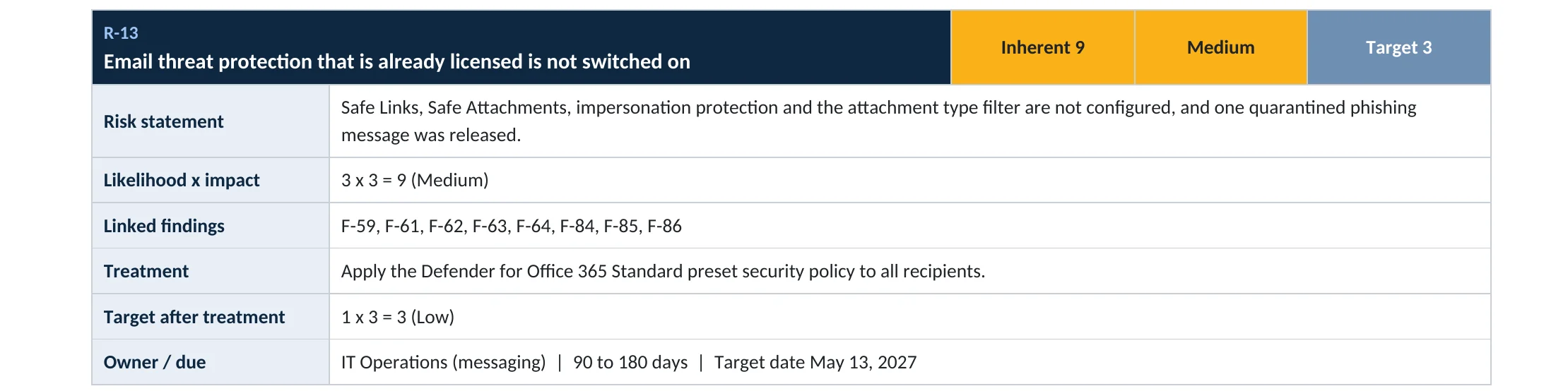
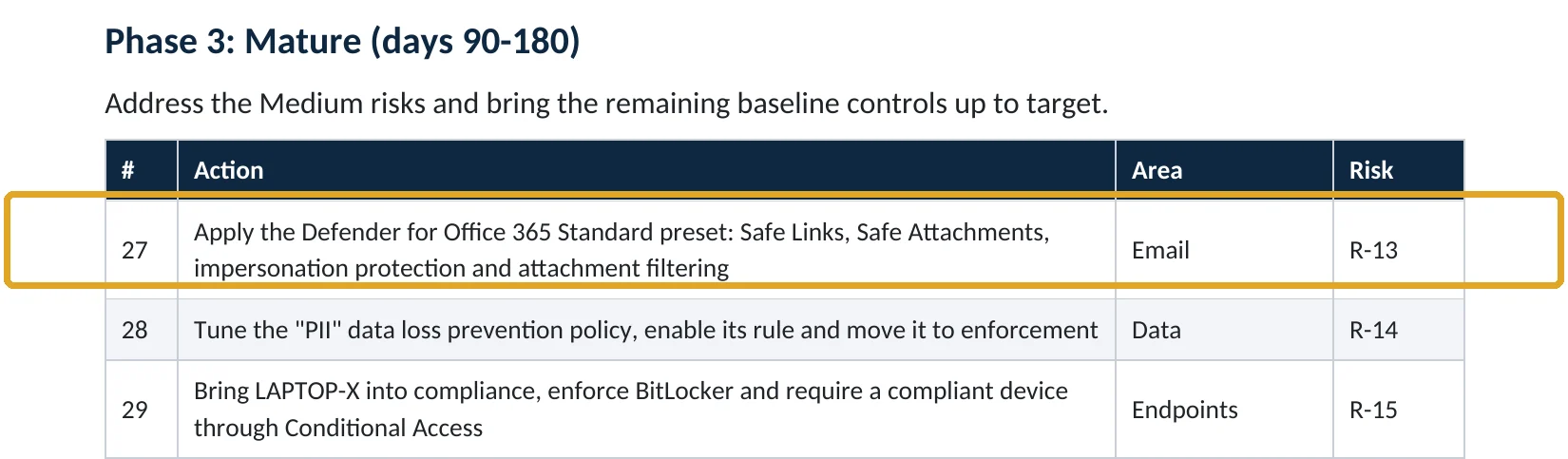
What this finding looks like in our audit reports
These are real pages from our published compromise assessment sample, written for a fictional company. Click any page to open it full size.
Your options
What each plan gives you
| Capability | All plans with Exchange Online | Defender for Office 365 (Business Premium, E5 or add-on) |
|---|---|---|
| Common attachments filter | Yes | Yes |
| Add your own file types | Yes | Yes |
| Malware scanning and zero-hour auto purge | Yes | Yes |
| Safe Attachments sandbox | No | Yes |
If users are covered by the Standard or Strict preset security policies, those presets already turn the filter on and settings in other anti-malware policies are ignored for them (Microsoft Learn).
How to check it yourself
See whether the filter is on, without changing anything
Open the default policy and look at Protection settings. Enable the common attachments filter should be on.
Read-only PowerShell: common attachments filter status
Connect-ExchangeOnline
Get-MalwareFilterPolicy |
  Select-Object Name, EnableFileFilter, FileTypeAction, @{n="Types";e={$_.FileTypes.Count}}
The command only reads settings. EnableFileFilter False means risky file types are delivered unless malware scanning recognizes them.
How to configure
How to turn on the common attachments filter, step by step
All plans
Turn it on
- Open Threat policies › Anti-malware and select the default policy.
- Select Edit protection settings.
- Turn on Enable the common attachments filter.
- Keep Reject the message with a non-delivery report (NDR) as the action.
- Select Save, then repeat for any custom anti-malware policies.
Go further
Tighten the list
- Under Select file types, consider adding script types such as .js, .ps1 and .wsh.
- Microsoft also suggests blocking extensions like .cpl, .inf and .url with a mail flow rule.
- Turn on Safe Attachments if you have Defender for Office 365.
- Tell staff how to share programs safely, for example through OneDrive.
What your users will notice
Senders get a bounce if they email a blocked file type. Normal Office files and PDFs aren’t affected.
How to undo it
Turn off Enable the common attachments filter in the policy, or remove one file type from the list.
Proof and questions
How to prove it is fixed, and what to ask your IT provider
Evidence it is fixed
- EnableFileFilter is True on every anti-malware policy.
- The action is Reject, or Quarantine with admin-only release.
- A test message with a harmless renamed file type is blocked.
- Safe Attachments is on where licensed.
Questions for your IT provider
- Is the common attachments filter on in every anti-malware policy?
- Which file types are on our list, and have any been removed?
- Do we use Safe Attachments, and for which users?
- How do staff share programs or scripts when they need to?
- Who gets notified when malware is blocked?
Signs it was already abused
If a dangerous attachment may already have been opened, look for these signs
Red flags
- Mail with .iso, .img, .lnk or .js attachments in user mailboxes.
- Defender or antivirus alerts shortly after an email was opened.
- A PC suddenly slow, or new programs nobody installed.
- Sign-ins from new places soon after an attachment was opened.
- Users reporting a file that “didn’t open”.
If you see these, isolate the PC and keep the evidence. Our compromise investigation establishes what ran and what was reached, and the Microsoft 365 Evidence Clock shows how long the records are kept.
Framework mapping
Where attachment filtering fits
| Framework | Where it fits |
|---|---|
| NIST CSF 2.0 | PR.PS-01: configuration management; DE.CM-09: monitoring of software and data |
| ISO/IEC 27001:2022 | Annex A 8.7 Protection against malware |
| SOC 2 | CC6.8 prevention of unauthorized or malicious software |
Reviewed by
Written and reviewed by a practicing CISO

Ali Hassani, C|CISO, CISSP
Ali has more than 25 years of IT and cybersecurity experience and holds the Certified CISO and CISSP certifications along with Microsoft and Cisco credentials. He leads every OC Security Audit engagement from Irvine, on-site across Southern California and remotely nationwide. Every Microsoft 365 audit is read-only.
FAQ
Frequently asked questions about blocking attachment types
What is the common attachments filter?
A setting in Microsoft 365 anti-malware policies that blocks email attachments by file type, such as .exe, .iso or .vbs, whether or not they contain known malware.
Is it on by default?
In new anti-malware policies and in the default policy of organizations created after December 1, 2023, yes. Older tenants should check.
Will it block Word, Excel or PDF files?
No. The default list targets programs, scripts, disk images and macro add-ins such as .docm, not normal documents.
Should we reject or quarantine?
Microsoft's recommended setting is Reject. Quarantine is an option if you want admins to review blocked files.
Is this the same as Safe Attachments?
No. Safe Attachments opens files in a sandbox and needs Defender for Office 365. The attachment filter blocks by type and works on every plan.
Which plans include it?
All Microsoft 365 plans with Exchange Online.
Next step
Stop the files that should never arrive
Prevent
Microsoft 365 Security Audit
$3,500 fixed
About 200 read-only checks across sign-in protection, email, sharing and devices, for any tenant size, with four reports and a remediation roadmap.
Respond
Microsoft 365 & Azure Compromise Investigation
From $3,500
For when an attachment was opened and something ran: we establish what happened and what was reached.
Want to see the deliverables first? Open the Microsoft 365 audit sample report or browse all our sample reports.

Service
Microsoft 365 Security Audit
The fixed-price audit that checks this item and about 200 more.
See the audit ›
Service
Microsoft 365 Email Security
Our review of Exchange Online and Defender email protection.
See email security ›
Service
Compromise Investigation
When an account or mailbox may already be in an attacker’s hands.
See the investigation ›Related reading: How to turn on Safe Links and Safe Attachments · How to control quarantine release · How to remove allowed sender domains
Sources
Sources used on this page
- Microsoft Learn, Anti-malware protection for cloud mailboxes
- Microsoft Learn, Configure anti-malware policies
- Microsoft Learn, Recommended email and collaboration threat policy settings
- Microsoft Learn, Frequently asked questions: anti-malware protection
- IBM newsroom, Cost of a Data Breach Report 2025
This guide is general information, not a guarantee of protection or legal advice. Microsoft changes its admin centers often: menu names and steps were checked against Microsoft Learn on November 20, 2026. Drawings are simplified and are not screenshots of Microsoft products. Sample findings come from fictional companies. Incidents are described as reported by the cited sources; OC Security Audit was not involved in them. Questions? Call 949-777-5567 or email support@ocsecurityaudit.com.