

LIBRARY 3.27Microsoft 365 Security Library
How to Remove Allowed Sender Domains from Microsoft 365 Spam Filtering
An allowed domain in an anti-spam policy lets that domain’s email skip most filtering, and attackers can fake many allowed domains. Here is how to find those entries, remove them and handle real exceptions the safer way.
Reviewed by Ali Hassani, C|CISO, CISSP · Last verified November 20, 2026
Microsoft lists allowed sender and domain lists in anti-spam policies as the least recommended way to allow mail, and recommends the Tenant Allow/Block List instead (Microsoft Learn).
In one minute
- Open every anti-spam policy and list its allowed senders and allowed domains.
- Remove common domains, your own domains and anything nobody can explain.
- Move real exceptions to the Tenant Allow/Block List, where entries can expire.
- Report wrongly filtered mail to Microsoft instead of allowing whole domains.
Spam filter exceptions are part of the email security checks in our Microsoft 365 Security Audit.
What it is
What an allowed domain really does
Each anti-spam policy has four lists: allowed senders, allowed domains, blocked senders and blocked domains. Microsoft warns that mail from allowed senders or domains bypasses most email protection, except malware and high confidence phishing, and also skips SPF, DKIM and DMARC checks (Microsoft Learn).
Ways to allow mail, from safest to riskiest
| Method | Microsoft’s ranking | Our advice |
|---|---|---|
| Tenant Allow/Block List | Most recommended | Use for exceptions |
| Mail flow rules | Second | Only with tight conditions |
| Outlook Safe Senders | Third | Affects one mailbox |
| IP Allow List | Fourth | Rarely needed |
| Allowed senders and domains in anti-spam policies | Least recommended | Avoid |
That ranking comes from Microsoft’s own guidance on sender allowlists (Microsoft Learn).
Why it matters
An allowed domain is a gift to anyone who can fake it
- Attacker spoofs an allowed domainOr registers it first.
- Message arrivesLooks like a known vendor.
- Domain removed from the listNormal checks run.
- Filters skippedWithout it: lands in the Inbox.
- Invoice paidBusiness email compromise.
Drawing: where removing the allowed domain breaks the path.
phishing and spoofing complaints to the FBI in 2024, the most reported internet crime.
Source: FBI IC3 via Fox Businesslost to business email compromise in 2024, the FBI reports.
Source: CyberScoop on FBI IC3entries, roughly, can sit on these lists, but only 30 can be added in the Defender portal.
Source: Microsoft Learncommon domains such as microsoft.com belong on the list, Microsoft says.
Source: Microsoft LearnCommon entries we see, and what to do
| Entry on the allowed list | Why it’s there | What to do |
|---|---|---|
| A big public domain (microsoft.com, gmail.com) | Someone wanted one notification through | Remove now |
| Your own domain | Internal mail went to Junk once | Remove; fix SPF and DKIM |
| A vendor’s domain | Invoices were filtered | Move to the Tenant Allow/Block List with an expiry |
| A domain nobody recognizes | Unknown | Treat as a red flag |
Microsoft’s troubleshooting guidance adds: never put domains you own on these lists, and don’t keep any domain there permanently (Microsoft Learn).
What we find in audits
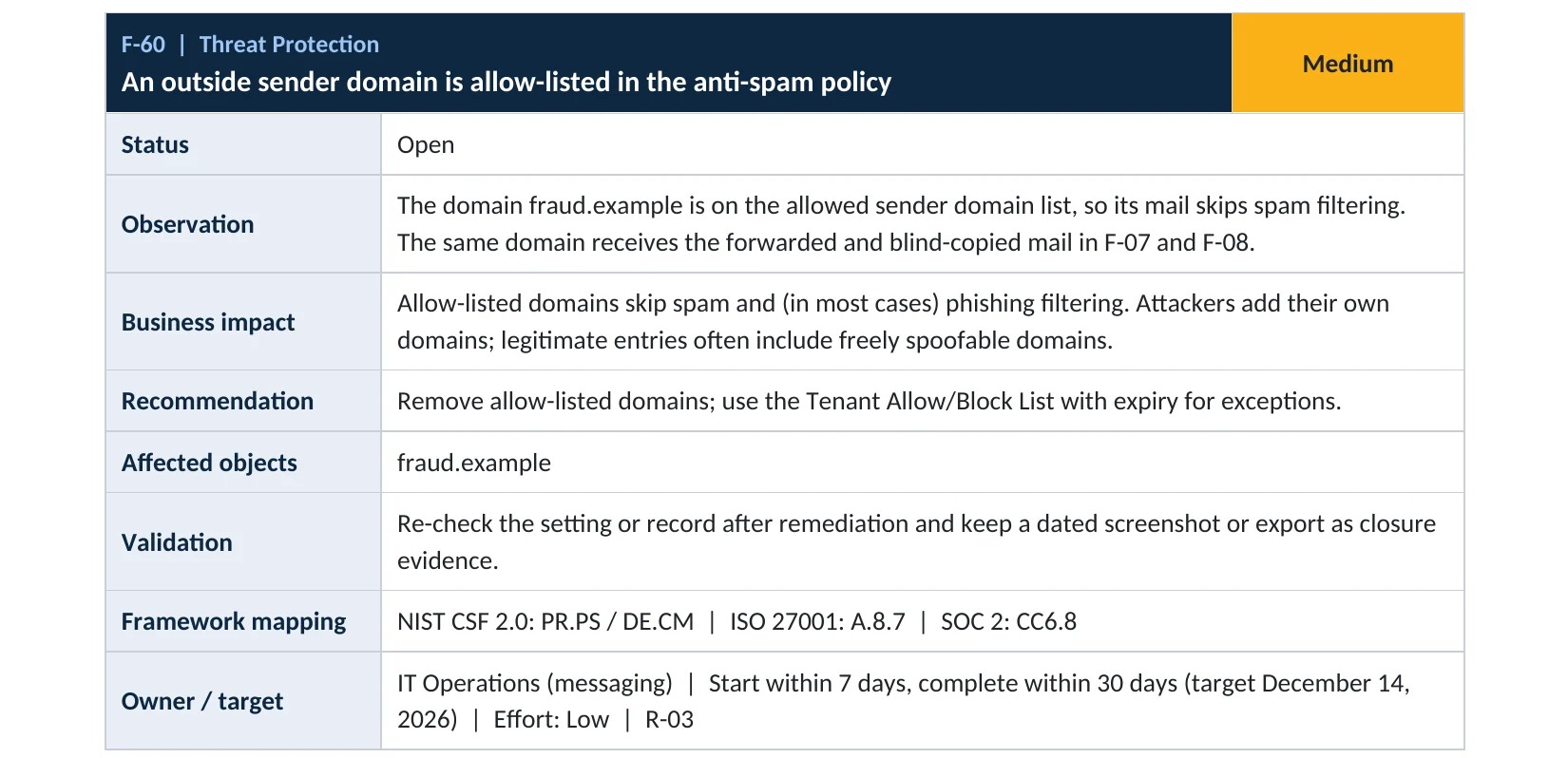
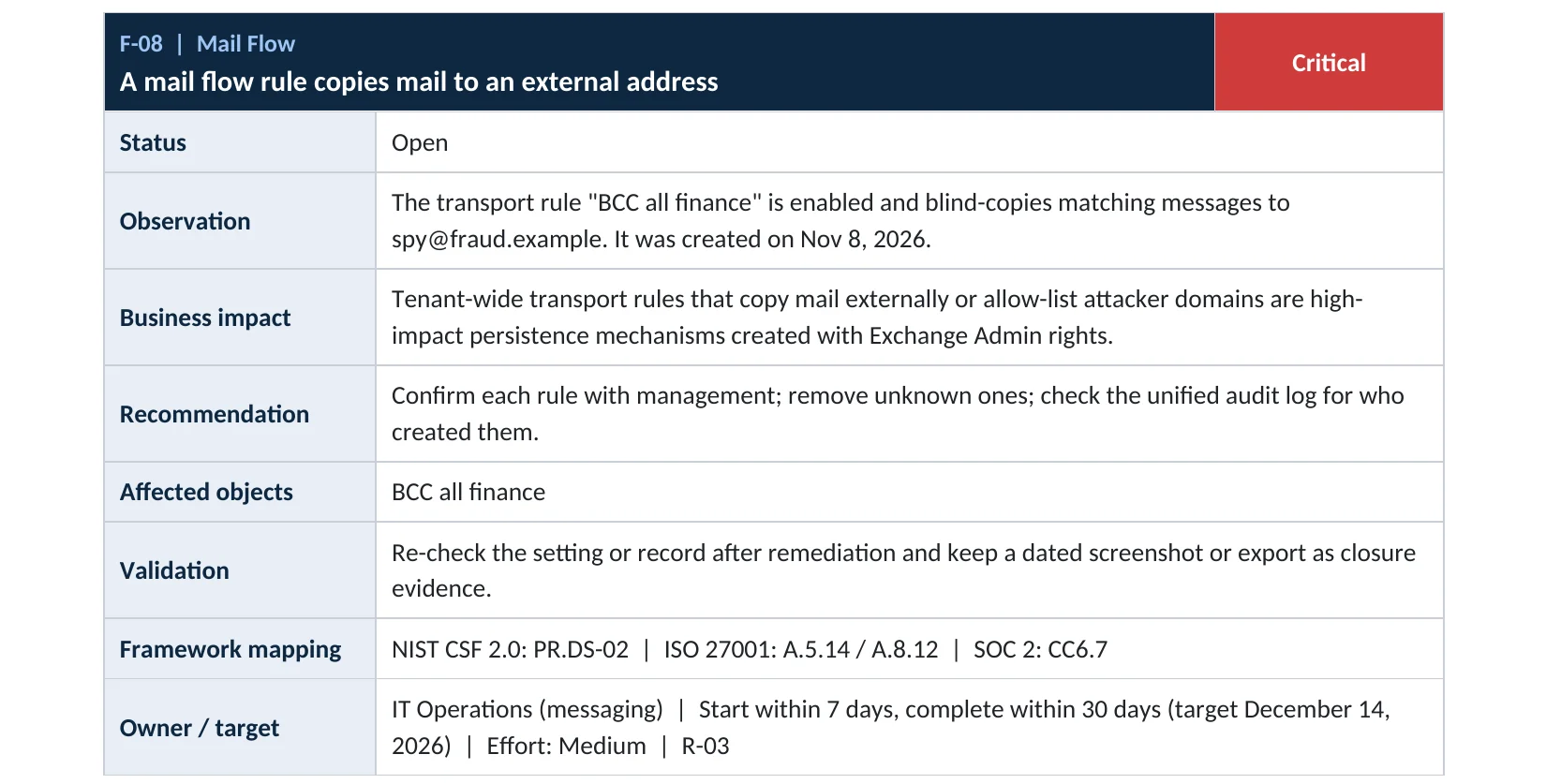
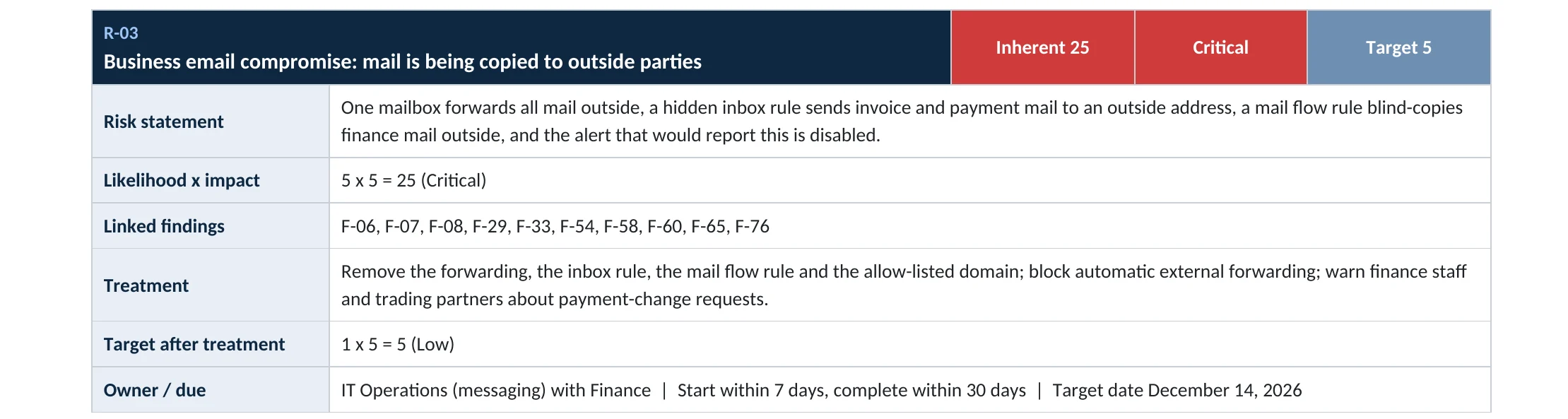
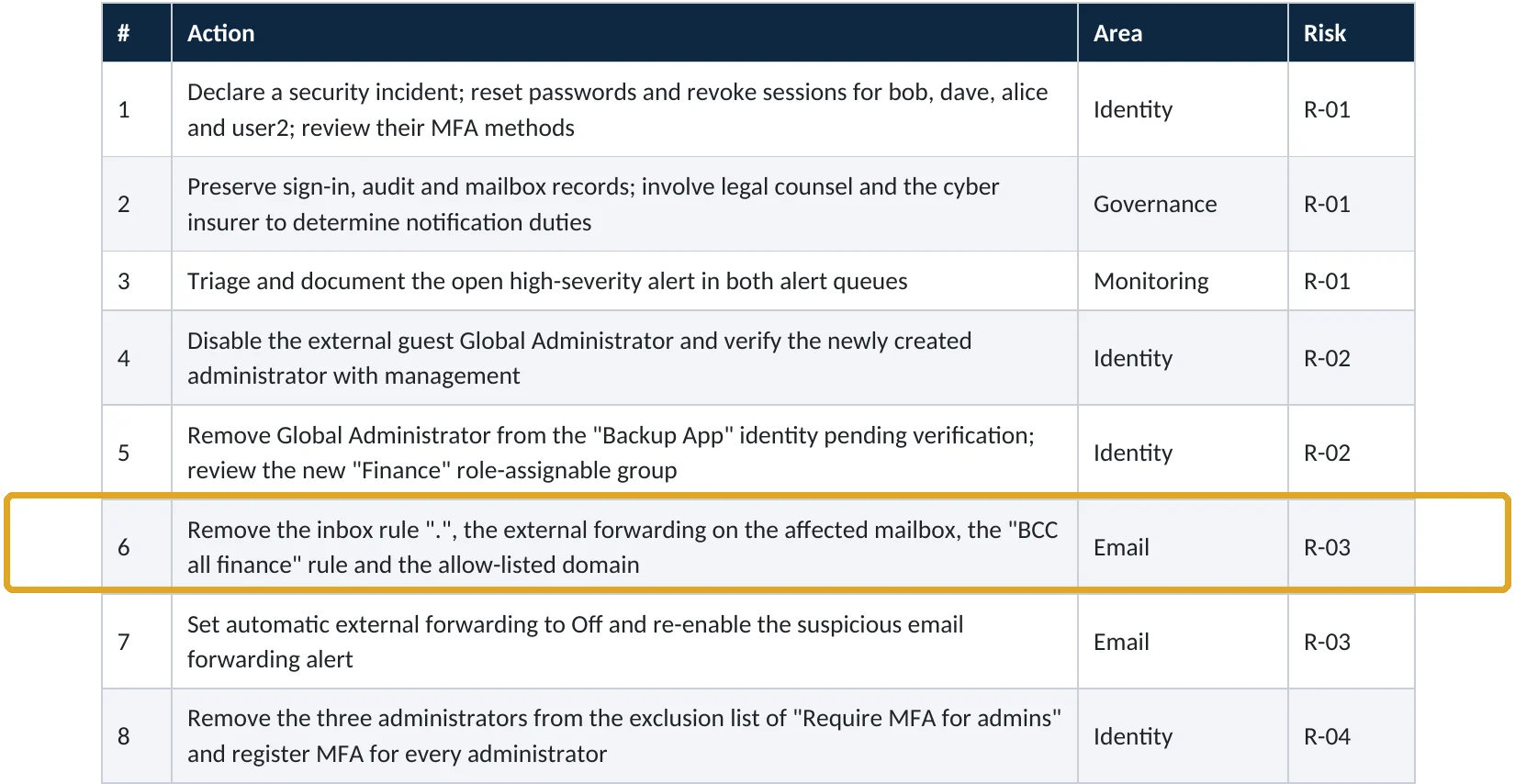
What this finding looks like in our audit reports
These are real pages from our published compromise assessment sample, written for a fictional company. Click any page to open it full size.
Your options
What each plan gives you
| Capability | All plans with Exchange Online | Defender for Office 365 |
|---|---|---|
| Allowed and blocked lists in anti-spam policies | Yes | Yes |
| Tenant Allow/Block List for domains and addresses | Yes | Yes |
| Report good mail to Microsoft from Submissions | Yes | Yes |
| Standard and Strict preset policies (lists can’t be added) | Exchange Online Protection presets | Adds Safe Links, Safe Attachments, impersonation |
Microsoft notes that the allowed and blocked lists can’t be configured in the Standard or Strict preset security policies, and that the Tenant Allow/Block List mostly replaces them (Microsoft Learn).
How to check it yourself
List every allowed sender and domain, without changing anything
Open each inbound anti-spam policy, including the default one, and look at Allowed senders and domains.
Read-only PowerShell: allowed senders and domains in every anti-spam policy
Connect-ExchangeOnline
Get-HostedContentFilterPolicy |
  Select-Object Name, AllowedSenderDomains, AllowedSenders
The command only reads settings. Any domain listed skips most spam and spoof checks for every user the policy covers.
How to configure
How to remove allowed domains and handle exceptions safely, step by step
All plans
Clean the lists
- Export the current lists with the command above so you have a record.
- For each entry, ask who added it and why; check message trace for recent mail from it.
- Remove common domains, your own domains and unexplained entries from Allowed senders and domains.
- Leave the blocked lists alone unless they also need cleaning.
- Save each policy and keep the export as evidence of the change.
Real exceptions
Allow the right way
- Submit the wrongly filtered message from Submissions and select Allow emails with similar attributes.
- Or add an allow entry in the Tenant Allow/Block List with an expiry date.
- Ask the vendor to fix their SPF, DKIM and DMARC so their mail passes on its own.
- Review remaining allow entries every quarter.
What your users will notice
Usually nothing. A few messages from a poorly configured vendor may land in Junk until you add a proper exception.
How to undo it
Add the domain back under Allowed senders and domains in the anti-spam policy, or better, create a Tenant Allow/Block List entry.
Proof and questions
How to prove it is fixed, and what to ask your IT provider
Evidence it is fixed
- No anti-spam policy has allowed domains, or only documented ones.
- No common domains or your own domains on any allow list.
- Exceptions live in the Tenant Allow/Block List with expiry dates.
- A dated export of the before-and-after lists.
Questions for your IT provider
- Which domains are on our anti-spam allowed lists, and who added them?
- Are any of our own domains or big public domains on the list?
- Why aren’t exceptions in the Tenant Allow/Block List?
- When were the lists last reviewed?
- Has mail from an allowed domain ever been reported as phishing?
Signs it was already abused
If an allowed domain may have been used against you, look for these signs
Red flags
- An allowed domain nobody can explain, especially one added recently.
- Message headers showing SFV:SKA (skipped filtering because of an allow entry) on suspicious mail.
- Invoices or payment-change requests from an allowed domain.
- The same domain appearing in mail flow rules, forwarding or inbox rules.
- Users reporting phishing that the filter never caught.
If you see these, keep the evidence before you change anything. Our business email compromise investigation establishes what was received, read and paid, and the Microsoft 365 Evidence Clock shows how long the records are kept.
Framework mapping
Where spam filter exceptions fit
| Framework | Where it fits |
|---|---|
| NIST CSF 2.0 | PR.PS-01: configuration management; DE.CM-09: monitoring of software and data |
| ISO/IEC 27001:2022 | Annex A 8.7 Protection against malware; 8.9 Configuration management |
| SOC 2 | CC6.8 prevention of unauthorized or malicious software |
Reviewed by
Written and reviewed by a practicing CISO

Ali Hassani, C|CISO, CISSP
Ali has more than 25 years of IT and cybersecurity experience and holds the Certified CISO and CISSP certifications along with Microsoft and Cisco credentials. He leads every OC Security Audit engagement from Irvine, on-site across Southern California and remotely nationwide. Every Microsoft 365 audit is read-only.
FAQ
Frequently asked questions about allowed sender domains
What does an allowed domain do in Microsoft 365?
Mail from that domain bypasses most spam, spoof and phishing filtering and skips SPF, DKIM and DMARC checks. Only malware and high confidence phishing are still caught.
Is it ever OK to use the allowed domains list?
Microsoft says it's best used for temporary testing only. For lasting exceptions, use the Tenant Allow/Block List.
Should our own domain be on the allowed list?
No. Microsoft advises never to put domains you own on these lists. Fix SPF and DKIM instead.
What should we use instead?
Report the wrongly filtered message from Submissions, or add an allow entry with an expiry in the Tenant Allow/Block List.
Do the Standard and Strict preset policies use these lists?
No. The lists can't be configured in the preset security policies.
Which plans include these settings?
All Microsoft 365 plans with Exchange Online.
Next step
Let the filter do its job
Prevent
Microsoft 365 Security Audit
$3,500 fixed
About 200 read-only checks across sign-in protection, email, sharing and devices, for any tenant size, with four reports and a remediation roadmap.
Respond
Microsoft 365 & Azure Compromise Investigation
From $3,500
For when fake invoices got through or a payment was diverted: we establish what was received, read and sent.
Want to see the deliverables first? Open the Microsoft 365 audit sample report or browse all our sample reports.

Service
Microsoft 365 Security Audit
The fixed-price audit that checks this item and about 200 more.
See the audit ›
Service
Microsoft 365 Email Security
Our review of Exchange Online and Defender email protection.
See email security ›
Service
Compromise Investigation
When an account or mailbox may already be in an attacker’s hands.
See the investigation ›Related reading: How to review mail flow rules · How to set up DMARC · How to control quarantine release
Sources
Sources used on this page
- Microsoft Learn, Anti-spam protection in cloud organizations
- Microsoft Learn, Create sender allowlists for cloud mailboxes
- Microsoft Learn, Configure anti-spam policies
- Microsoft Learn, Manage the Tenant Allow/Block List
- Microsoft Learn, Cautions against bypassing Microsoft 365 spam filters
- Fox Business, Online scammers stole a record $16.6B last year, FBI says
- CyberScoop, FBI IC3 cybercrime report 2024 key statistics
This guide is general information, not a guarantee of protection or legal advice. Microsoft changes its admin centers often: menu names and steps were checked against Microsoft Learn on November 20, 2026. Drawings are simplified and are not screenshots of Microsoft products. Sample findings come from fictional companies. Incidents are described as reported by the cited sources; OC Security Audit was not involved in them. Questions? Call 949-777-5567 or email support@ocsecurityaudit.com.