

LIBRARY 3.23Microsoft 365 Security Library
How to Turn On Safe Links and Safe Attachments in Microsoft 365
Safe Links checks a link when someone clicks it, and Safe Attachments opens files in a sandbox before they reach the inbox. Many companies pay for both and never switch on the full protection. Here is how.
Reviewed by Ali Hassani, C|CISO, CISSP · Last verified November 20, 2026
Safe Links and Safe Attachments are Defender for Office 365 features. Microsoft applies a Built-in protection preset to all recipients in tenants with any Defender for Office 365 licenses (Microsoft Learn).
In one minute
- Check you have Defender for Office 365 (Business Premium or E5 include it).
- Turn on the Standard protection preset for all users.
- Put executives and finance in Strict protection.
- Turn on Safe Attachments for SharePoint, OneDrive and Teams.
Email threat protection is part of the email security checks in our Microsoft 365 Security Audit.
What it is
What Safe Links and Safe Attachments do
Safe Links checks web addresses in email, Teams and Office documents at the moment someone clicks them, so a link that turns malicious after delivery is still caught. Safe Attachments opens attachments in a virtual environment to see what they do, a process Microsoft calls detonation, before the message is delivered (Microsoft Learn).
Three levels of protection
| Profile | Who it covers | What’s different |
|---|---|---|
| Built-in protection | Everyone, by default | Safe Links and Safe Attachments only; users can click through to the original link; internal mail isn’t checked |
| Standard protection | Users you assign (all users recommended) | Adds anti-phishing, anti-spam and anti-malware settings; no click-through; internal mail checked |
| Strict protection | High-value people: executives, finance, IT admins | More aggressive filtering and quarantine |
Microsoft notes that the Standard and Strict presets are assigned to no one until you turn them on (Microsoft Learn). That’s the gap we usually find.
Why it matters
Attackers send clean links and arm them later
- Phishing emailLink looks harmless at delivery.
- Link changesPoints to a fake sign-in page later.
- Checked at clickSafe Links blocks the page.
- Password enteredWithout it: credentials stolen.
- Mailbox taken overRules, forwarding, invoice fraud.
Drawing: where Safe Links breaks the path.
phishing and spoofing complaints to the FBI in 2024, the most common type of internet crime reported.
Source: FBI IC3 via Fox Businessof ransomware attacks started with a malicious email, and 18% with phishing, in Sophos’s 2025 survey.
Source: Sophospreset profiles: Built-in, Standard and Strict. Only Built-in is on by default.
Source: Microsoft Learnminutes is a realistic time to turn on the Standard preset for a small company.
Source: Our estimateWays to tighten email protection
| Control | What it does | Effect |
|---|---|---|
| Standard preset for all users | Turns on recommended Safe Links, Safe Attachments and anti-phishing together. | Best first step |
| Strict preset for key people | Tighter filtering for those attackers target most. | Protects targets |
| Safe Attachments for SharePoint, OneDrive, Teams | Blocks malicious files shared in collaboration tools. | Closes a gap |
| Built-in protection only | Basic Safe Links and Safe Attachments, click-through allowed. | Partial |
Documented research
Report · FBI IC3, 2024
Record losses, phishing on top
The FBI’s Internet Crime Complaint Center reported $16.6 billion in losses in 2024, up 33%, with phishing and spoofing the most commonly reported crime.
Source: Fox Business
Survey · Sophos, 2025
Email is a top way in for ransomware
Victims in Sophos’s survey of 3,400 organizations named malicious email and phishing among the main technical root causes of their ransomware attacks.
Source: Sophos State of Ransomware 2025
What we find in audits
What this finding looks like in our audit reports
These are real pages from our published sample reports, written for fictional companies. Click any page to open it full size. The viewer shows the gap in one tenant and what good looks like in another.
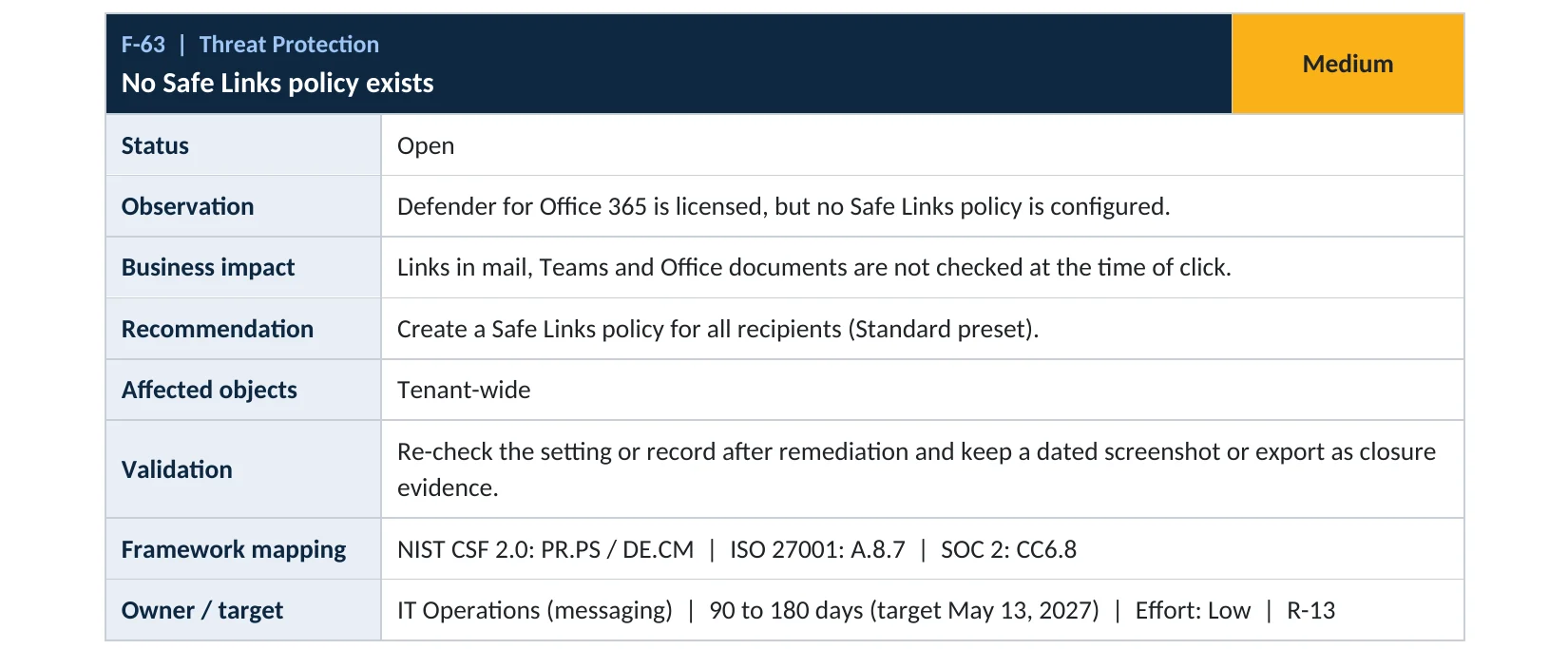
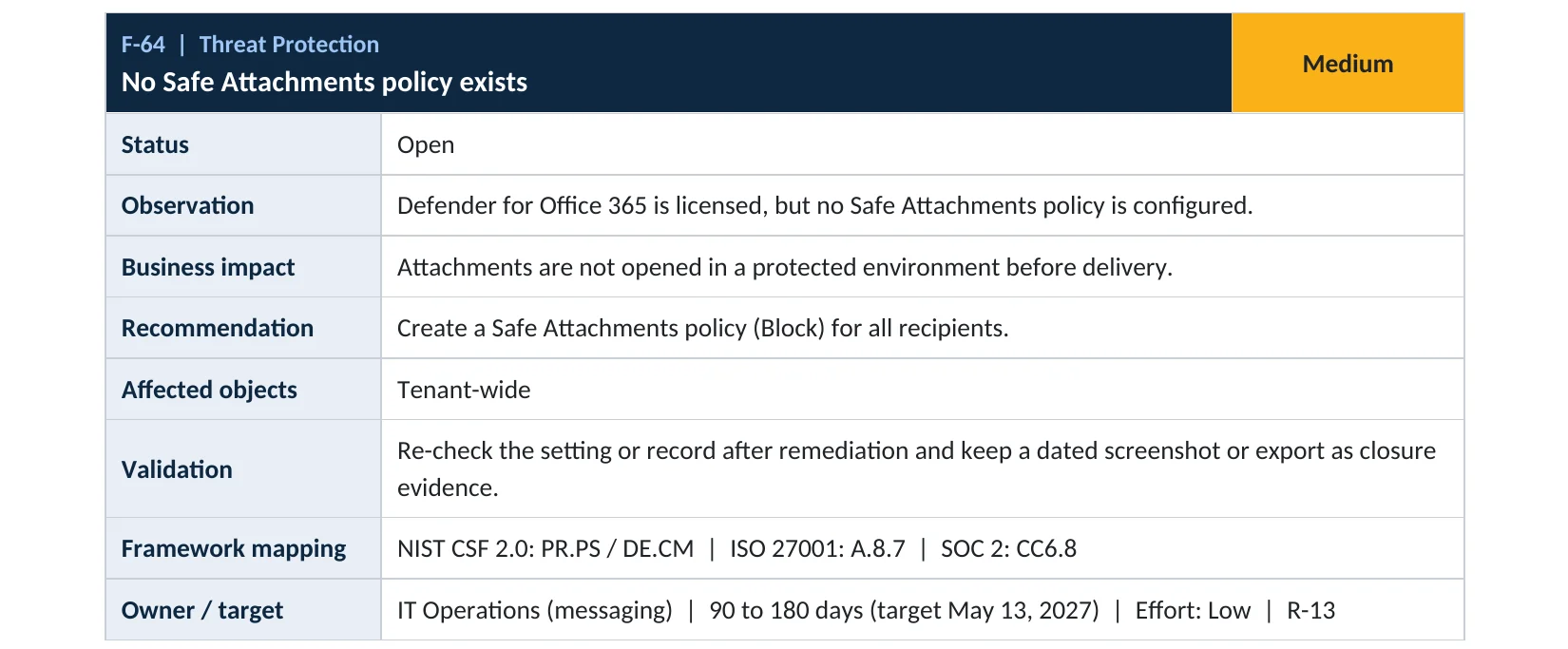
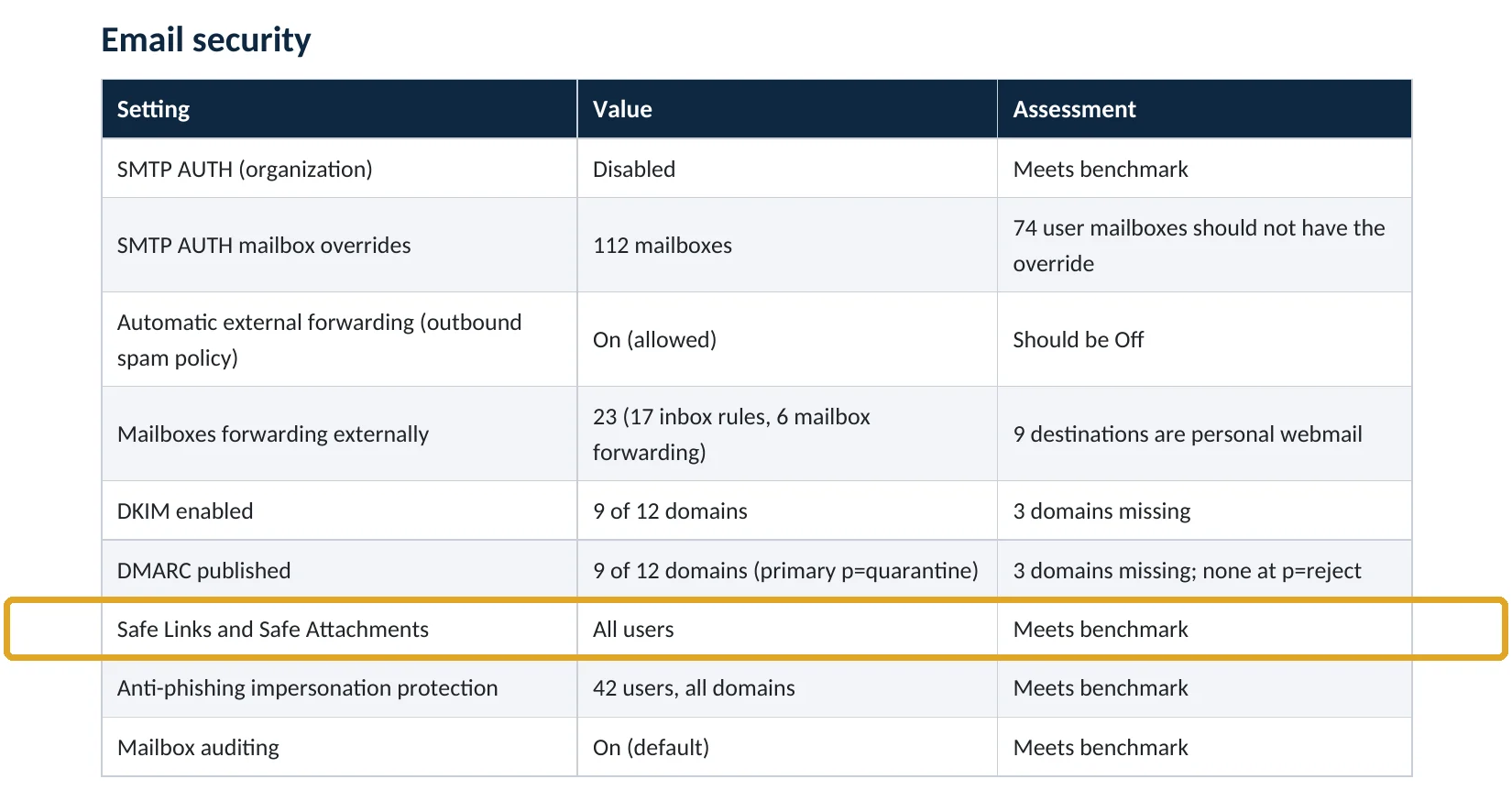
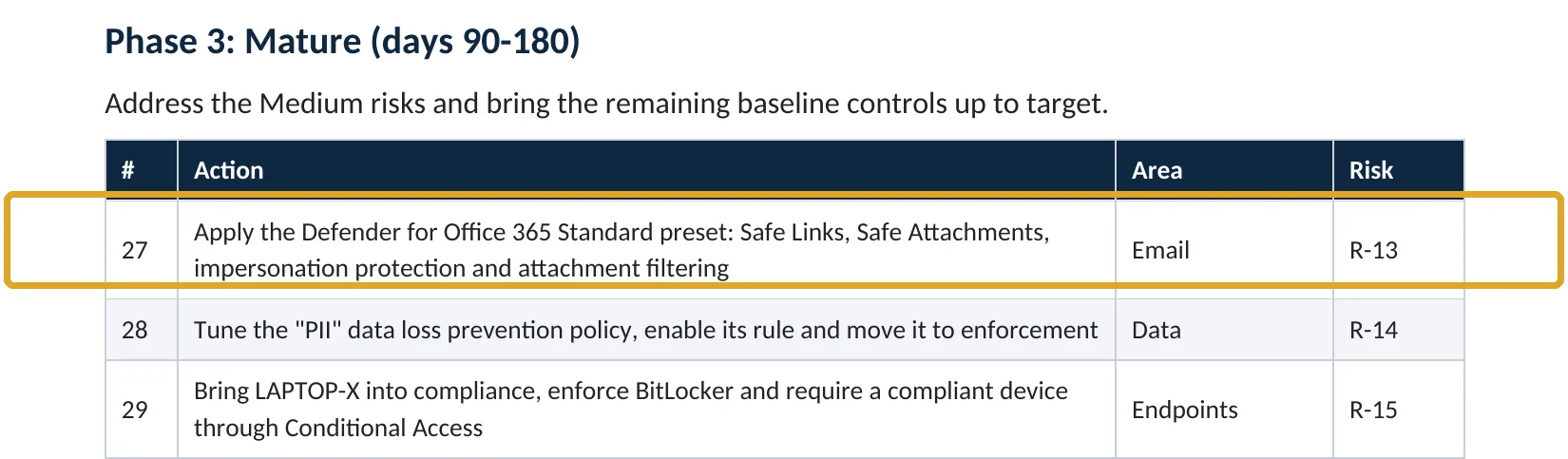
Your options
What each plan gives you
| Capability | Business Basic, Standard, E3 | Business Premium | E5 |
|---|---|---|---|
| Anti-spam, anti-malware, basic anti-phishing | Yes | Yes | Yes |
| Safe Links and Safe Attachments | Add-on | Yes | Yes |
| Standard and Strict preset policies with Defender settings | Add-on | Yes | Yes |
| Threat Explorer, automated investigation, attack simulation | No | No | Yes |
Business Premium includes Defender for Office 365 Plan 1; E5 includes Plan 2. Without either, the presets still apply email protection settings but not Safe Links or Safe Attachments.
How to check it yourself
See which protection applies, without changing anything
If Standard protection and Strict protection show as off, everyone is on Built-in protection only. Also check Safe Attachments › Global settings for SharePoint, OneDrive and Teams.
Read-only PowerShell: Safe Links, Safe Attachments and preset rules
Connect-ExchangeOnline
Get-SafeLinksPolicy | Select-Object Name, AllowClickThrough, EnableForInternalSenders
Get-SafeAttachmentPolicy | Select-Object Name, Enable, Action
Get-AtpPolicyForO365 | Select-Object EnableATPForSPOTeamsODB
Get-ATPProtectionPolicyRule | Select-Object Name, State
The commands only read settings. A missing or disabled Standard Preset Security Policy rule means the preset isn’t assigned.
How to configure
How to turn on the Standard and Strict presets, step by step
Business Premium, E5 or Defender add-on
Turn on the Standard preset
- Open Microsoft Defender › Email & collaboration › Policies & rules › Threat policies › Preset security policies.
- Under Standard protection, select Manage protection settings.
- Apply it to All recipients for both Exchange Online Protection and Defender for Office 365.
- Add your executives and key partners under impersonation protection when prompted.
- Review and confirm. The policy takes effect within a few hours.
All Defender plans
Cover files in SharePoint, OneDrive and Teams
- Open Threat policies › Safe Attachments › Global settings.
- Turn on Defender for Office 365 for SharePoint, OneDrive, and Microsoft Teams.
- Consider turning on Safe Documents if you have E5.
- Assign Strict protection to executives, finance and IT admins.
What your users will notice
Links in email may show a Microsoft check page when the destination is suspicious. Some attachments may take a little longer to arrive while they’re scanned, and a few more messages go to quarantine.
How to undo it
Turn the preset off or remove users from it on the same page. Built-in protection stays in place.
Proof and questions
How to prove it is fixed, and what to ask your IT provider
Evidence it is fixed
- Standard protection is on for all recipients.
- Strict protection covers executives, finance and IT admins.
- Safe Attachments for SharePoint, OneDrive and Teams is on.
- Click-through to blocked links isn’t allowed.
Questions for your IT provider
- Do we have Defender for Office 365, and for everyone?
- Are we on Built-in protection only, or the Standard preset?
- Who is in the Strict preset?
- Is internal email checked by Safe Links?
- How many malicious links were blocked last month?
Signs it was already abused
If a malicious link or file may already have got through, look for these signs
Red flags
- Users reporting a Microsoft sign-in page that looked slightly off.
- Sign-ins from unfamiliar countries right after a phishing wave.
- New inbox rules or forwarding created on a mailbox.
- Released quarantined messages that turned out to be phishing.
- Outgoing spam from one of your own mailboxes.
If you see these, reset the affected passwords, revoke sessions and keep the logs. Our compromise investigation establishes what the attacker did, and the Microsoft 365 Evidence Clock shows how long the records are kept.
Framework mapping
Where email threat protection fits
| Framework | Where it fits |
|---|---|
| NIST CSF 2.0 | PR.PS-05: unauthorized software prevented; DE.CM-09: computing hardware, software and their data monitored |
| ISO/IEC 27001:2022 | Annex A 8.7 Protection against malware; 8.23 Web filtering |
| SOC 2 | CC6.8 controls to prevent or detect malicious software |
Reviewed by
Written and reviewed by a practicing CISO

Ali Hassani, C|CISO, CISSP
Ali has more than 25 years of IT and cybersecurity experience and holds the Certified CISO and CISSP certifications along with Microsoft and Cisco credentials. He leads every OC Security Audit engagement from Irvine, on-site across Southern California and remotely nationwide. Every Microsoft 365 audit is read-only.
FAQ
Frequently asked questions about Safe Links and Safe Attachments
Are Safe Links and Safe Attachments on by default?
Partly. Tenants with Defender for Office 365 get the Built-in protection preset, which allows click-through and doesn't check internal email. The Standard and Strict presets are off until you turn them on.
Which plans include Safe Links?
Business Premium and E5 include Defender for Office 365. Other plans can add it as an add-on.
Will Safe Attachments delay email?
Messages with attachments can arrive a little later while the file is checked. Most users don't notice.
What's the difference between Standard and Strict?
Strict filters more aggressively and quarantines more. Use Standard for everyone and Strict for executives, finance and IT admins.
Does Safe Links work in Teams?
Yes, Safe Links protection covers links in Teams messages and Office apps for licensed users.
Is this the same as DMARC?
No. DMARC stops others sending email as your domain. Safe Links and Safe Attachments protect your users from malicious links and files sent to them.
Next step
Check every link and file before it hurts you
Prevent
Microsoft 365 Security Audit
$3,500 fixed
About 200 read-only checks across sign-in protection, email, sharing, data protection, logging and devices, for any tenant size, with four reports and a remediation roadmap.
Respond
Microsoft 365 & Azure Compromise Investigation
From $3,500
For when someone clicked a link and entered their password: we establish what the attacker reached.
Want to see the deliverables first? Open the Microsoft 365 audit sample report or browse all our sample reports.

Service
Microsoft 365 Security Audit
The fixed-price audit that checks this item and about 200 more.
See the audit ›
Service
Microsoft 365 Email Security
Our review of Exchange Online and Defender email protection.
See email security ›
Service
Compromise Investigation
When an account or mailbox may already be in an attacker’s hands.
See the investigation ›Related reading: How to set up anti-phishing impersonation protection · How to find malicious inbox rules · How to set up DMARC · Exchange Online and Defender email security guide
Sources
Sources used on this page
- Microsoft Learn, Preset security policies in cloud organizations
- Microsoft Learn, Recommended email and collaboration threat policy settings
- Microsoft Learn, Set up Safe Attachments policies in Defender for Office 365
- Microsoft Learn, Set up Safe Links policies in Defender for Office 365
- Microsoft Learn, Turn on Safe Attachments for SharePoint, OneDrive and Microsoft Teams
- Fox Business, Online scammers stole a record $16.6B last year, FBI says (2024 IC3 report)
- Sophos, The State of Ransomware 2025
This guide is general information, not a guarantee of protection or legal advice. Microsoft changes its admin centers often: menu names and steps were checked against Microsoft Learn on November 20, 2026. Drawings are simplified and are not screenshots of Microsoft products. Sample findings come from fictional companies. Incidents are described as reported by the cited sources; OC Security Audit was not involved in them. Questions? Call 949-777-5567 or email support@ocsecurityaudit.com.