

LIBRARY 7.36Microsoft 365 Security Library
How to Turn Off “Anyone” Links in SharePoint and OneDrive
An Anyone link opens a file for whoever holds the link, with no sign-in and no record of who looked. Here is how to find them, limit them and switch the default.
Reviewed by Ali Hassani, C|CISO, CISSP · Last verified November 20, 2026

Sharing settings live in the SharePoint admin center, which every plan includes (Microsoft Learn).
In one minute
- Change the organization setting from Anyone to New and existing guests, so outside people must sign in or use a code.
- If you must keep Anyone links, make them expire (for example 30 days) and view-only.
- Set the default link type to Specific people or Only people in your organization.
- Review existing Anyone links, starting with edit links and links to finance or HR files.
Anyone links are item SP-003 in our Microsoft 365 Security Audit.
What it is
What an Anyone link is
When someone shares a file in SharePoint or OneDrive, they choose a link type. Microsoft describes three (Microsoft Learn):
| Link type | Who can open it | Sign-in? |
|---|---|---|
| Specific people | Only the people named when sharing | Yes, or a one-time code |
| People in your organization | Anyone in your company who has the link | Yes |
| Anyone | Anyone who has the link, inside or outside, including people it was forwarded to | No |
Anyone links are only possible when the organization-level external sharing setting for SharePoint or OneDrive is set to Anyone. Microsoft notes that with this option forwarded links work internally or externally, but you can’t track who has access to shared items or who has accessed them (Microsoft Learn).
Why it matters
Anonymous links leak quietly, and nobody can say who saw what
An Anyone link is like a key copied without a name on it. It can be forwarded, posted in a chat, saved in a browser history or found in an old email, and it keeps working until it expires or someone deletes it. When something leaks, the access logs cannot tell you who opened the file.
- Link created“Anyone with the link can edit.”
- Link forwardedEmail chain, chat, a vendor’s inbox.
- Sign-in requiredWith guest sharing, outsiders must prove who they are.
- Opened by strangersWithout it: no name, no record.
- Data exposedPayroll, contracts, client files.
Drawing: why requiring sign-in for outside sharing changes the outcome.
average cost of a data breach in the United States in 2025, a record high in IBM’s annual study.
Source: IBM Cost of a Data Breach 2025emails with malicious SharePoint Online and OneDrive links detected by Proofpoint in the first half of 2020 alone.
Source: Proofpointmore likely to click: Proofpoint found users clicked malicious SharePoint and OneDrive links about seven times more than their share of malicious messages would suggest.
Source: Proofpointsince mid-April 2024, Microsoft has seen more defense-evasion tactics in phishing that abuses SharePoint, OneDrive and Dropbox sharing.
Source: Microsoft Security BlogWhat this protects against, and what it does not
| Risk | How it happens | Does turning off Anyone links help? |
|---|---|---|
| Forwarded or leaked links | A link travels beyond the person it was meant for. | Yes Outsiders must sign in or use a code. |
| No record of who opened a file | Anonymous access is not tied to a person. | Yes Guest access is logged by account. |
| Old links that never expire | Files shared years ago are still open. | Yes Plus expiration for any remaining links. |
| Anonymous editing | Strangers change or replace a file. | Yes Or limit remaining links to view-only. |
| Phishing files shared from a hacked account | Attackers share a lure file from your real tenant. | Partly Guests must still sign in, which slows the lure; MFA stops the takeover. |
| A guest who shares on | An invited guest downloads and sends the file. | No Use sensitivity labels and DLP. |
Documented abuse of sharing links
Phishing · Microsoft Threat Intelligence, 2024
File-hosting services used to deliver identity phishing
Microsoft reported that since mid-April 2024 attackers have increasingly abused SharePoint, OneDrive and Dropbox, sharing files from compromised accounts and using restricted-access sharing settings that can keep security tools from scanning the file, before sending victims to credential-phishing pages.
Source: Microsoft Security Blog
Account takeover · Proofpoint, 2020
Malicious files shared publicly from hacked accounts
Proofpoint described the usual lifecycle: after taking over a SharePoint or OneDrive account, attackers upload a malicious file and change its sharing to public, so anyone with the link can open it, then send that trusted Microsoft link to new victims.
Source: Proofpoint
We were not involved in either case. Both show how open sharing settings can be used against a company’s own customers and partners.
What we find in audits
What this finding looks like in our audit reports
These are real pages from our published sample reports, written for fictional companies. Click any page to open it full size. The viewer follows the finding from the technical report to the risk register and the roadmap.
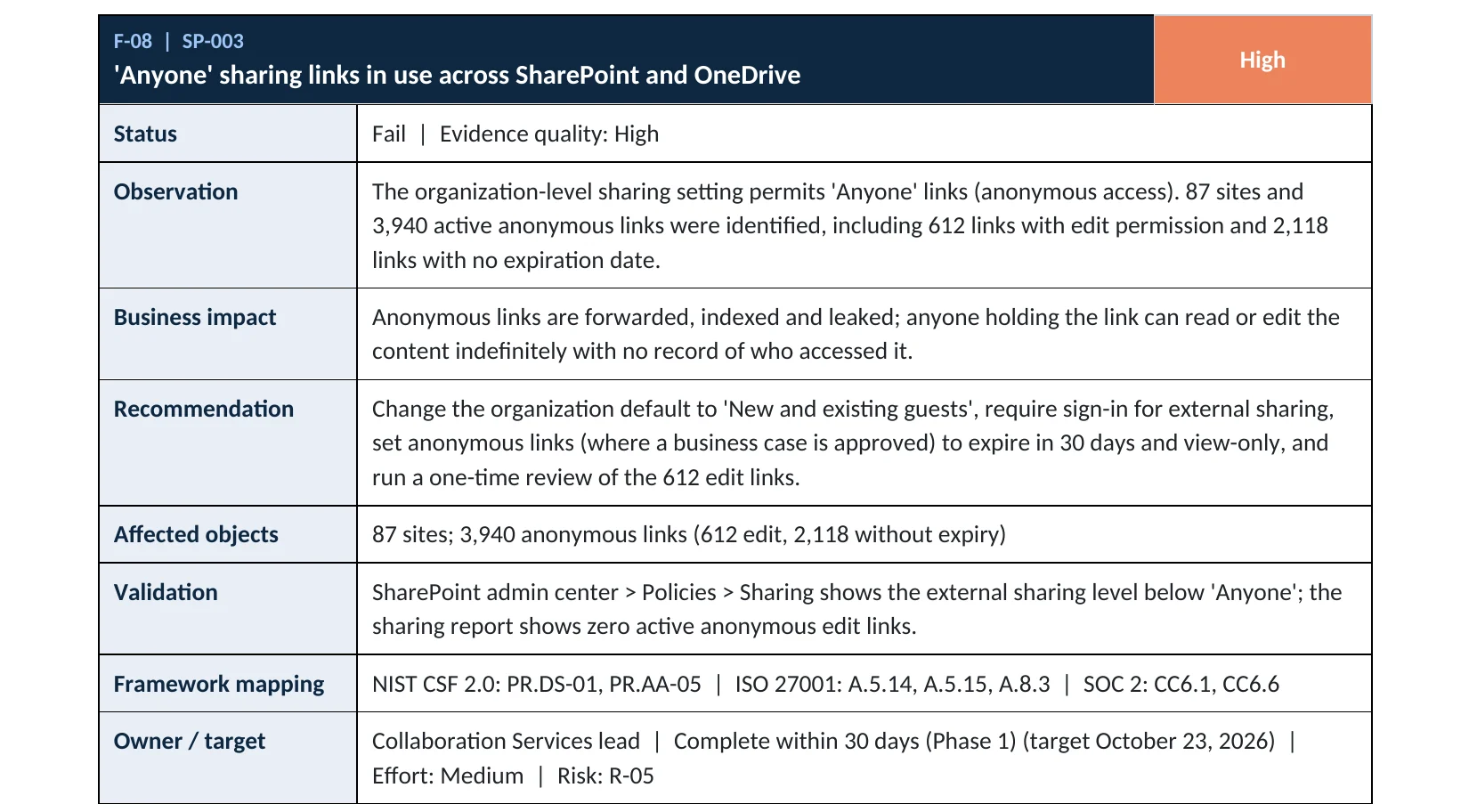
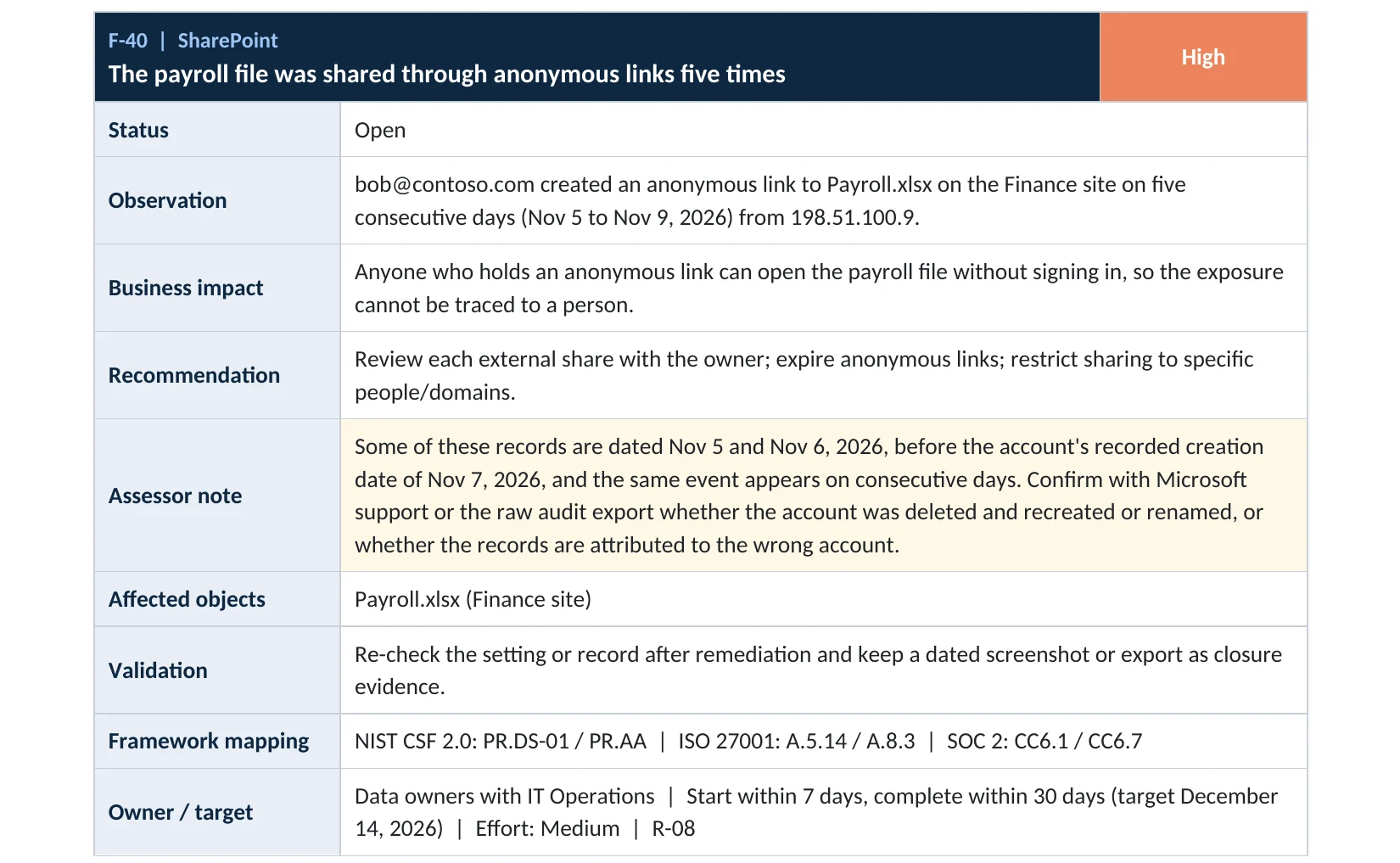
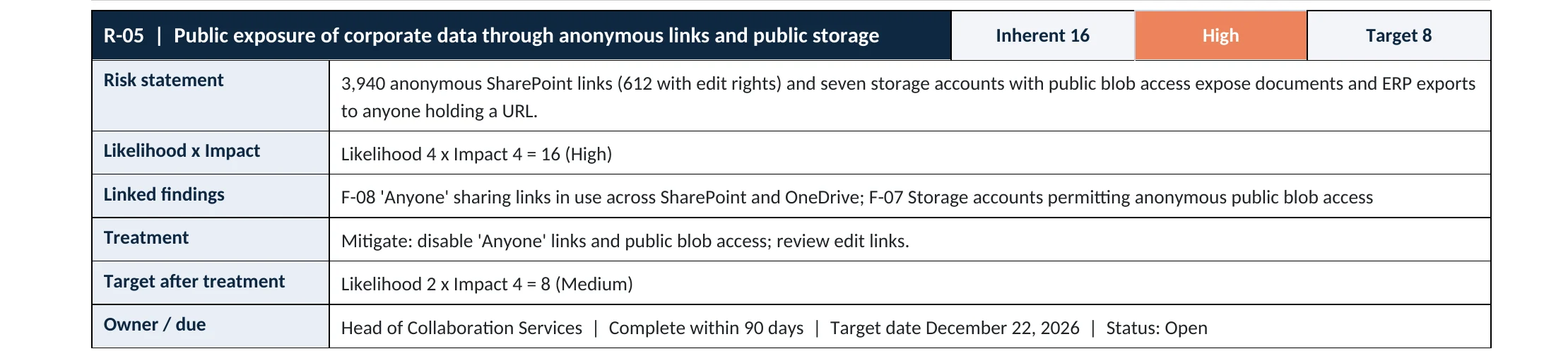
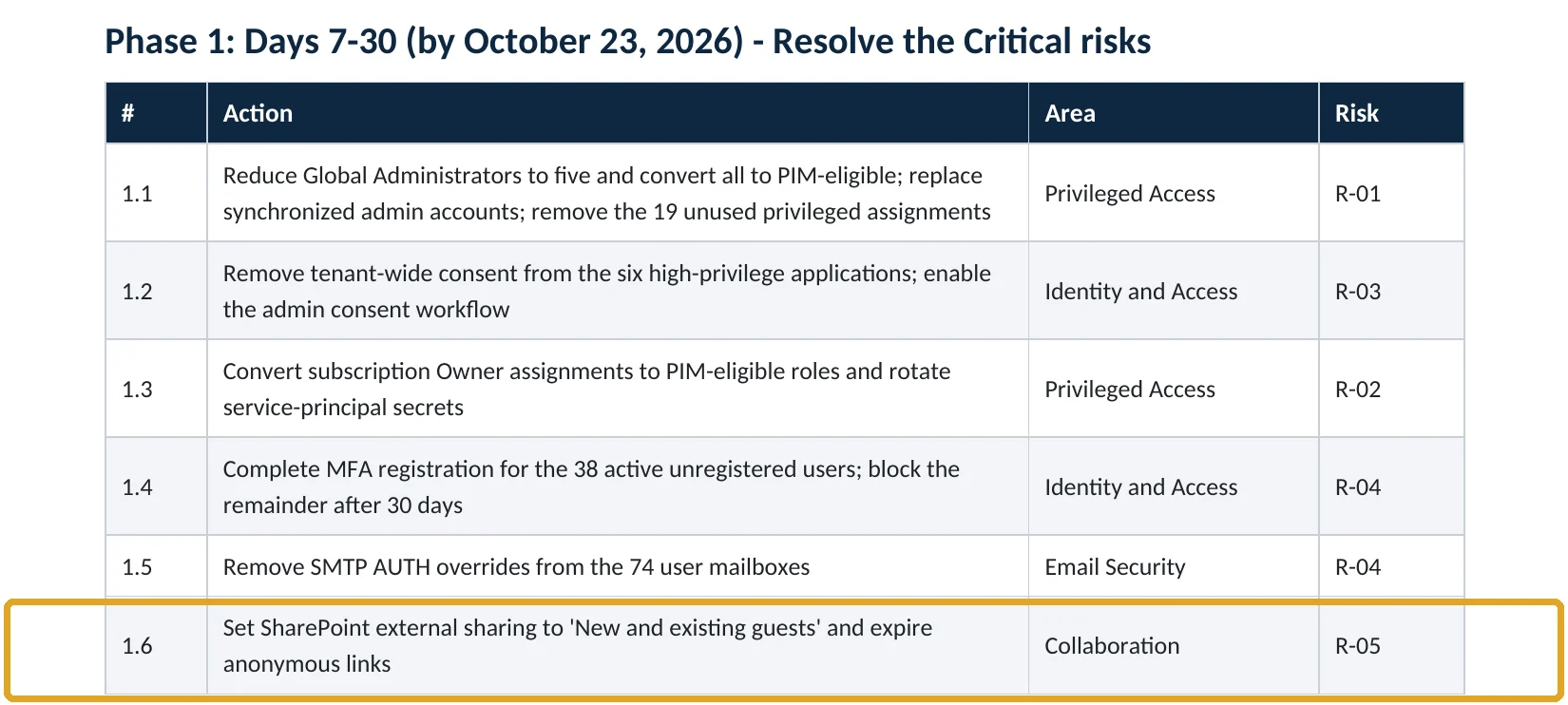
Your options
Which external sharing level to choose
| Organization setting | What outside people can do | Our take |
|---|---|---|
| Anyone | Open links with no sign-in; also guest sharing | Avoid Unless a documented business need exists, with expiry and view-only. |
| New and existing guests | Open shared files after signing in or entering a one-time code | Recommended For most businesses. |
| Existing guests | Only guests already in your directory | Strict Good when partners are known. |
| Only people in your organization | No external sharing at all | Very strict For sites holding the most sensitive data. |
Each site can be set to the same or a more restrictive level than the organization, never a more open one (Microsoft Learn). So a common pattern is New and existing guests for the organization and Only people in your organization for HR, finance and executive sites.
Note: the OneDrive Request files feature needs Anyone links. If your team collects uploads from clients this way, plan an alternative before switching off Anyone links.
How to check it yourself
See your sharing settings and links, without changing anything
Look at the two sliders under External sharing (SharePoint and OneDrive), then open More external sharing settings and File and folder links to see the default link type and any expiration or permission limits for Anyone links.
Read-only PowerShell: organization sharing settings
Connect-SPOService -Url https://yourtenant-admin.sharepoint.com
Get-SPOTenant | Format-List SharingCapability, OneDriveSharingCapability, DefaultSharingLinkType,
  RequireAnonymousLinksExpireInDays, FileAnonymousLinkType, FolderAnonymousLinkType
Read-only PowerShell: sites that allow anonymous links
Get-SPOSite -Limit All |
  Where-Object { $_.SharingCapability -eq "ExternalUserAndGuestSharing" } |
  Select-Object Url, SharingCapability
ExternalUserAndGuestSharing is the value that allows Anyone links. To list the individual links, the SharePoint admin center offers data access governance reports on some plans, and site owners can see links under each file’s Manage access. Counting every anonymous link across all sites is part of our Microsoft 365 Security Audit.
How to configure
How to turn off or limit Anyone links, step by step
Before you start: tell staff that outside partners will now be asked to sign in or enter a one-time code, and check whether anyone relies on Request files.
Recommended
Require sign-in for outsiders
- Open the SharePoint admin center › Policies › Sharing.
- Move the SharePoint and OneDrive sliders from Anyone to New and existing guests.
- Under File and folder links, set the default to Specific people (or Only people in your organization).
- Set the default permission to View.
- Select Save, then set HR and finance sites to Only people in your organization.
If you must keep them
Limit Anyone links
- Keep the slider on Anyone only for the sites that need it; set all other sites lower.
- Under advanced settings for Anyone links, turn on These links must expire within this many days and choose 30 or fewer.
- Set Anyone link permissions for files and folders to View.
- Allow only a security group of trained users to share externally.
- Review existing edit links and long-lived links, and remove the ones nobody needs.
Microsoft explains that shortening the expiration also shortens existing links that were set to last longer (Microsoft Learn).
Set organization sharing to guests with sign-in (PowerShell)
Set-SPOTenant -SharingCapability ExternalUserSharingOnly
Set-SPOTenant -DefaultSharingLinkType Direct
If Anyone links stay on: 30-day expiry and view-only
Set-SPOTenant -RequireAnonymousLinksExpireInDays 30
Set-SPOTenant -FileAnonymousLinkType View -FolderAnonymousLinkType View
What your users will notice
Sharing inside the company works the same. Outside recipients are asked to sign in with a work or Microsoft account, or to enter a one-time code sent to their email. Existing Anyone links stop working once Anyone sharing is turned off for the site or organization.
How to undo it, safely
Move the slider back for a single site that has a documented need, rather than for the whole organization, and keep expiration and view-only limits on.
Proof and questions
How to prove it is fixed, and what to ask your IT provider
Evidence it is fixed
- Organization sharing is New and existing guests or stricter, for SharePoint and OneDrive.
- The default link type is Specific people or Only people in your organization.
- Any site still allowing Anyone links is documented, with expiry and view-only limits.
- Sensitive sites (HR, finance, executive) allow internal sharing only.
Questions for your IT provider
- Can people in our company create links that work without sign-in?
- How many Anyone links exist today, and how many allow editing?
- Do our anonymous links expire?
- Which sites hold payroll, HR or client data, and how are they shared?
- Who reviews external sharing, and how often?
Signs it was already abused
If Anyone links were allowed, look for these signs
Red flags
- Anonymous links created for payroll, HR, bank or client files.
- Anyone links created repeatedly by one account, or from an unusual IP address or country.
- Large downloads by anonymous users in the SharePoint audit log.
- Files in your tenant you did not create, shared publicly, often PDFs with a “view document” button.
- Partners reporting they received a OneDrive or SharePoint link from you that led to a sign-in page.
If you see these, keep the audit log entries for the sharing events and downloads before they expire. Our compromise investigation establishes which files were shared and accessed, and the Microsoft 365 Evidence Clock shows how long those records are kept.
Framework mapping
Where external sharing controls fit
| Framework | Where it fits |
|---|---|
| NIST CSF 2.0 | PR.AA-05: access permissions managed; PR.DS-01: data at rest protected |
| ISO/IEC 27001:2022 | Annex A 5.14 Information transfer; 5.15 Access control; 8.12 Data leakage prevention |
| SOC 2 | CC6.1 logical access; CC6.7 restricts transmission of information |
| HIPAA Security Rule | 45 CFR 164.312(a)(1) access control, where files hold patient information |
Reviewed by
Written and reviewed by a practicing CISO

Ali Hassani, C|CISO, CISSP
Ali has more than 25 years of IT and cybersecurity experience and holds the Certified CISO and CISSP certifications along with Microsoft and Cisco credentials. He leads every OC Security Audit engagement from Irvine, on-site across Southern California and remotely nationwide. Every Microsoft 365 audit is read-only.
FAQ
Frequently asked questions about Anyone links
What is the difference between Anyone and Specific people links?
An Anyone link opens for whoever has it, with no sign-in. A Specific people link only works for the people named when sharing, who must sign in or enter a one-time code, so access is tied to a person.
Will turning off Anyone links break links we already sent?
Yes. Once Anyone sharing is turned off for the organization or a site, existing Anyone links on those files stop working. Re-share the files that still need outside access as Specific people links.
Can outside partners still open our files?
Yes, with New and existing guests. They sign in with their work or Microsoft account, or enter a one-time code emailed to them, and their access is recorded by name.
What if we use OneDrive Request files to collect documents from clients?
Request files depends on Anyone links. If you rely on it, keep Anyone links only where needed, with short expiry and upload-only permissions, or move file collection to a secure portal.
Is a 30-day expiry enough?
It limits the damage of a forwarded link, but the link still works for anyone during those 30 days. Requiring sign-in is stronger; expiry is the fallback when anonymous links are truly needed.
Does this need extra licenses?
No. The sharing settings are in the SharePoint admin center on every Microsoft 365 business plan. Some reports that list oversharing need higher plans.
Next step
Know exactly where your tenant stands
Prevent
Microsoft 365 Security Audit
$3,500 fixed
About 200 read-only checks across sharing, identity, admin roles, email, data protection, logging and devices, for any tenant size, with four reports and a remediation roadmap.
Respond
Microsoft 365 & Azure Compromise Investigation
From $3,500
For when a sensitive file was shared anonymously and you need to know who reached it: we report what the logs can and cannot show.
Want to see the deliverables first? Open the Microsoft 365 audit sample report or browse all our sample reports.

Service
Microsoft 365 Security Audit
The fixed-price audit that checks this item and about 200 more.
See the audit ›
Sample
Sample audit report
Every page of the five deliverables, with fictional data.
View the sample ›
Service
Compromise Investigation
When an account or mailbox may already be in an attacker’s hands.
See the investigation ›Related reading: SharePoint, OneDrive and Teams security guide · How to set up MFA in Microsoft 365 · How many Global Administrators to have
Sources
Sources used on this page
- Microsoft Learn, Manage sharing settings for SharePoint and OneDrive in Microsoft 365
- Microsoft Learn, Plan sharing and collaboration options in SharePoint and OneDrive
- Microsoft Learn, Change the sharing settings for a site
- Microsoft Learn, Change the default link type for a site
- Microsoft Learn, Best practices for sharing files and folders with unauthenticated users
- Microsoft Learn, Set-SPOTenant
- Microsoft Security Blog, File hosting services misused for identity phishing (October 2024)
- Proofpoint, Why OneDrive and SharePoint phishing attacks are successful (2020)
- IBM, Cost of a Data Breach Report 2025
This guide is general information, not a guarantee of protection or legal advice. Microsoft changes its admin centers often: menu names and steps were checked against Microsoft Learn on November 20, 2026. Drawings are simplified and are not screenshots of Microsoft products. Sample findings come from fictional companies. Incidents are described as reported by the cited sources; OC Security Audit was not involved in them. Questions? Call 949-777-5567 or email support@ocsecurityaudit.com.