

LIBRARY 6.40Microsoft 365 Security Library
How to Restrict Teams External Access in Microsoft 365
By default, anyone in any other Microsoft 365 company can chat with and call your staff in Teams. Attackers use that to pose as your IT help desk. Here is how to limit it to the partners you trust.
Reviewed by Ali Hassani, C|CISO, CISSP · Last verified November 20, 2026
Teams external access, unmanaged account access and meeting lobby settings are in the Teams admin center on every plan that includes Teams. Defaults: all external domains allowed and anonymous meeting join on (Microsoft Learn).
In one minute
- List the partner companies your staff really chat with in Teams.
- Switch external access from all domains to an allow list of those domains.
- Turn off chat with unmanaged (personal) Teams accounts and Skype users unless you need it.
- Make anonymous and external people wait in the meeting lobby.
Teams external access is item TM-002 in our Microsoft 365 Security Audit.
What it is
What Teams external access is
External access (also called federation) lets your staff chat, call and meet in Teams with people in other Microsoft 365 organizations. Unlike guest access, the outside person never gets an account in your tenant: they stay signed in to their own company and message your users directly. Microsoft notes that people in other organizations can reach your users this way if they know their email address (Microsoft Learn).
The settings that decide who can reach your staff
| Setting | Default | Safer choice |
|---|---|---|
| Teams and Skype for Business users in external organizations | Allow all external domains | Allow only specific external domains (your partners) |
| Communicate with unmanaged (personal) Teams accounts | On | Off, or on without letting them start the conversation |
| Communicate with Skype users | Check your tenant | Off unless needed |
| Anonymous users can join a meeting | On | On only for those who need it, with a lobby |
| Who can bypass the lobby | Varies by policy | People in your organization and invited guests |
Sources: Microsoft Learn, external meetings and chat, meetings with external participants and meeting lobby.
Why it matters
Attackers don’t need your password to start a Teams chat
- Attacker tenantNamed “Help Desk” or “IT Support”.
- Teams chat or callTo any of your users.
- Allow listThe chat never arrives.
- User is persuadedWithout it: approves MFA or remote control.
- Account or PC takenThen ransomware or fraud.
Drawing: where an allow list stops a fake help desk chat.
external domains can reach your users by default, and anonymous meeting join is on by default.
Source: Microsoft Learnorganizations targeted by Midnight Blizzard with Teams chats from compromised small-business tenants posing as tech support.
Source: Microsoft Security Blogspam emails in 45 minutes before a Teams call from “Help Desk Manager”, in a ransomware case Sophos investigated.
Source: Sophosextra license needed: external access, unmanaged accounts and lobby settings are in the Teams admin center on every plan.
Source: Microsoft LearnWays to limit outside contact in Teams
| Control | What it does | Effect |
|---|---|---|
| Allow list of partner domains | Only companies you list can chat and call. | Strongest |
| Block unmanaged accounts | Personal Teams and Skype accounts can’t start chats. | Closes a common path |
| Lobby for anonymous and external people | Someone must admit them before they hear the meeting. | Stops eavesdropping |
| Block list of known bad domains | Stops domains you already know about. | Helps Attackers make new ones |
| Staff training | Users learn your IT never asks for MFA codes in chat. | Needed Not enough alone |
Documented cases
Nation-state · Microsoft, 2023
Midnight Blizzard poses as tech support in Teams
Microsoft reported that Midnight Blizzard used Microsoft 365 tenants of previously compromised small businesses, renamed to look like technical support, to send Teams chats that tried to get users to approve MFA prompts.
Source: Microsoft Security Blog · Canadian Centre for Cyber Security
Ransomware · Microsoft, 2024
Storm-1811 calls staff over Teams
Microsoft observed Storm-1811 using Teams to message and call users while impersonating IT or help desk staff, then misusing Quick Assist for remote access in attacks linked to Black Basta ransomware.
Source: Microsoft Security Blog
We were not involved in either case. Both relied on the default that lets any outside tenant start a Teams conversation with your staff.
What we find in audits
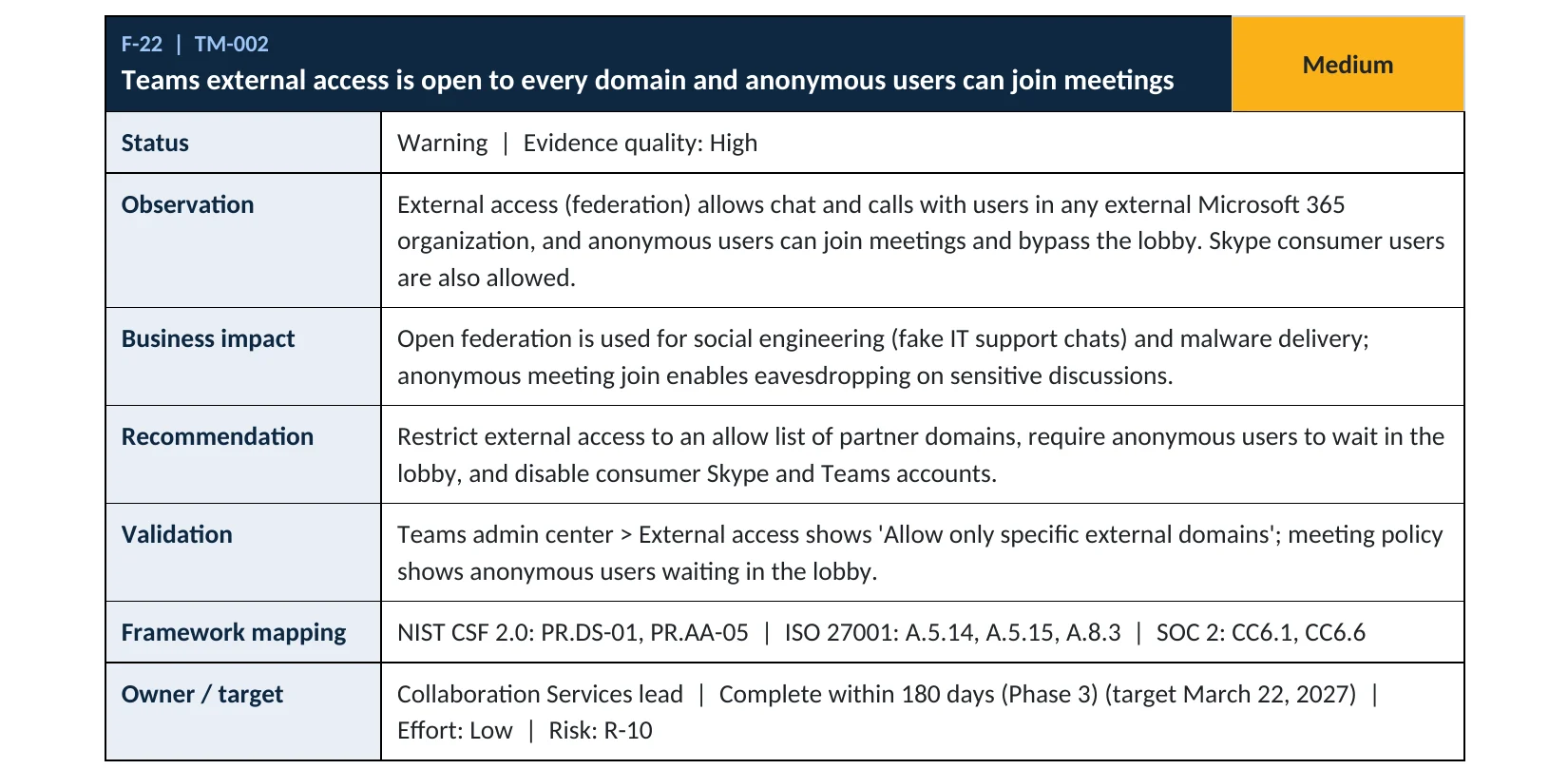
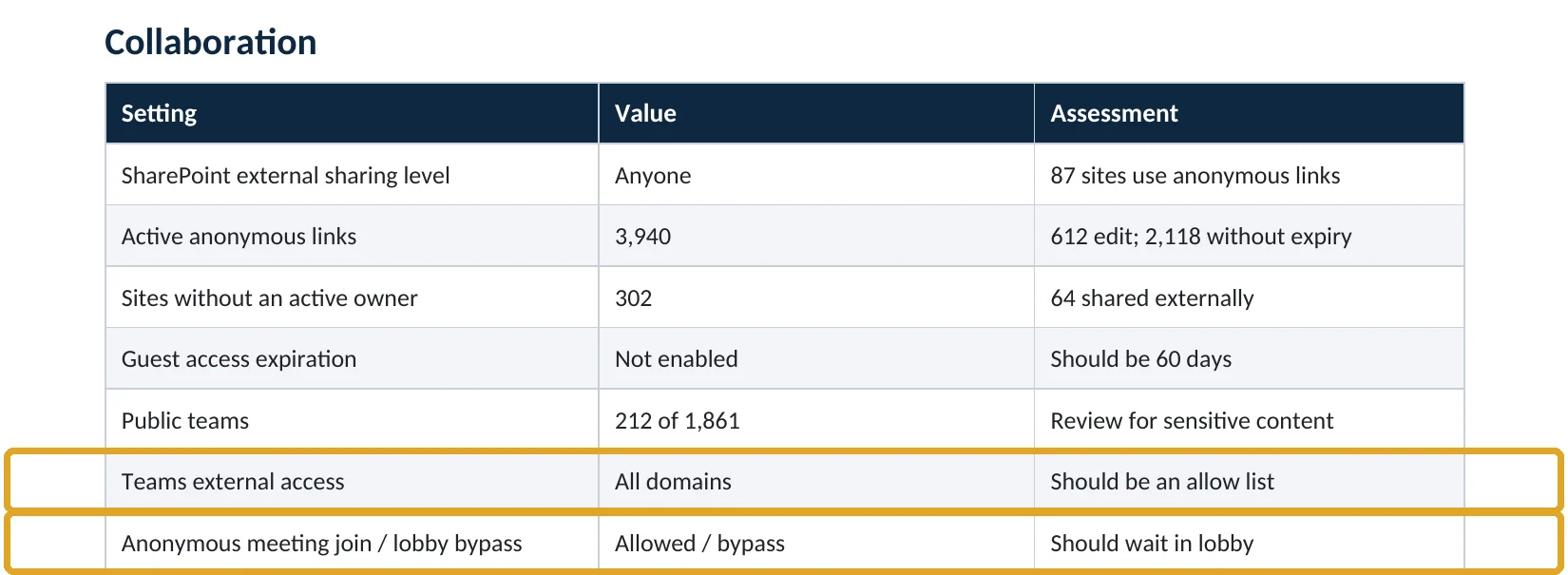
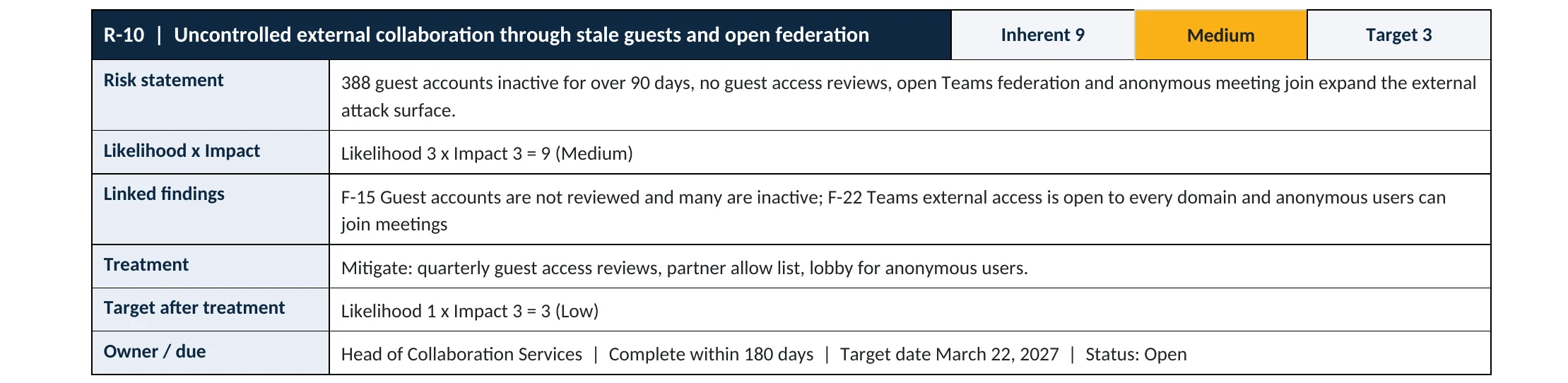
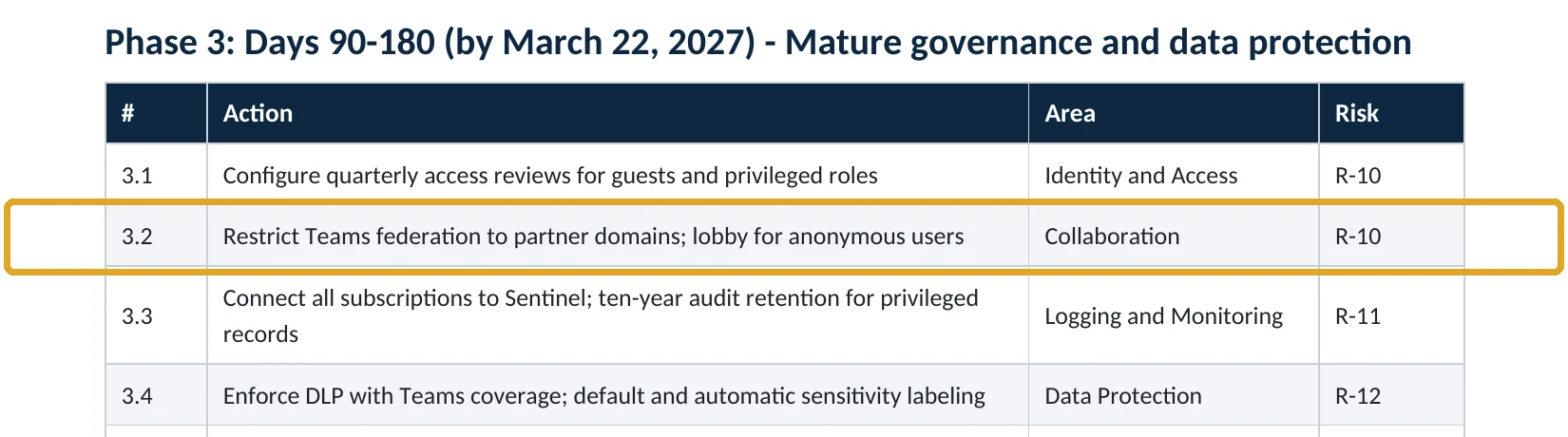
What this finding looks like in our audit reports
These are real pages from our published sample audit, written for a fictional company. Click any page to open it full size. The viewer follows the finding from the technical report to the risk register and the roadmap.
Your options
Three ways to set Teams external access
| Option | Who can reach your staff | When it fits |
|---|---|---|
| Allow only specific external domains | Only the partner companies you list | Most small and mid-size companies; our recommendation |
| Block only specific external domains | Everyone except the domains you list | Large, open collaboration; needs constant upkeep |
| Block all external domains | No outside companies | Companies that never use Teams with outsiders |
The allow list only covers chats and calls with other organizations. People can still join meetings anonymously if anonymous join is on, which is why the lobby setting matters too (Microsoft Learn).
How to check it yourself
See who can reach your staff in Teams, without changing anything
1. External access
Look at Teams and Skype for Business users in external organizations, the unmanaged Teams accounts settings and the Skype setting.
2. Meeting join and lobby
Check Anonymous users can join a meeting and Who can bypass the lobby.
Read-only PowerShell: Teams external access and lobby settings
Connect-MicrosoftTeams
Get-CsTenantFederationConfiguration | Format-List AllowFederatedUsers, AllowedDomains, BlockedDomains, AllowTeamsConsumer, AllowTeamsConsumerInbound, AllowPublicUsers
Get-CsTeamsMeetingPolicy -Identity Global | Format-List AllowAnonymousUsersToJoinMeeting, AutoAdmittedUsers
The commands only read settings; they change nothing. An empty AllowedDomains with AllowFederatedUsers True usually means all external domains are allowed.
How to configure
How to restrict Teams external access, step by step
All plans
Limit who can chat and call
- Ask each department which outside companies they chat or call with in Teams, and collect the email domains.
- Open Teams admin center › Users › External access.
- Set Teams and Skype for Business users in external organizations to Allow only specific external domains and add the partner domains.
- Turn off People in my organization can communicate with unmanaged Teams accounts, or at least clear the box that lets them start conversations.
- Turn off chat with Skype users unless you need it, then save.
All plans
Lock down meetings
- Open Meetings › Meeting policies › Global (Org-wide default).
- Under Meeting join & lobby, set Who can bypass the lobby to people in your organization and invited users.
- Turn off Anonymous users can join a meeting for everyone except the staff who host public webinars, using a separate policy for them.
- Make dial-in callers wait in the lobby.
- Tell staff: our IT will never ask for MFA codes or remote access in a Teams chat from another company.
What your users will notice
Chats from companies not on the list stop arriving. Partners on the list work as before. Meeting hosts admit outside people from the lobby.
How to undo it
Add a missing partner domain to the allow list, or switch the setting back, in the same page. Changes may take some time to reach every user.
Proof and questions
How to prove it is fixed, and what to ask your IT provider
Evidence it is fixed
- External access is set to an allow list of named partner domains.
- Unmanaged Teams and Skype accounts can’t start chats with your users.
- Anonymous and external people wait in the lobby by default.
- Staff know your IT never asks for codes or remote access in Teams.
Questions for your IT provider
- Who outside our company can chat with our staff in Teams today?
- Do we have a list of the partner domains we really need?
- Can anonymous people join our meetings without waiting?
- Would we know if someone called our staff from a fake help desk tenant?
- Is Quick Assist or another remote tool allowed on our computers?
Signs it was already abused
If a Teams chat may have been used against you, look for these signs
Red flags
- Chats or calls from external accounts named like “Help Desk”, “IT Support” or “Security Team”.
- A user approved an MFA prompt or typed a code right after a Teams chat.
- A burst of spam emails followed by a Teams call offering to fix it.
- Quick Assist, AnyDesk or other remote tools started on a PC without a ticket.
- New sign-ins or MFA methods on the user’s account soon after the chat.
If you see these, disconnect the PC from the network, reset the user’s password and revoke sessions, then keep the logs. Our compromise investigation establishes what the attacker did next, and the Microsoft 365 Evidence Clock shows how long the records are kept.
Framework mapping
Where Teams external access fits
| Framework | Where it fits |
|---|---|
| NIST CSF 2.0 | PR.DS-01: data at rest protected; PR.AA-05: access permissions managed |
| ISO/IEC 27001:2022 | Annex A 5.14 Information transfer; 5.15 Access control; 8.3 Information access restriction |
| SOC 2 | CC6.1 logical access security; CC6.6 protection against threats from outside the system |
| MITRE ATT&CK | T1566.003 Phishing: Spearphishing via Service; T1219 Remote Access Software |
Reviewed by
Written and reviewed by a practicing CISO

Ali Hassani, C|CISO, CISSP
Ali has more than 25 years of IT and cybersecurity experience and holds the Certified CISO and CISSP certifications along with Microsoft and Cisco credentials. He leads every OC Security Audit engagement from Irvine, on-site across Southern California and remotely nationwide. Every Microsoft 365 audit is read-only.
FAQ
Frequently asked questions about Teams external access
What is the difference between Teams external access and guest access?
External access lets people in other companies chat and meet with your staff while staying in their own tenant. Guest access adds them to your tenant as guests with access to your teams and files. They are separate settings.
Will an allow list break meetings with clients?
No. People from any company can still join meetings you invite them to; anonymous or external attendees wait in the lobby until admitted. The allow list controls chats and calls.
What if we work with many outside companies?
Start with the ones staff actually chat with. You can also use a block list instead, but it needs constant upkeep because attackers create new domains.
Do I need a special license?
No. External access, unmanaged account settings and meeting lobby settings are part of Teams on every business plan.
Why block personal Teams accounts?
Unmanaged personal accounts can be created by anyone in minutes. Unless your staff need to chat with them, turning that off removes an easy path for fake help desk messages.
Is this related to the Midnight Blizzard and Black Basta attacks?
Yes. Both used Teams messages or calls from outside tenants posing as IT support. Limiting external access is one of the controls Microsoft recommends.
Next step
Know who outside your company can reach your staff
Prevent
Microsoft 365 Security Audit
$3,500 fixed
About 200 read-only checks across sign-in protection, Teams and SharePoint sharing, guests, admin roles, email, data protection, logging and devices, for any tenant size, with four reports and a remediation roadmap.
Respond
Microsoft 365 & Azure Compromise Investigation
From $3,500
For when a user approved a prompt or gave remote access after a Teams chat: we establish what the attacker did next.
Want to see the deliverables first? Open the Microsoft 365 audit sample report or browse all our sample reports.

Service
Microsoft 365 Security Audit
The fixed-price audit that checks this item and about 200 more.
See the audit ›
Service
Compromise Investigation
When an account or mailbox may already be in an attacker’s hands.
See the investigation ›
Sample
Sample audit report
Every page of the five deliverables, with fictional data.
View the sample ›Related reading: How to review and remove guest accounts · How to set up MFA in Microsoft 365 · How to restrict user consent to apps · SharePoint, OneDrive and Teams security guide
Sources
Sources used on this page
- Microsoft Learn, Manage external meetings and chat with people and organizations using Microsoft identities
- Microsoft Learn, Plan for meetings with external participants in Microsoft Teams
- Microsoft Learn, Manage lobby options in Microsoft Teams
- Microsoft Learn, Manage anonymous participant access to Teams meetings
- Microsoft Learn, Overview of external collaboration options in Microsoft 365
- Microsoft Security Blog, Midnight Blizzard conducts targeted social engineering over Microsoft Teams (August 2023)
- Canadian Centre for Cyber Security, AL23-013 Midnight Blizzard conducts targeted social engineering over Microsoft Teams
- Microsoft Security Blog, Threat actors misusing Quick Assist in social engineering attacks leading to ransomware (May 2024)
- Sophos, Sophos MDR tracks two ransomware campaigns using email bombing and Microsoft Teams vishing
This guide is general information, not a guarantee of protection or legal advice. Microsoft changes its admin centers often: menu names and steps were checked against Microsoft Learn on November 20, 2026. Drawings are simplified and are not screenshots of Microsoft products. Sample findings come from fictional companies. Incidents are described as reported by the cited sources; OC Security Audit was not involved in them. Questions? Call 949-777-5567 or email support@ocsecurityaudit.com.