

LIBRARY 11.75Microsoft 365 Security Library
How to Control Who Can Join Devices in Microsoft 365
By default, any user can join or register up to 50 devices with a password alone. A device an attacker joins can look trusted to your policies. Here is how to require MFA for device registration and limit who can join.
Reviewed by Ali Hassani, C|CISO, CISSP · Last verified November 20, 2026
Device settings are in the Microsoft Entra admin center; Microsoft recommends enforcing MFA for device registration with the Conditional Access user action Register or join devices, which needs Entra ID P1 (Microsoft Learn).
In one minute
- Limit Users may join devices to Microsoft Entra to a selected group.
- Require MFA to register or join devices, ideally through Conditional Access.
- Lower the maximum number of devices per user.
- Review recently joined devices and delete unknown ones.
Device registration is part of the device checks in our Microsoft 365 Security Audit.
What it is
The device settings that decide who can add a device
Microsoft Entra device settings control who can join devices to Microsoft Entra ID, who can register personal devices, whether MFA is required to do either, and how many devices each user can have (Microsoft Learn).
The settings, and what we recommend
| Setting | Default | Our advice |
|---|---|---|
| Users may join devices to Microsoft Entra | All | Selected: IT or a device-setup group |
| Users may register their devices | All (required if Intune is used) | Leave on; control with MFA and Intune |
| Require MFA to register or join devices | No | Yes, or a Conditional Access policy |
| Maximum number of devices per user | 50 | Lower, for example 10 |
Defaults and options from Microsoft’s device settings guidance (Microsoft Learn). If you use the Conditional Access user action, Microsoft says to set the tenant-wide MFA toggle to No so the policy is enforced properly (Microsoft Learn).
Why it matters
Your policies trust devices; attackers know it
- Password stolenPhishing, spray or reuse.
- Attacker joins a deviceTheir own laptop.
- MFA required to joinJoin fails.
- Device-based policies satisfiedWithout it: looks like a company PC.
- Long-lived accessTokens tied to the device.
Drawing: where MFA for device registration breaks the path.
of identity attacks were password attacks in the first half of 2025.
Source: Microsoft Digital Defense Report 2025devices per user is the default limit; it can be raised to 100 or set to unlimited.
Source: Microsoft Learnis the default for requiring MFA to register or join devices.
Source: Microsoft LearnConditional Access policy can require MFA for every device registration.
Source: Microsoft LearnHow the protections fit together
| Protection | What it does | Effect |
|---|---|---|
| MFA for register or join | A password alone can’t add a device. | Stops the easy route |
| Limit who can join | Only IT or a setup group joins PCs. | Smaller exposure |
| Require compliant devices | A joined device still has to pass Intune checks. | Backstop |
| Defaults left in place | Any user, any 50 devices, password only. | Gap |
Microsoft’s baseline guidance notes that requiring MFA for enrollment means only authenticated, verified users can add devices, reducing risk from stolen credentials (Microsoft Learn).
What we find in audits
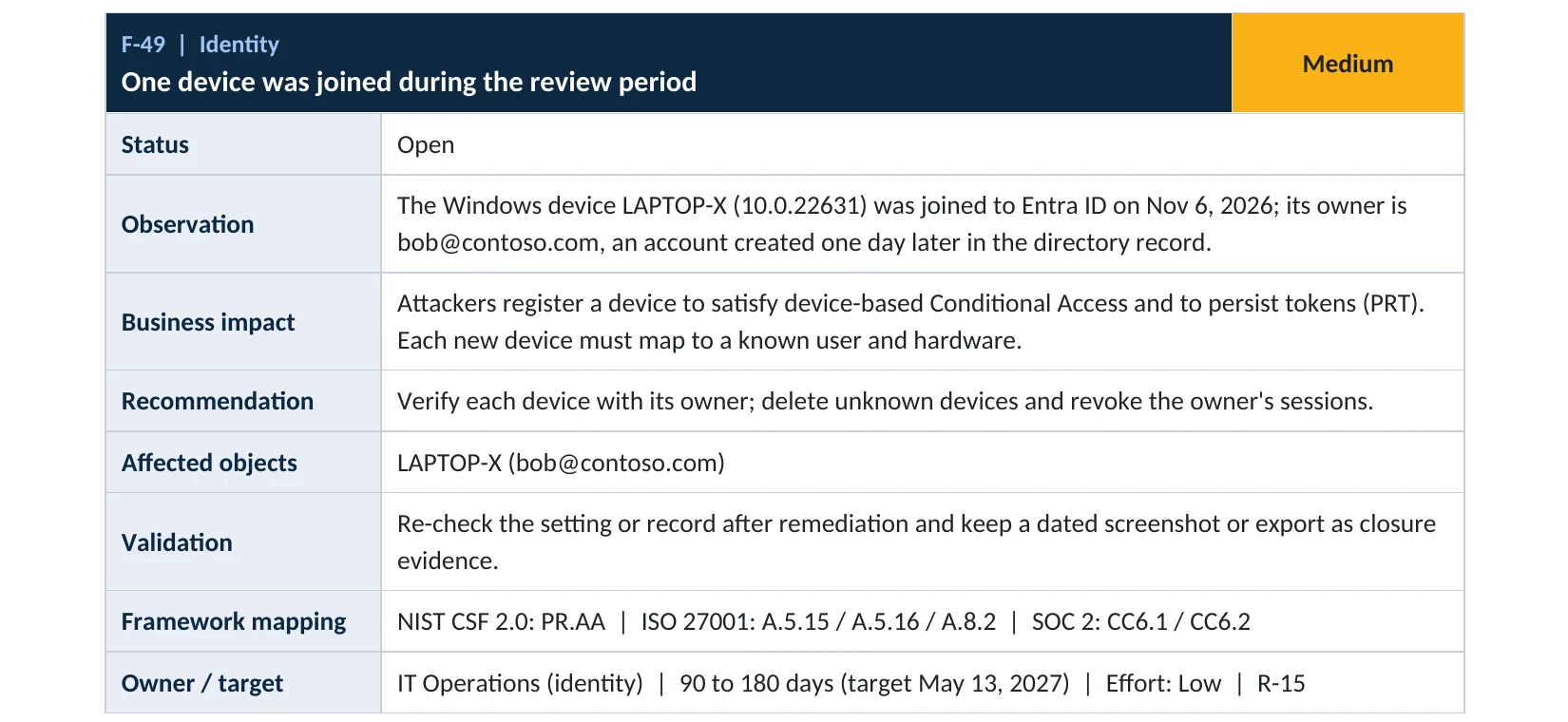
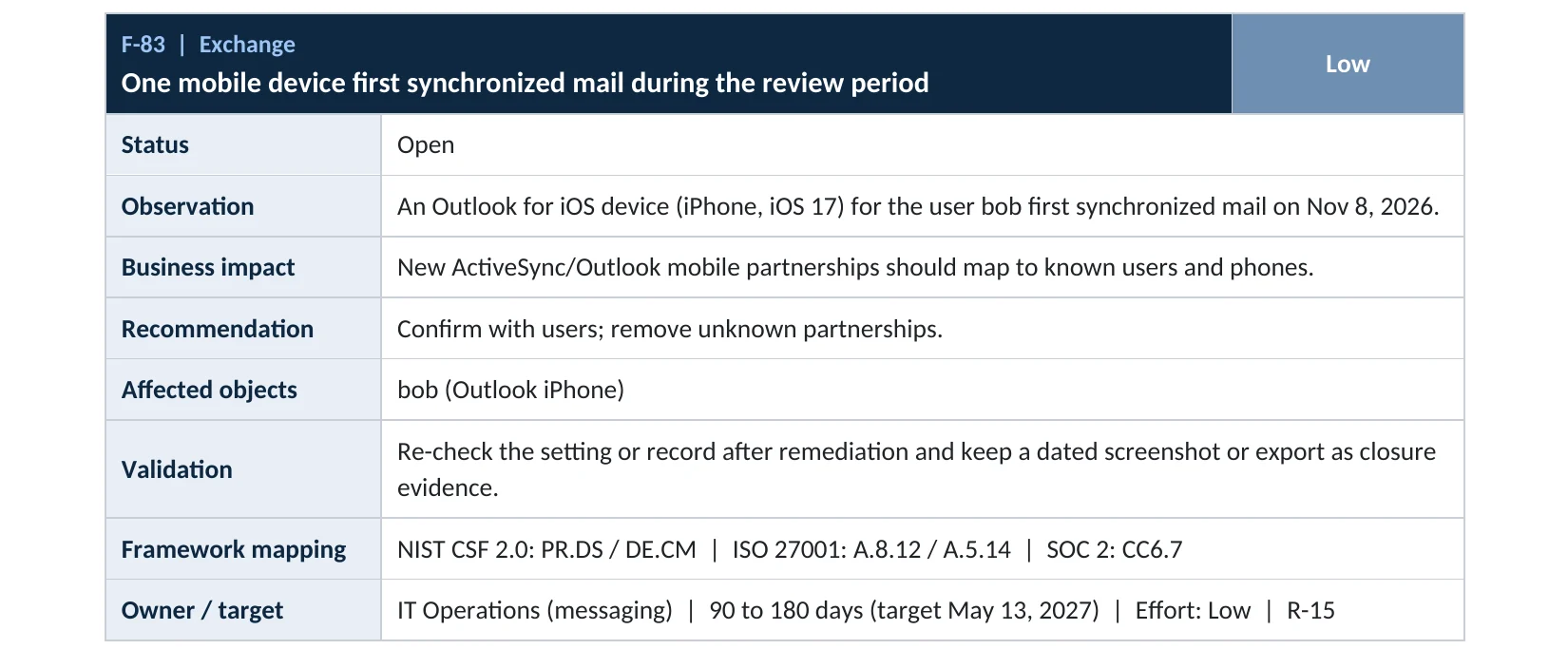
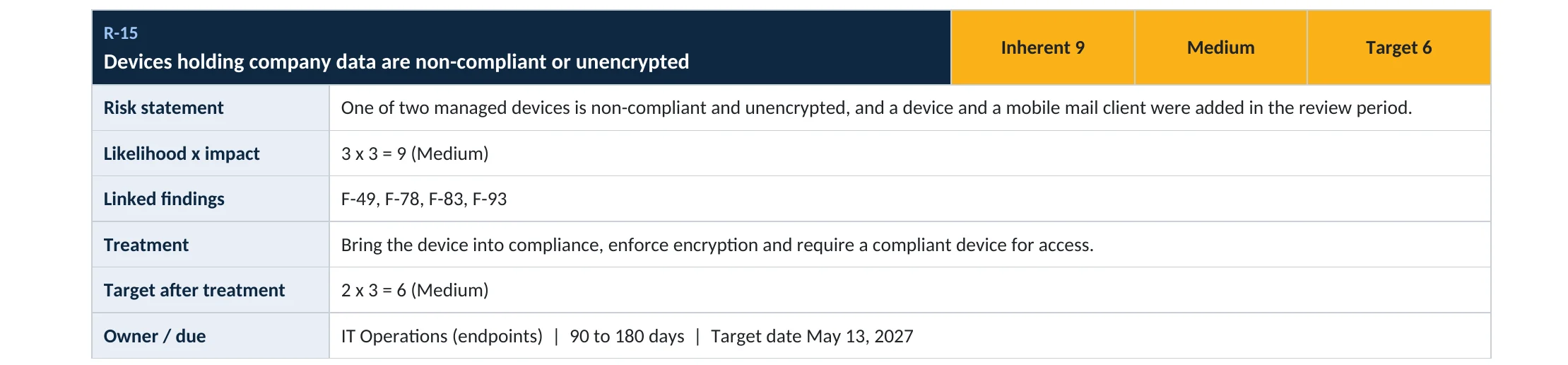
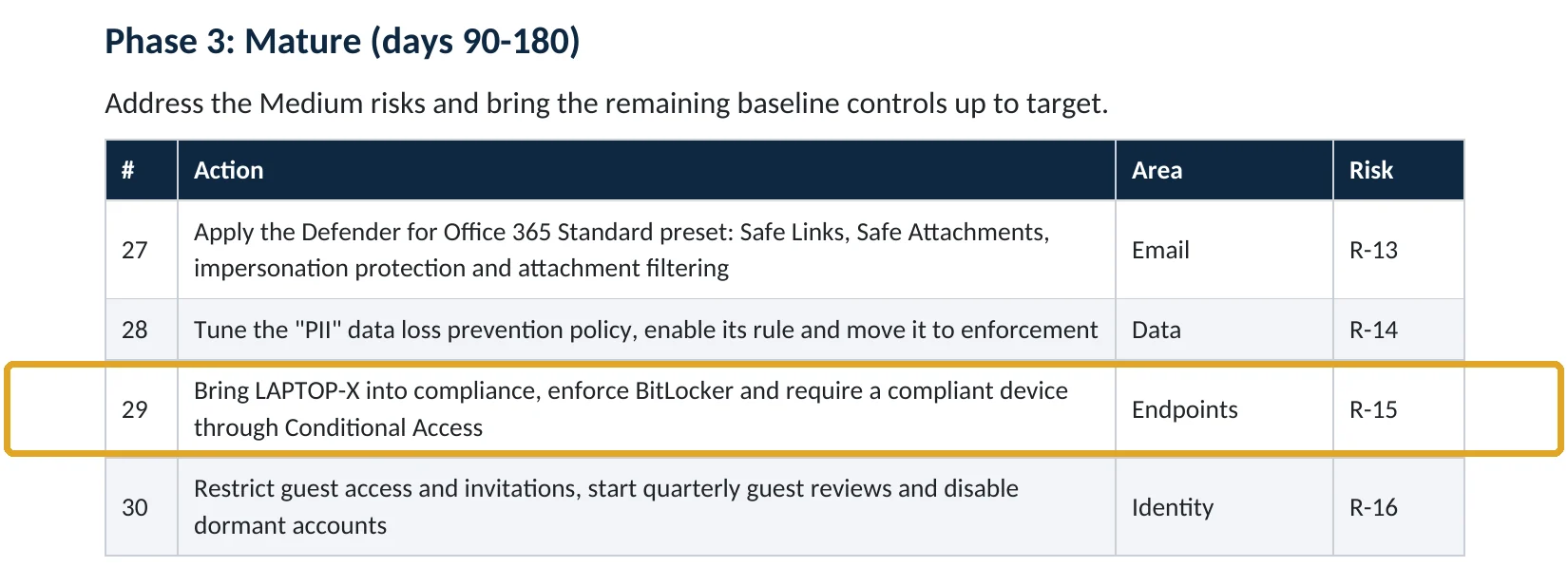
What this finding looks like in our audit reports
These are real pages from our published compromise assessment sample, written for a fictional company. Click any page to open it full size.
Your options
What each plan gives you
| Capability | All plans | Entra ID P1 (Business Premium, E3, E5) |
|---|---|---|
| Who can join, who can register, device limit | Yes | Yes |
| Tenant-wide MFA toggle for register or join | Yes | Yes |
| Conditional Access user action: Register or join devices | No | Yes |
| Require compliant devices with Intune | No | Yes, with Intune |
Microsoft recommends the Conditional Access user action over the tenant-wide toggle where you have it (Microsoft Learn).
How to check it yourself
See your device settings and new devices, without changing anything
Check who may join, whether MFA is required, and the maximum number of devices. Then list devices added recently.
Read-only PowerShell: devices registered in the last 30 days
Connect-MgGraph -Scopes "Device.Read.All"
$since = (Get-Date).AddDays(-30)
Get-MgDevice -All -Property DisplayName,OperatingSystem,TrustType,RegistrationDateTime |
  Where-Object { $_.RegistrationDateTime -gt $since } |
  Sort-Object RegistrationDateTime -Descending
The commands only read data. Every new device should map to a known person and a known piece of hardware.
How to configure
How to control device join and registration, step by step
All plans
Tighten device settings
- Open Devices › Device settings.
- Set Users may join devices to Microsoft Entra to Selected and choose your IT or setup group.
- Lower Maximum number of devices per user to a number that fits your staff.
- If you don’t have Entra ID P1, set Require multifactor authentication to register or join devices to Yes.
- Save, and check Autopilot or bulk enrollment still works.
Entra ID P1 or P2
Use Conditional Access
- Create a policy for All users, excluding emergency access accounts.
- Under Target resources › User actions, select Register or join devices.
- Grant with Require authentication strength: Multifactor authentication, report-only first.
- Set the tenant-wide MFA toggle to No, as Microsoft requires for this policy, then turn the policy on.
What your users will notice
One MFA prompt when they set up a new phone or laptop. Only the selected group can join Windows PCs directly.
How to undo it
Set the device settings back to All and the previous limit, or turn the Conditional Access policy off.
Proof and questions
How to prove it is fixed, and what to ask your IT provider
Evidence it is fixed
- Device join limited to a named group.
- MFA required for every registration or join.
- A lower device limit per user.
- Every device registered in the last 90 days matched to a person.
Questions for your IT provider
- Who can join Windows PCs to our tenant?
- Is MFA required to register or join a device?
- What’s our device limit per user?
- Which devices were added last month, and are they all ours?
- Do we require compliant devices for email and files?
Signs it was already abused
If an attacker may already have registered a device, look for these signs
Red flags
- A device registered to a user who says they didn’t add it.
- A device joined from an unusual location or soon after a risky sign-in.
- Device names that don’t match your naming pattern.
- A user with far more devices than they should have.
- Mobile devices syncing mail for the first time without a request.
If you see these, disable and delete the device, revoke the owner’s sessions and keep the logs. Our account takeover investigation establishes what the device reached, and the Microsoft 365 Evidence Clock shows how long the records are kept.
Framework mapping
Where device registration controls fit
| Framework | Where it fits |
|---|---|
| NIST CSF 2.0 | PR.AA-01: identities and credentials managed; ID.AM-01: hardware inventory |
| ISO/IEC 27001:2022 | Annex A 5.15 Access control; 8.1 User endpoint devices |
| SOC 2 | CC6.1 logical access; CC6.2 registration of users and devices |
Reviewed by
Written and reviewed by a practicing CISO

Ali Hassani, C|CISO, CISSP
Ali has more than 25 years of IT and cybersecurity experience and holds the Certified CISO and CISSP certifications along with Microsoft and Cisco credentials. He leads every OC Security Audit engagement from Irvine, on-site across Southern California and remotely nationwide. Every Microsoft 365 audit is read-only.
FAQ
Frequently asked questions about device join and registration
Who can join devices to Microsoft 365 by default?
All users can join and register devices, up to 50 each, and MFA isn't required unless you turn it on.
How do I require MFA to join or register a device?
With Entra ID P1, create a Conditional Access policy on the Register or join devices user action. Otherwise, turn on the tenant-wide MFA toggle in device settings.
Will this break Windows Autopilot?
The join setting doesn't apply to Autopilot self-deploying mode. Test user-driven Autopilot with your new settings.
Can I stop users registering personal phones?
If you use Intune, registration must stay on. Use app protection and compliance policies to control what personal devices can reach.
What's a good device limit per user?
Low enough to notice abuse and high enough for real use; many small companies choose 5 to 10.
Which plans support this?
Device settings work on all plans. The Conditional Access user action needs Entra ID P1: Business Premium, E3 or E5.
Next step
Know every device that can reach your data
Prevent
Microsoft 365 Security Audit
$3,500 fixed
About 200 read-only checks across sign-in protection, email, sharing and devices, for any tenant size, with four reports and a remediation roadmap.
Respond
Microsoft 365 & Azure Compromise Investigation
From $3,500
For when a device nobody recognizes is registered: we establish who added it and what it reached.
Want to see the deliverables first? Open the Microsoft 365 audit sample report or browse all our sample reports.

Service
Microsoft 365 Security Audit
The fixed-price audit that checks this item and about 200 more.
See the audit ›
Service
Microsoft Entra ID Security Audit
A deeper look at identities, Conditional Access, roles and apps.
See the Entra ID audit ›
Service
Compromise Investigation
When an account or mailbox may already be in an attacker’s hands.
See the investigation ›Related reading: How to require compliant devices · How to require BitLocker encryption · How to protect MFA registration
Sources
Sources used on this page
- Microsoft Learn, Manage device identities: configure device settings
- Microsoft Learn, Require multifactor authentication for device registration
- Microsoft Learn, Plan your Microsoft Entra join implementation
- Microsoft Learn, Intune and Microsoft Entra device limit restrictions
- Microsoft Learn, Require MFA for device enrollment
- Microsoft Source, Microsoft releases 2025 Digital Defense Report
This guide is general information, not a guarantee of protection or legal advice. Microsoft changes its admin centers often: menu names and steps were checked against Microsoft Learn on November 20, 2026. Drawings are simplified and are not screenshots of Microsoft products. Sample findings come from fictional companies. Incidents are described as reported by the cited sources; OC Security Audit was not involved in them. Questions? Call 949-777-5567 or email support@ocsecurityaudit.com.