

LIBRARY 1.18Microsoft 365 Security Library
How to Block Sign-Ins from Other Countries in Microsoft 365
If your company only works in the United States, a successful sign-in from abroad deserves a hard stop. Conditional Access can block countries you never expect, and trusted locations need watching too. Here is how to do both safely.
Reviewed by Ali Hassani, C|CISO, CISSP · Last verified November 20, 2026
Country-based blocking uses named locations and Conditional Access, which need Microsoft Entra ID P1 or higher (Microsoft Learn).
In one minute
- Create a named location listing the countries you work from.
- Create a Conditional Access policy that blocks every location except that list.
- Exclude your two emergency accounts and run it in report-only first.
- Review trusted IP ranges and remove any you can’t confirm.
Location policies are part of the identity checks in our Microsoft 365 Security Audit.
What it is
How location-based Conditional Access works
Conditional Access decides a user’s location from their public IP address, or from GPS in the Microsoft Authenticator app when you choose that. Named locations can hold IP ranges or countries, and policies can include or exclude them (Microsoft Learn).
Microsoft’s planning guidance recommends listing the countries you do allow and blocking everything else, which is simpler for companies in a few locations, and excluding emergency access accounts (Microsoft Learn).
The two kinds of named location
| Type | What it holds | Watch out for |
|---|---|---|
| Countries location | A list of countries or regions, optionally unknown areas | VPNs and cloud proxies show the proxy’s country |
| IP ranges location | Your office and VPN public IP ranges | Can be marked trusted, which can exempt it from policies |
Microsoft notes that when a cloud proxy or VPN is used, the IP address evaluated is the proxy’s, not the user’s (Microsoft Learn).
Why it matters
Most attacks don’t come from your city
- Password stolenPhishing, spray or reuse.
- Sign-in from another countryRight password, wrong place.
- Country block policyAccess denied.
- Mailbox and files openWithout it: account taken over.
- Rules, forwarding, fraudThe attack continues.
Drawing: where a country block breaks the path.
of identity attacks were password attacks in the first half of 2025.
Source: Microsoft Digital Defense Report 2025hour, by default, before a location change is picked up for apps using modern authentication.
Source: Microsoft LearnIP-based named locations allowed per tenant, each with up to 2,000 ranges.
Source: Microsoft Learnemergency access accounts to exclude, so a bad policy can’t lock everyone out.
Source: Microsoft LearnWhat a country block does and doesn’t do
| Situation | Blocked? | What else helps |
|---|---|---|
| Attacker signs in from an unexpected country | Yes | Keep MFA on too |
| Attacker uses a VPN in your own country | No | MFA and risk-based policies |
| Attacker’s range added as a trusted location | No | Alerts on named location changes |
| Employee travelling abroad | Yes, unless excepted | A time-limited exception group |
Microsoft notes that Conditional Access is enforced after the first sign-in factor, so it isn’t a defense against denial-of-service attacks (Microsoft Learn).
What we find in audits
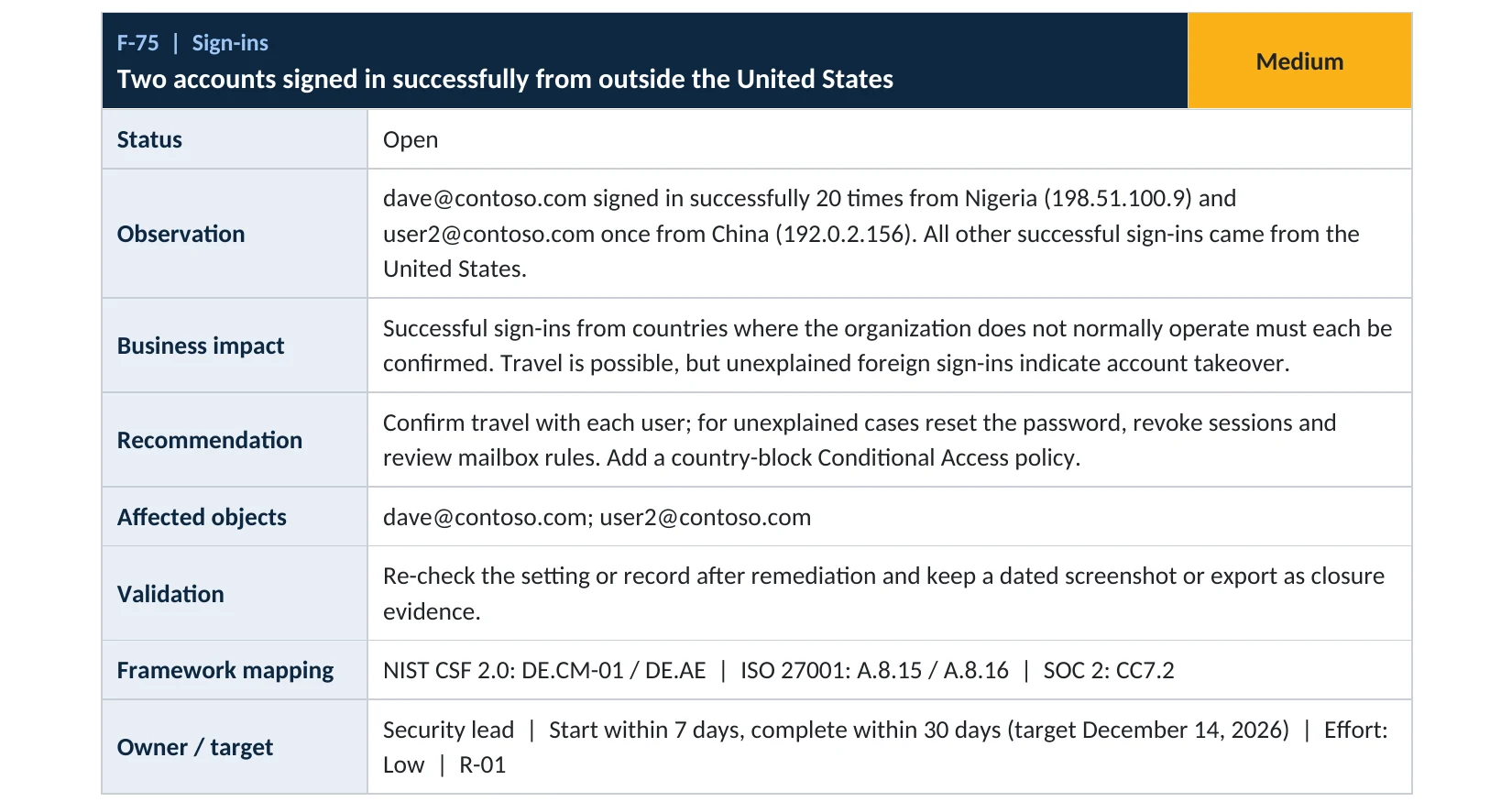
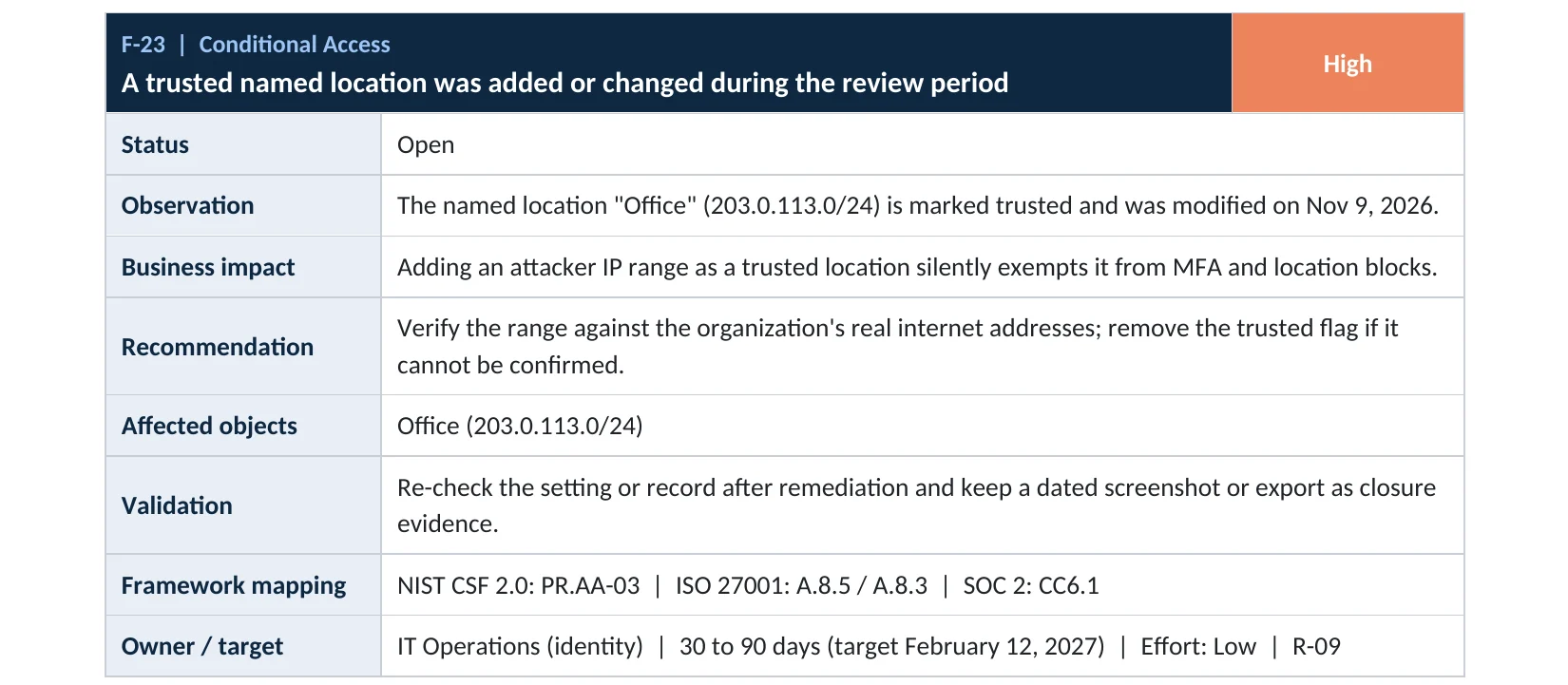
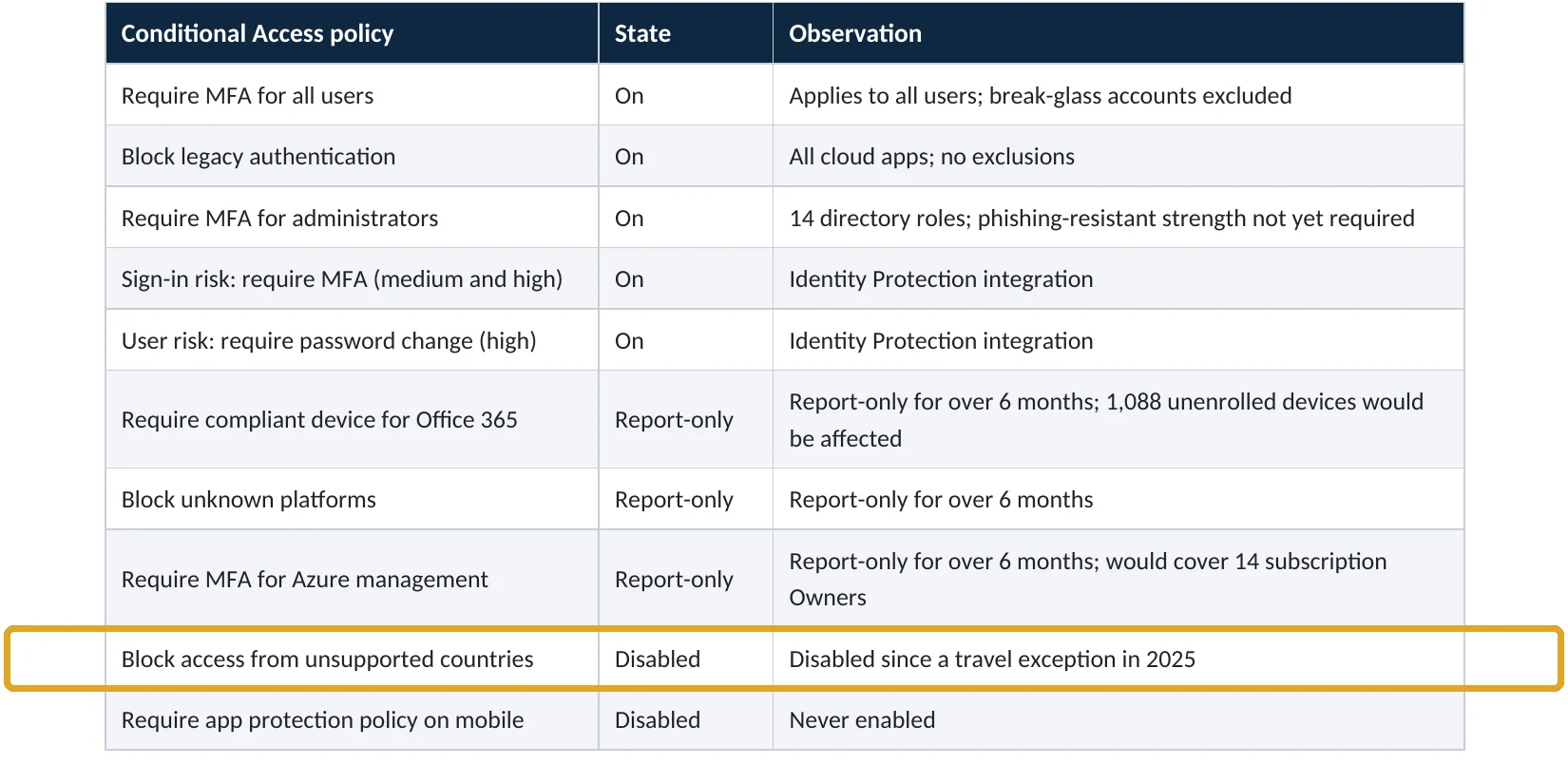
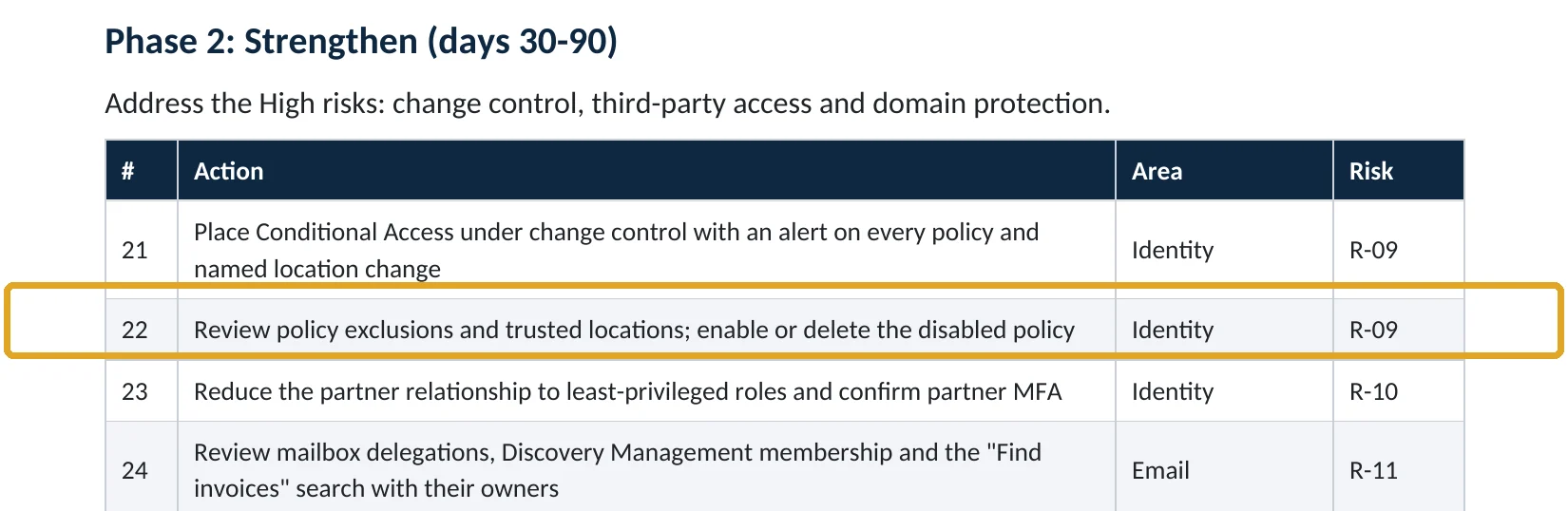
What this finding looks like in our audit reports
These are real pages from our published sample reports, written for fictional companies. Click any page to open it full size.
Your options
What each plan gives you
| Capability | Business Basic and Standard | Entra ID P1 (Business Premium, E3) | Entra ID P2 (E5) |
|---|---|---|---|
| Named locations and country blocks | No | Yes | Yes |
| Trusted IP ranges | No | Yes | Yes |
| Sign-in logs showing location | Yes | Yes | Yes |
| Risk-based policies (unfamiliar location, impossible travel) | No | No | Yes |
Without Conditional Access, review sign-in logs for foreign sign-ins regularly and make sure MFA is on for everyone.
How to check it yourself
See your location policies and trusted ranges, without changing anything
Look for a countries location and a policy that uses it. Check every IP range marked Trusted against your real office and VPN addresses.
Read-only PowerShell: named locations and trusted ranges
Connect-MgGraph -Scopes "Policy.Read.All"
Get-MgIdentityConditionalAccessNamedLocation |
  Select-Object DisplayName, ModifiedDateTime,
    @{n="Trusted";e={$_.AdditionalProperties.isTrusted}},
    @{n="Countries";e={$_.AdditionalProperties.countriesAndRegions -join ","}}
The command only reads settings. A trusted range nobody recognizes, or one changed recently, needs checking first.
How to configure
How to block sign-ins from other countries, step by step
Entra ID P1 or P2
Create the block
- In Named locations, select Countries location, name it Allowed countries, and select the countries you work from.
- Create a Conditional Access policy for All users, excluding your two emergency access accounts.
- Target All resources; under Network, include Any network or location and exclude Allowed countries.
- Set Grant to Block access and the policy to Report-only.
- After a week of clean results, switch it to On.
Keep it honest
Travel and trusted ranges
- Create a travel exception group with time-limited membership.
- Remove the trusted flag from any IP range you can’t confirm.
- Alert on every change to named locations and Conditional Access.
- Review foreign sign-ins weekly in the sign-in logs.
What your users will notice
Nothing at home. Travelers abroad are blocked unless they’re in the exception group, so tell staff to ask before trips.
How to undo it
Set the policy back to Report-only or Off. Deleted policies and locations can be restored for 30 days.
Proof and questions
How to prove it is fixed, and what to ask your IT provider
Evidence it is fixed
- An allowed-countries policy is On, with only emergency accounts excluded.
- Report-only results reviewed before enforcement.
- Every trusted IP range matches a known office or VPN.
- An alert fires on named location changes.
Questions for your IT provider
- Do we block sign-ins from countries we don’t work in?
- Who is excluded from that policy, and why?
- Which IP ranges are marked trusted, and who owns them?
- How do travelers get access?
- Have we had successful foreign sign-ins this month?
Signs it was already abused
If a foreign sign-in may already have succeeded, look for these signs
Red flags
- Successful sign-ins from countries nobody travelled to.
- A trusted location added or changed without a ticket.
- Sign-ins from new countries followed by new MFA methods.
- Inbox rules or forwarding created soon after a foreign sign-in.
- Disabled or edited location policies.
If you see these, reset the password, revoke sessions and keep the logs. Our account takeover investigation establishes what was reached, and the Microsoft 365 Evidence Clock shows how long the records are kept.
Framework mapping
Where location policies fit
| Framework | Where it fits |
|---|---|
| NIST CSF 2.0 | PR.AA-03: authentication; DE.CM-01: monitoring |
| ISO/IEC 27001:2022 | Annex A 8.5 Secure authentication; 8.16 Monitoring activities |
| SOC 2 | CC6.1 logical access; CC6.6 protection against outside threats |
Reviewed by
Written and reviewed by a practicing CISO

Ali Hassani, C|CISO, CISSP
Ali has more than 25 years of IT and cybersecurity experience and holds the Certified CISO and CISSP certifications along with Microsoft and Cisco credentials. He leads every OC Security Audit engagement from Irvine, on-site across Southern California and remotely nationwide. Every Microsoft 365 audit is read-only.
FAQ
Frequently asked questions about country blocking
Can Microsoft 365 block sign-ins by country?
Yes, with a Conditional Access policy that uses a countries named location. It needs Microsoft Entra ID P1, included in Business Premium, E3 and E5.
Should I block bad countries or allow good ones?
Microsoft recommends listing the countries you allow and blocking everything else, which is simpler for most small and mid-size companies.
Does a VPN get around it?
Yes, if the VPN exits in an allowed country. Keep MFA and risk-based policies on as well.
What's a trusted location?
An IP range marked trusted. Policies can exempt it, so an attacker's range added as trusted is dangerous. Review them regularly.
What about staff who travel?
Put them in a time-limited exception group before the trip, and remove them when they return.
Which plans include this?
Conditional Access needs Entra ID P1: Business Premium, E3 or E5.
Next step
Keep sign-ins where your business is
Prevent
Microsoft 365 Security Audit
$3,500 fixed
About 200 read-only checks across sign-in protection, email, sharing and devices, for any tenant size, with four reports and a remediation roadmap.
Respond
Microsoft 365 & Azure Compromise Investigation
From $3,500
For when an account signed in from somewhere it shouldn’t: we establish what was reached.
Want to see the deliverables first? Open the Microsoft 365 audit sample report or browse all our sample reports.

Service
Microsoft 365 Security Audit
The fixed-price audit that checks this item and about 200 more.
See the audit ›
Service
Microsoft Entra ID Security Audit
A deeper look at identities, Conditional Access, roles and apps.
See the Entra ID audit ›
Service
Compromise Investigation
When an account or mailbox may already be in an attacker’s hands.
See the investigation ›Related reading: How to turn on risk-based Conditional Access · How to move policies from report-only to on · How to set up emergency access accounts
Sources
Sources used on this page
- Microsoft Learn, Block access by location
- Microsoft Learn, Conditional Access: Network assignment
- Microsoft Learn, Plan a Conditional Access deployment
- Microsoft Source, Microsoft releases 2025 Digital Defense Report
This guide is general information, not a guarantee of protection or legal advice. Microsoft changes its admin centers often: menu names and steps were checked against Microsoft Learn on November 20, 2026. Drawings are simplified and are not screenshots of Microsoft products. Sample findings come from fictional companies. Incidents are described as reported by the cited sources; OC Security Audit was not involved in them. Questions? Call 949-777-5567 or email support@ocsecurityaudit.com.