

LIBRARY 3.30Microsoft 365 Security Library
How to Set Outbound Spam Limits and Alerts in Microsoft 365
When an account is taken over, one of the first things it does is send. Outbound spam limits cap how much a mailbox can send and stop it when it goes over. Here is how to set them and make sure someone hears about it.
Reviewed by Ali Hassani, C|CISO, CISSP · Last verified November 20, 2026
Outbound spam policies are part of Exchange Online Protection on every plan, and Microsoft publishes recommended Standard and Strict values for them (Microsoft Learn).
In one minute
- Set the hourly external, hourly internal and daily recipient limits.
- Set the action to Restrict the user from sending mail.
- Make sure the User restricted from sending email alert reaches a real person.
- Investigate any restricted user before unblocking them.
Outbound spam settings are part of the email security checks in our Microsoft 365 Security Audit.
What it is
What an outbound spam policy does
The outbound spam policy sets how many recipients a mailbox can send to per hour (external and internal) and per day, and what happens when it goes over. A value of 0 means the service defaults are used (Microsoft Learn).
Microsoft’s recommended values
| Setting | Default | Standard | Strict |
|---|---|---|---|
| External recipients per hour | 0 (service default) | 500 | 400 |
| Internal recipients per hour | 0 (service default) | 1,000 | 800 |
| Recipients per day | 0 (service default) | 1,000 | 800 |
| Action when a limit is reached | Restrict until the next day | Restrict the user | Restrict the user |
| Automatic forwarding | Automatic (system-controlled) | Off | Off |
Values from Microsoft’s recommended settings for outbound spam policies (Microsoft Learn). Outbound spam policies aren’t part of the preset security policies, so you set them yourself.
Why it matters
Spam from your domain hurts you twice
- Password stolenPhishing, spray or reuse.
- Mass phishing sentTo your clients and vendors.
- Limit reached, user restrictedAdmin alerted.
- Keeps sendingWithout it: thousands of messages.
- Reputation damagedClients phished in your name.
Drawing: where outbound limits break the path.
of identity attacks were password attacks in the first half of 2025.
Source: Microsoft Digital Defense Report 2025lost to business email compromise in 2024, the FBI reports.
Source: CyberScoop on FBI IC3external recipients per hour, Microsoft’s recommended Standard limit.
Source: Microsoft Learnbuilt-in alerts cover sending limits, suspicious sending patterns and restricted users.
Source: Microsoft LearnThe restriction actions
| Action | What happens | Our advice |
|---|---|---|
| Restrict the user from sending mail | Blocked until an admin removes the restriction | Recommended |
| Restrict until the following day | Blocked until the next UTC day, then sends again | Default; less control |
| No action, alert only | Keeps sending | Avoid for most users |
Microsoft notes that exceeding a sending limit can indicate a compromised account, and to investigate before removing a restriction (Microsoft Learn).
What we find in audits
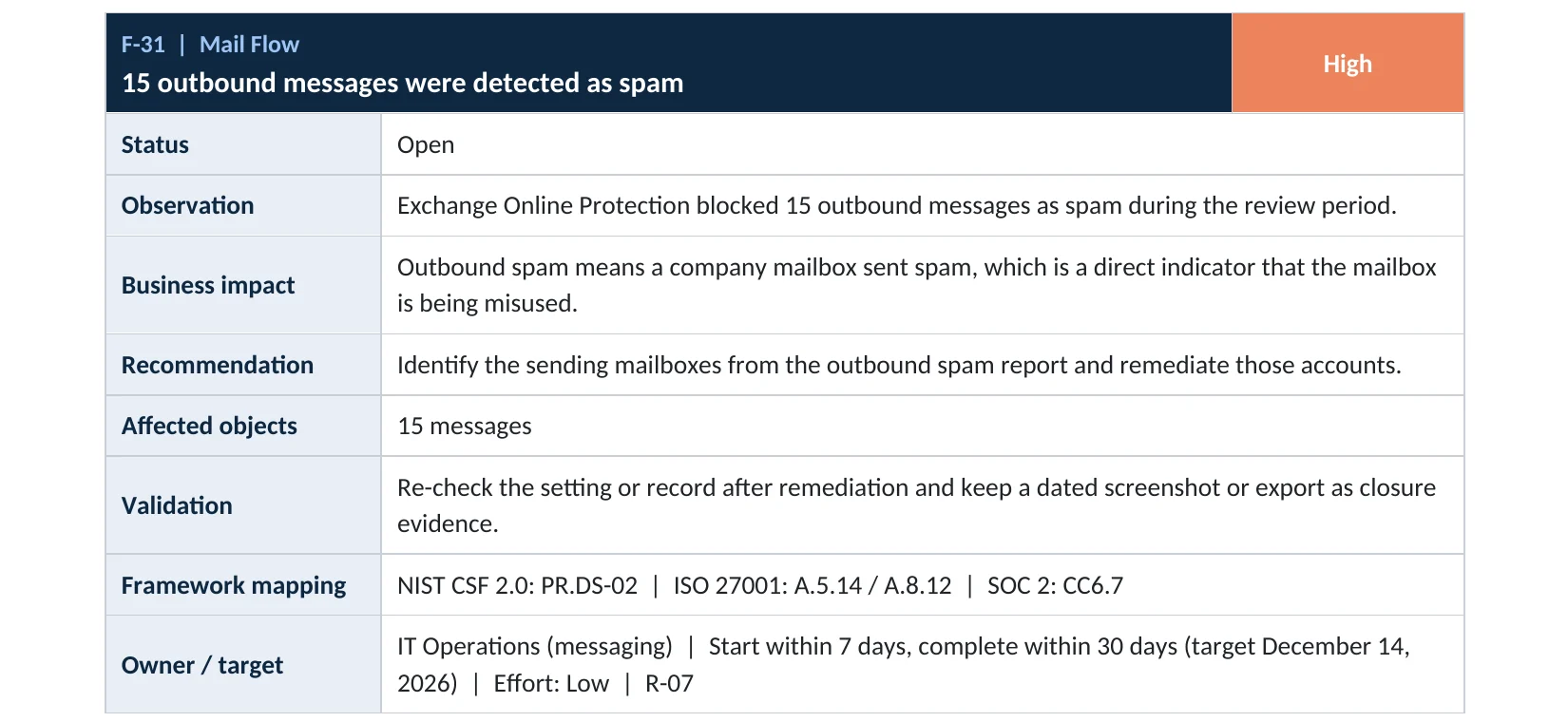
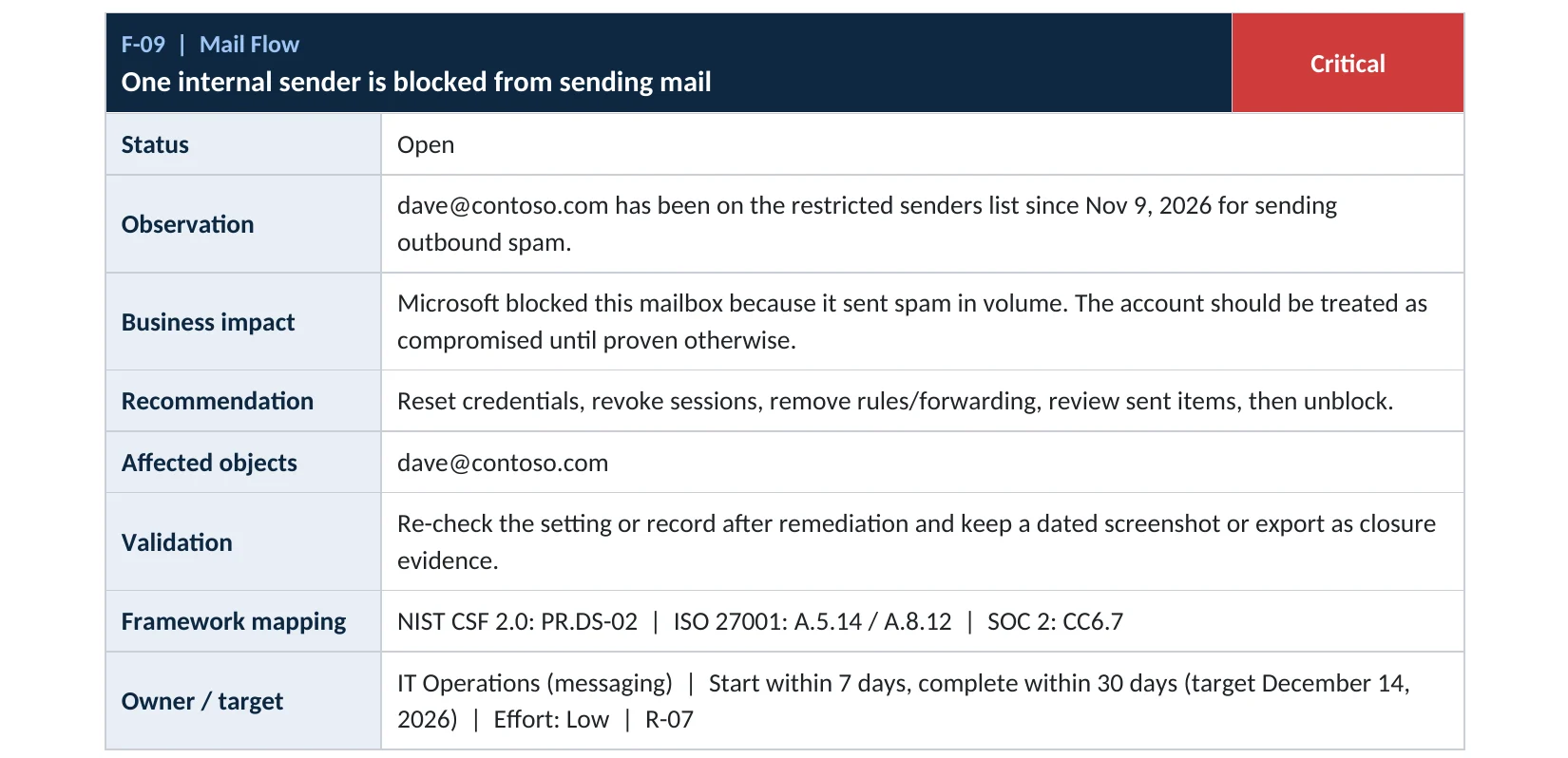
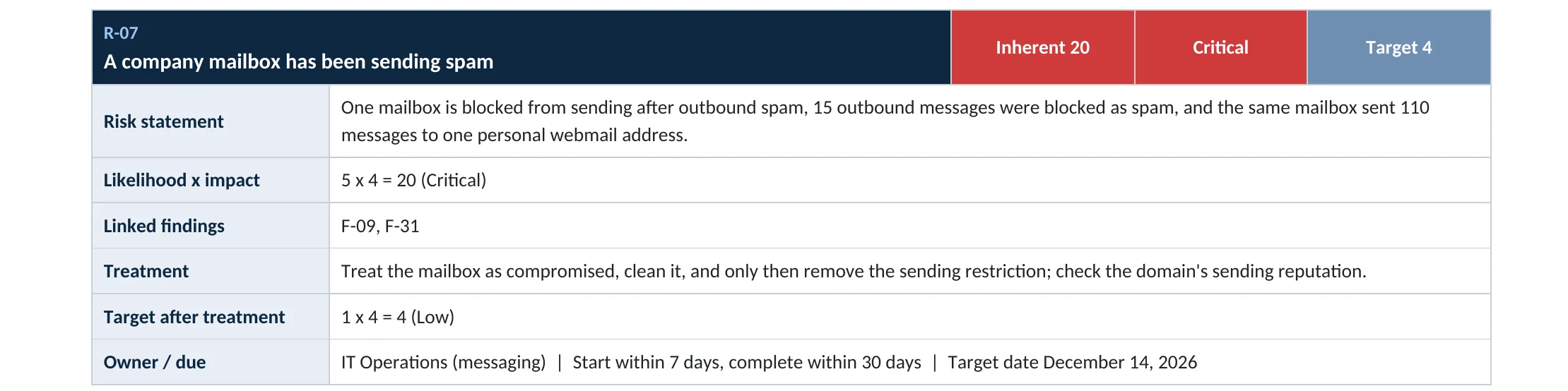
What this finding looks like in our audit reports
These are real pages from our published compromise assessment sample, written for a fictional company. Click any page to open it full size.

Your options
What each plan gives you
| Capability | All plans with Exchange Online |
|---|---|
| Default and custom outbound spam policies | Yes |
| Recipient limits and restriction action | Yes |
| Restricted entities page and unblock | Yes |
| Built-in alerts for sending limits and restricted users | Yes |
A custom policy can give a mailbox that sends newsletters different limits; Microsoft recommends a bulk email service or SMTP relay for genuine high-volume sending (Microsoft Learn).
How to check it yourself
See your limits and restricted users, without changing anything
Also open Restricted entities to see anyone currently blocked from sending.
Read-only PowerShell: outbound limits and restricted users
Connect-ExchangeOnline
Get-HostedOutboundSpamFilterPolicy |
  Select-Object Name, RecipientLimitExternalPerHour, RecipientLimitInternalPerHour, RecipientLimitPerDay, ActionWhenThresholdReached
Get-BlockedSenderAddress
The commands only read data. Limits of 0 mean the service defaults; any blocked sender is a mailbox to investigate.
How to configure
How to set outbound spam limits, step by step
All plans
Set the limits
- Open the default outbound spam policy and select Edit protection settings.
- Set external 500, internal 1000 and daily 1000 (Microsoft’s Standard values), or lower.
- Set Restriction placed on users who reach the message limit to Restrict the user from sending mail.
- Set Automatic forwarding rules to Off – Forwarding is disabled.
- Save, and create a custom policy for any mailbox that genuinely sends more.
Alerts
Make sure someone hears
- Open Alert policy and find User restricted from sending email.
- Add a monitored mailbox or your IT provider as a recipient.
- Check Email sending limit exceeded and Suspicious email sending patterns detected are on too.
- When a user is restricted, reset the password, revoke sessions and check rules before unblocking.
What your users will notice
Nothing in normal use. Someone sending a large mailing from Outlook may hit the limit; use a bulk email service for that.
How to undo it
Set the limits back to 0 (service defaults) and the action to Restrict the user from sending mail until the following day.
Proof and questions
How to prove it is fixed, and what to ask your IT provider
Evidence it is fixed
- Outbound limits set at or below Microsoft’s Standard values.
- Action set to restrict the user until an admin reviews.
- The restricted-user alert goes to a monitored address.
- No restricted users left unexplained.
Questions for your IT provider
- What are our outbound recipient limits?
- Who gets the alert when a user is restricted from sending?
- Has any mailbox been restricted this year, and what did we find?
- How do we send newsletters or bulk mail?
- Is automatic forwarding off in the outbound policy?
Signs it was already abused
If a mailbox may already have sent spam, look for these signs
Red flags
- A user on the Restricted entities page, or a 5.1.8 bounce when they send.
- Clients replying to emails your staff never sent.
- Hundreds of messages in Sent Items, or Sent Items emptied.
- New inbox rules that delete replies or bounces.
- Sign-ins from countries you don’t operate in.
If you see these, don’t just unblock the user. Reset the password, revoke sessions and keep the logs. Our account takeover investigation establishes what was sent and to whom, and the Microsoft 365 Evidence Clock shows how long the records are kept.
Framework mapping
Where outbound spam controls fit
| Framework | Where it fits |
|---|---|
| NIST CSF 2.0 | PR.DS-02: data in transit; DE.CM-01: network monitoring |
| ISO/IEC 27001:2022 | Annex A 5.14 Information transfer; 8.16 Monitoring activities |
| SOC 2 | CC6.7 restriction of data transmission; CC7.2 monitoring |
Reviewed by
Written and reviewed by a practicing CISO

Ali Hassani, C|CISO, CISSP
Ali has more than 25 years of IT and cybersecurity experience and holds the Certified CISO and CISSP certifications along with Microsoft and Cisco credentials. He leads every OC Security Audit engagement from Irvine, on-site across Southern California and remotely nationwide. Every Microsoft 365 audit is read-only.
FAQ
Frequently asked questions about outbound spam limits
What are the outbound spam limits in Microsoft 365?
Per-mailbox limits on external recipients per hour, internal recipients per hour and recipients per day. Microsoft recommends 500, 1,000 and 1,000 (Standard) or 400, 800 and 800 (Strict).
What happens when a user hits the limit?
Depending on the policy, the user is restricted until an admin removes the restriction, restricted until the next day, or only an alert is sent.
Why was one of our users blocked from sending?
Usually because the mailbox sent spam or exceeded limits. Microsoft says this can indicate a compromised account, so investigate before unblocking.
How do we unblock a restricted user?
From the Restricted entities page in the Defender portal, after resetting the password, revoking sessions and checking inbox rules.
We send newsletters. Will this break them?
It can. Use a bulk email service or a custom outbound policy for that one mailbox.
Which plans include outbound spam policies?
All Microsoft 365 plans with Exchange Online.
Next step
Cap the damage a stolen mailbox can do
Prevent
Microsoft 365 Security Audit
$3,500 fixed
About 200 read-only checks across sign-in protection, email, sharing and devices, for any tenant size, with four reports and a remediation roadmap.
Respond
Microsoft 365 & Azure Compromise Investigation
From $3,500
For when a mailbox sent spam or phishing in your name: we establish how it was taken and what was sent.
Want to see the deliverables first? Open the Microsoft 365 audit sample report or browse all our sample reports.

Service
Microsoft 365 Security Audit
The fixed-price audit that checks this item and about 200 more.
See the audit ›
Service
Microsoft 365 Email Security
Our review of Exchange Online and Defender email protection.
See email security ›
Service
Compromise Investigation
When an account or mailbox may already be in an attacker’s hands.
See the investigation ›Related reading: How to block external email forwarding · How to turn on alert policies · How to turn off IMAP, POP and SMTP AUTH
Sources
Sources used on this page
- Microsoft Learn, Configure outbound spam policies
- Microsoft Learn, Recommended email and collaboration threat policy settings
- Microsoft Learn, Outbound spam protection
- Microsoft Learn, Remove blocked users from the Restricted entities page
- Microsoft Learn, Troubleshoot outbound sending limits and blocked users
- Microsoft Source, Microsoft releases 2025 Digital Defense Report
- CyberScoop, FBI IC3 cybercrime report 2024 key statistics
This guide is general information, not a guarantee of protection or legal advice. Microsoft changes its admin centers often: menu names and steps were checked against Microsoft Learn on November 20, 2026. Drawings are simplified and are not screenshots of Microsoft products. Sample findings come from fictional companies. Incidents are described as reported by the cited sources; OC Security Audit was not involved in them. Questions? Call 949-777-5567 or email support@ocsecurityaudit.com.